
Before You Begin
Important: A Bid Board Pro account is required to use the BuildingConnected integration with Followup CRM. Trial versions are not supported. Please ensure you have an active Bid Board Pro account before proceeding. If you need to upgrade, contact BuildingConnected directly.
If you would like Followup to host the APS application on your behalf instead of managing it yourself, please reach out to your Customer Success Manager (CSM) to get that set up.
Connecting BuildingConnected via Your Own APS Account
Step 1: Open Your APS App Settings
Log in to your Autodesk Platform Services (APS) account and navigate to your application's settings.
Step 2: Locate Your Credentials
Inside your app settings, find the following:
- Client ID
- Client Secret
You will use these credentials to complete the connection inside Followup CRM.
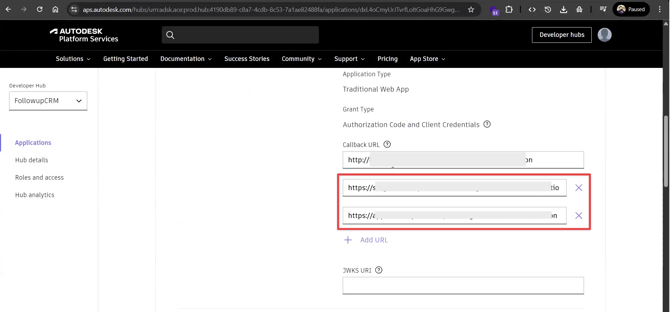
Step 3: Add the Callback URLs
Scroll down to General Settings → Callback URL and add both of the following URLs:
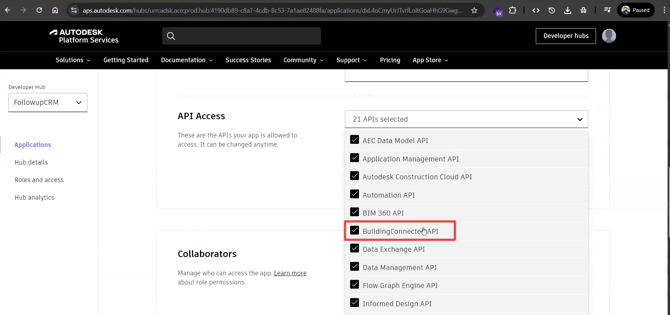
Under the API Access section, ensure that BuildingConnected API is checked. No other APIs are required.
Step 5: Save and Connect
Click Save Changes.
Then, in Followup CRM, go to Company Settings → Integrations and enter your Client ID and Client Secret to complete the connection.