
Step 1: Open a Record Where Gregg AI Assist Is Available
Gregg AI Assist can be used in the following areas of FollowUp CRM:
-
Activities
-
Projects
-
Contacts
-
Companies
Navigate to any of these records to get started.
Step 2: Use Gregg AI Assist in Activities
-
Open an existing activity or create a new one.
-
Click into the Comments field or choose to Send an Email from the activity.
-
When the comment or email editor opens, locate the Gregg AI Assist option in the top-right corner of the editor.
-
Click the Gregg AI Assist icon to open the AI Assist panel.
You can now generate or refine content directly within the activity.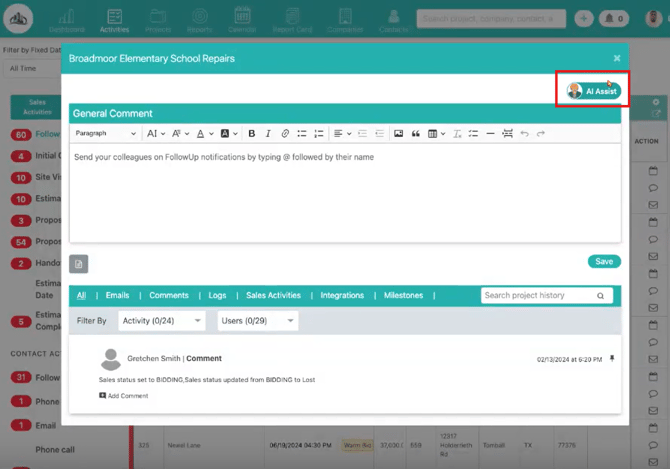
Step 3: Use Gregg AI Assist in Projects
-
Open a project record.
-
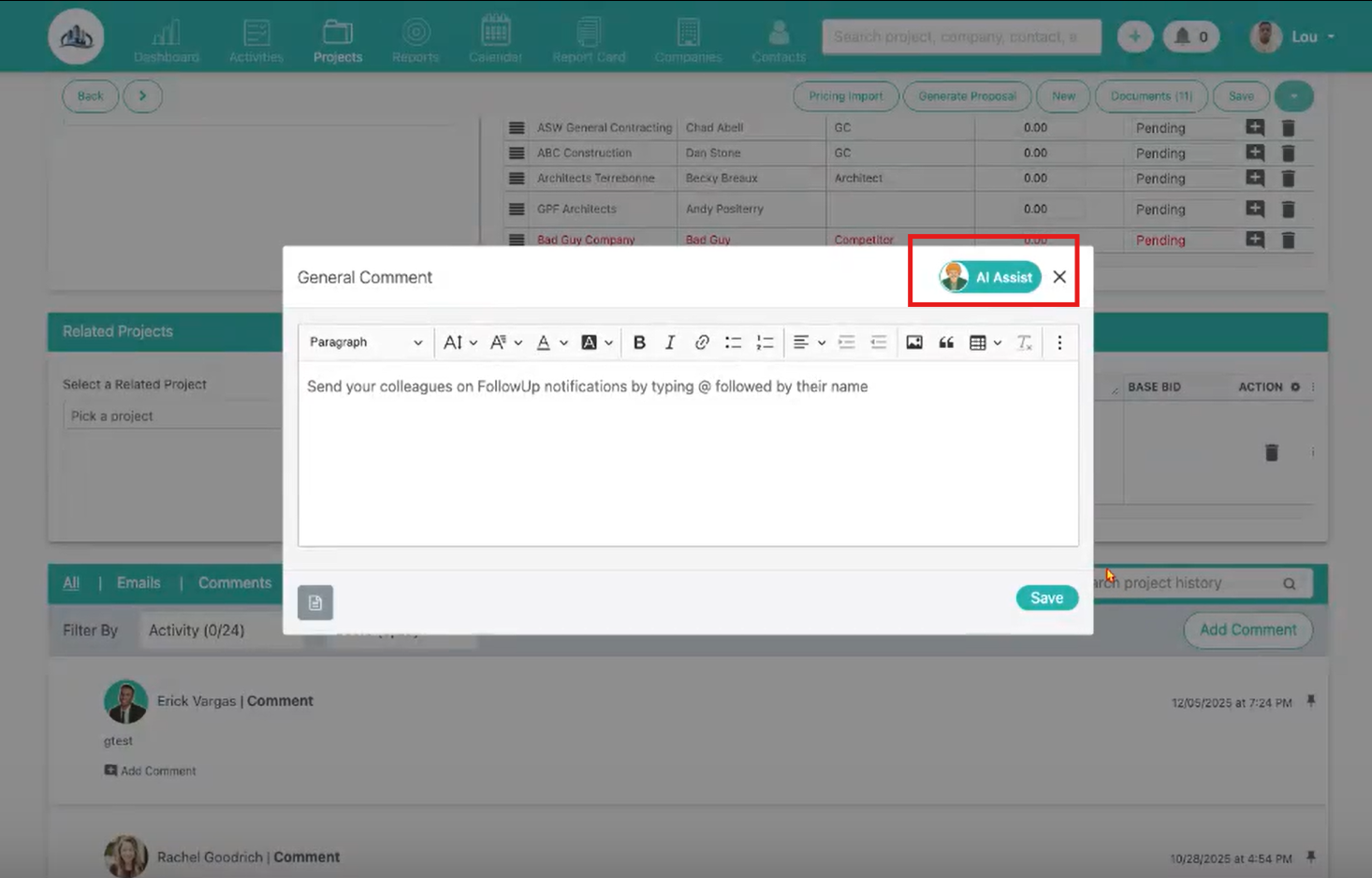
Scroll to the Comments widget or open the Email widget within the project.
-
Click into the comment box or email editor.
-
Select the Gregg AI Assist option in the top-right corner.
The same AI Assist panel appears, with the same controls and behavior used elsewhere in the system.
Step 4: Use Gregg AI Assist When Composing Project Emails
-
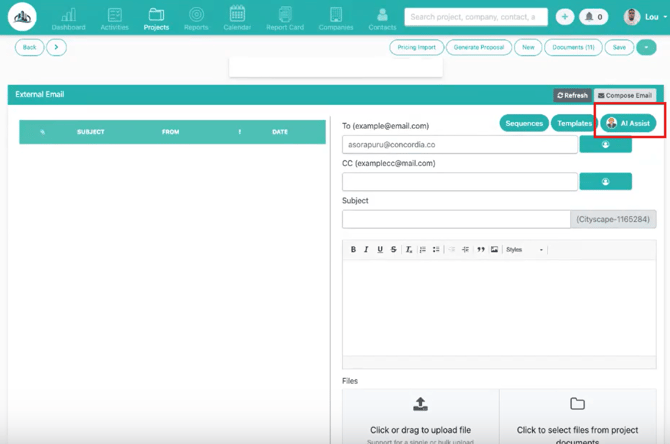
From within a project, start composing an email.
-
Once the email editor opens, locate the Gregg AI Assist option.
-
Click the icon to generate or improve your email content.
This ensures consistent communication across all project-related emails.
Step 5: Use Gregg AI Assist on Contacts
-
Open a contact record.
-
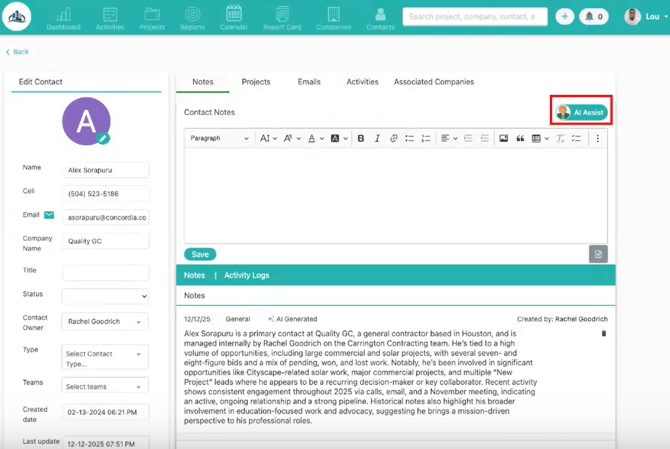
Click into the Comments section or start composing an email from the contact record.
-
Select Gregg AI Assist from the editor.
Using AI Assist at the contact level helps maintain consistent messaging across individual communications.
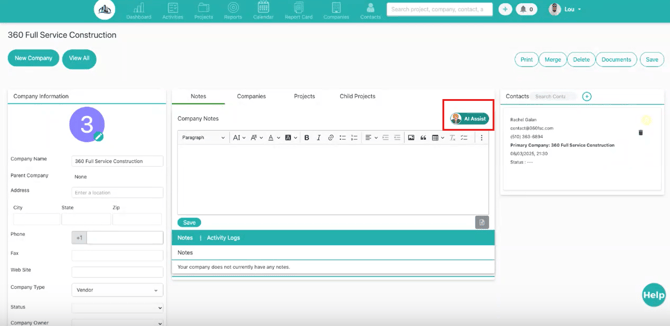
Step 6: Use Gregg AI Assist on Companies
-
Open a company record.
-
Navigate to the Comments section.
-
Click into the comment field and select Gregg AI Assist.
This is especially useful for internal notes, summaries, and account-level updates.
Step 7: Review and Save Your Content
-
Review all AI-generated content before saving or sending.
-
Make any necessary edits to ensure accuracy and relevance.
-
Save the comment or send the email when ready.
Gregg AI Assist supports your writing, but you remain in control of what is saved and sent.
What to Expect Across the Platform
-
The Gregg AI Assist panel looks and works the same in all supported areas.
-
Controls and behavior are consistent throughout FollowUp CRM.
-
No additional setup or learning is required when switching between records.