
Step 1: Open Gregg AI Assist
-
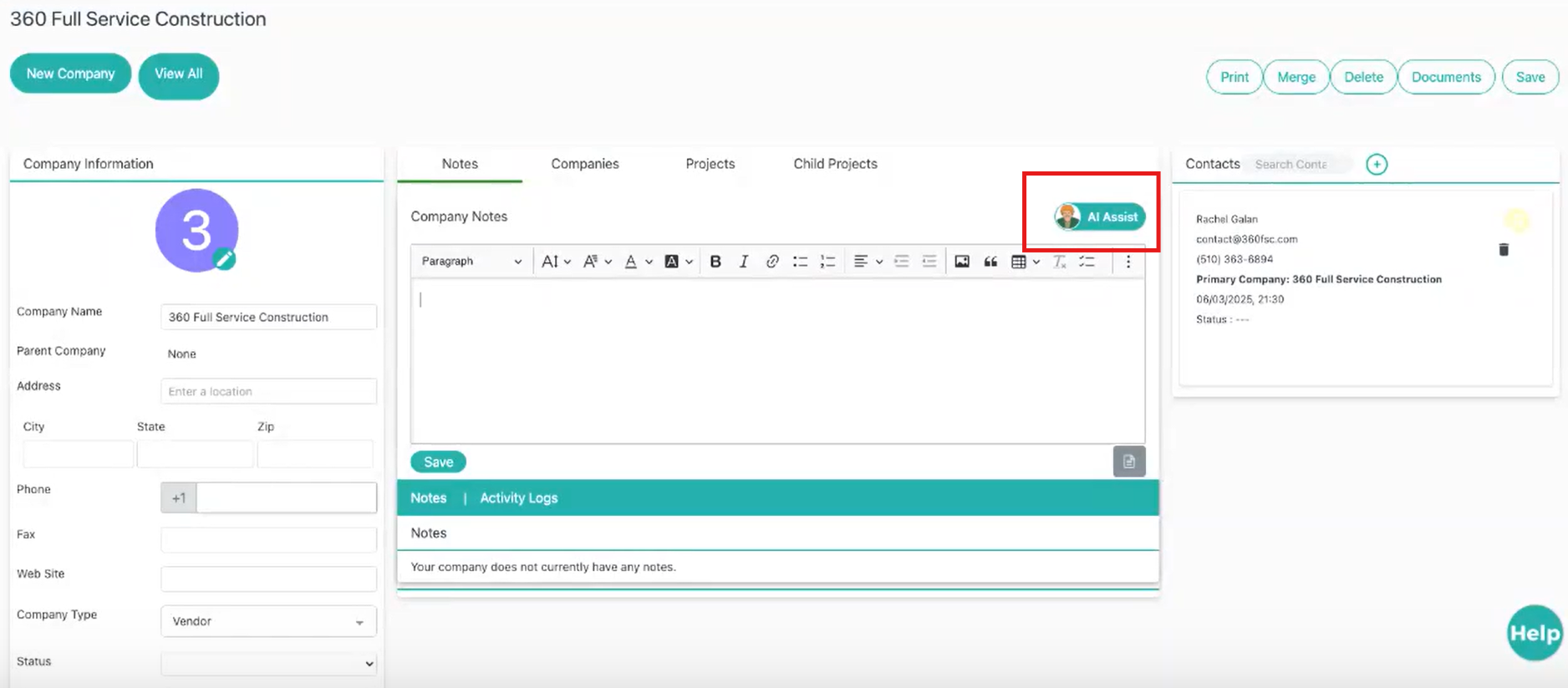
Open a record where Gregg AI Assist is available (activities, projects, contacts, or companies).
-
Click into a Comments field or open an Email editor.
-
Select the Gregg AI Assist option in the top-right corner of the editor.
The AI Assist panel will open with prompt and tone options.
Step 2: Select a Prompt
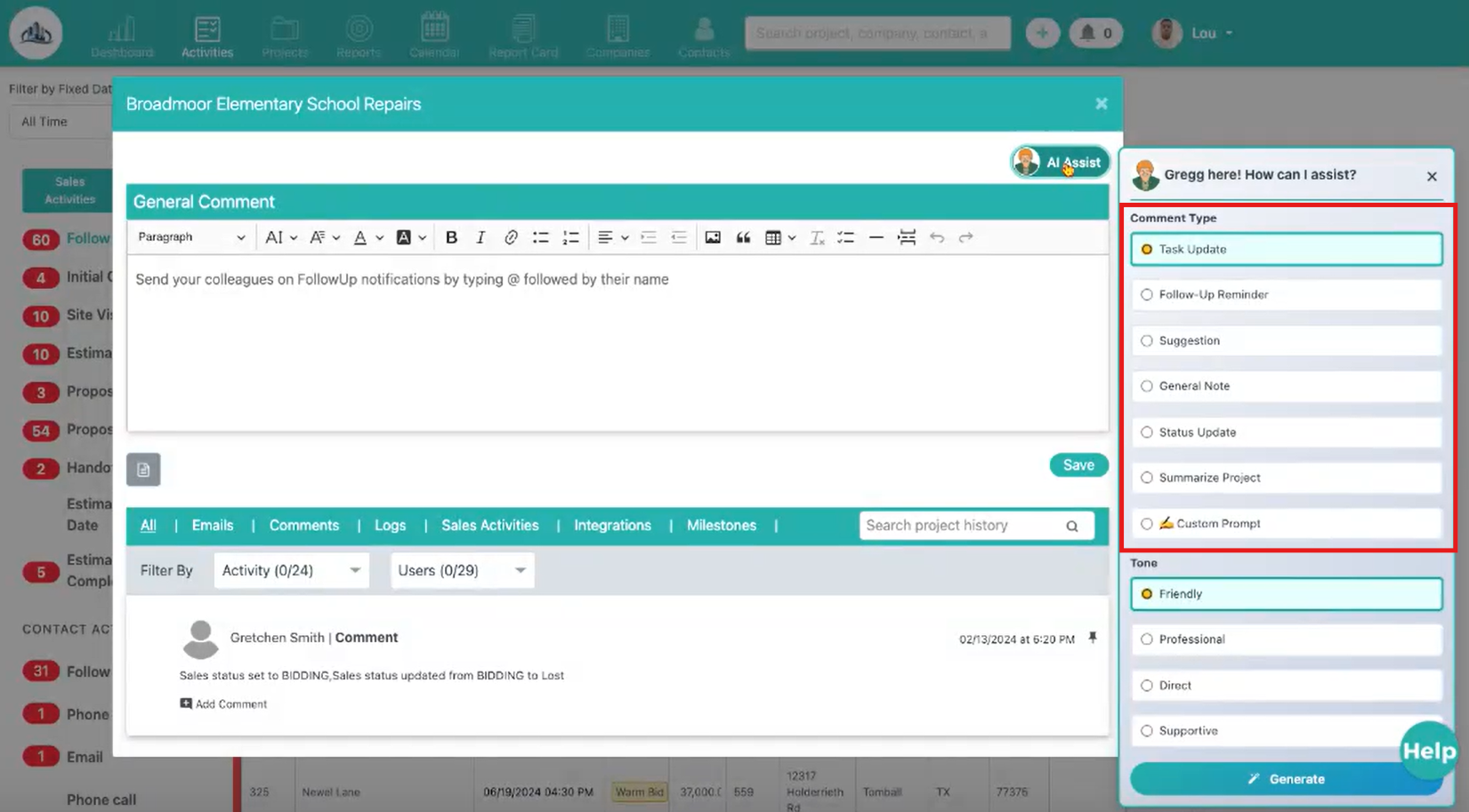
Prompts define what type of content Gregg AI Assist will generate. Choose the prompt that best matches your use case.
Available prompts include:
-
Task Update – Best for progress updates or internal status notes.
-
Follow-Up Reminder – Used for reminders, next steps, or follow-up messaging.
-
Suggestion – Helpful for recommendations, ideas, or proposed actions.
-
General Note – Summarizes the current state of a project or record.
-
Status Update – Provides a concise update on progress or changes.
-
Summarize Project – Creates a high-level summary based on available context.
-
Custom Prompt – Allows you to write your own instructions if the preset options do not meet your needs.
If you are unsure which prompt to use, start with the closest match or select Custom Prompt for more control.
Step 3: Write or Adjust a Custom Prompt (Optional)
-
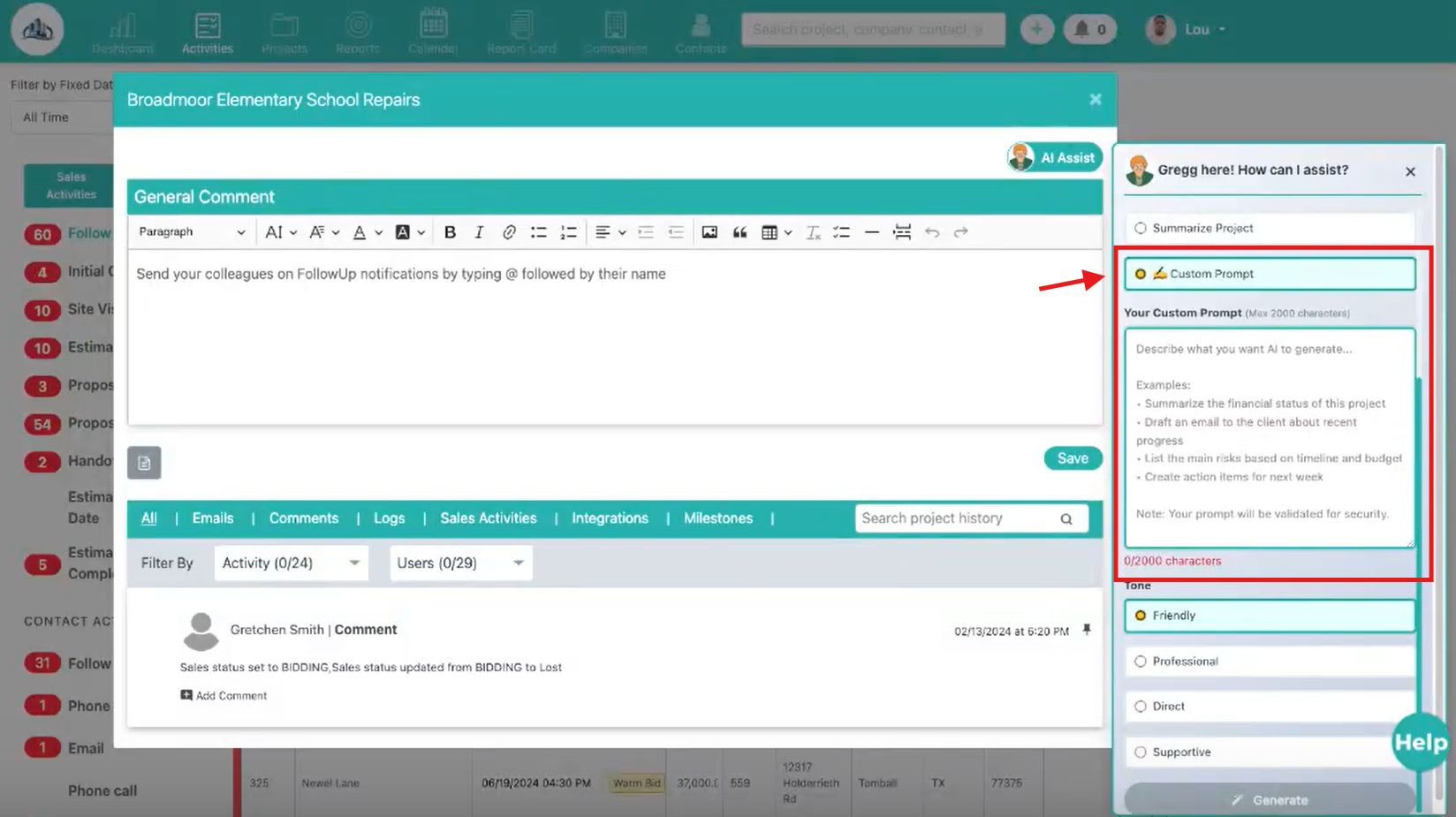
Select Custom Prompt from the prompt list.
-
Enter clear instructions describing what you want Gregg AI Assist to generate.
-
Be specific about tone, purpose, or key details if needed.
Custom prompts are useful when your request does not fit the predefined options.
Step 4: Choose a Tone
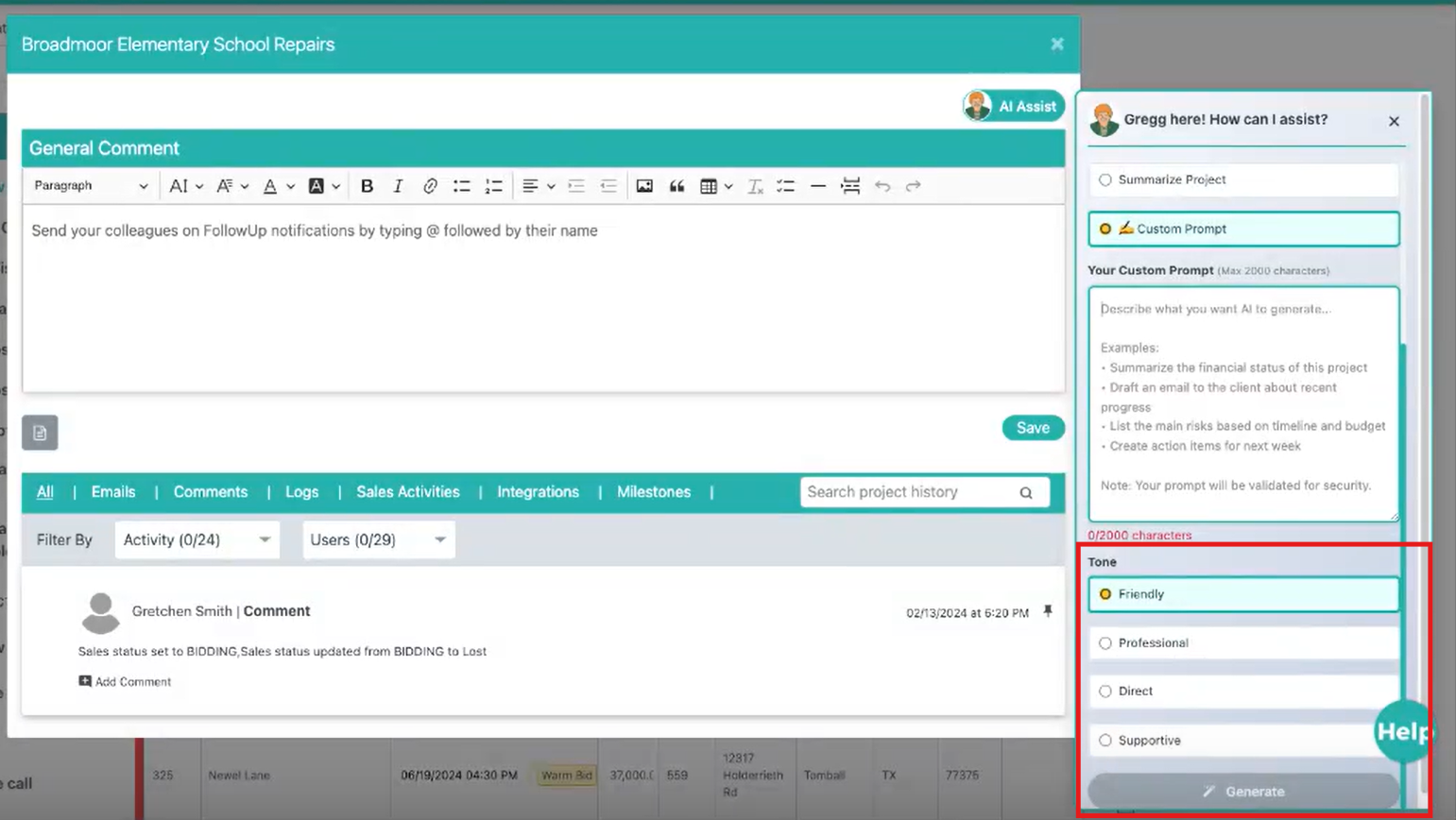
Tone affects how the message sounds, not the information it includes. Select a tone that matches your audience.
Available tone options include:
-
Friendly – Conversational and approachable.
-
Professional – Polished and client-ready.
-
Direct – Short and to the point.
-
Supportive – Empathetic and reassuring.
Changing the tone will not alter the intent of the message, only the delivery.
Step 5: Review the Generated Content
-
Review the generated text carefully.
-
Edit or refine the content as needed.
-
Ensure the message accurately reflects your intent and context.
All AI-generated content requires user review before saving or sending.
Step 6: Understand Gregg AI Assist Limitations
Gregg AI Assist is a writing assistant, not an automation tool. Keep the following limitations in mind:
-
It cannot generate images.
-
It cannot access or reveal sensitive or private information.
-
It cannot bypass user permissions.
-
It cannot automatically save comments.
-
It cannot automatically send emails.
-
It only works with the context available in the current record.
You remain in control of what is saved, sent, or shared.
Step 7: Save or Send Your Content
Once you are satisfied with the content:
-
Save the comment, or
-
Send the email manually
Gregg AI Assist supports your writing process, but all final actions are completed by you.
Best Practices
-
Always review content for accuracy before saving or sending.
-
Choose the prompt that most closely matches your goal.
-
Adjust tone based on whether the message is internal or client-facing.
-
Use custom prompts for unique or complex requests.