
Overview
When saving a contact, Followup CRM can suggest a company website using the contact’s email domain (for example, jane@acme.com → www.acme.com).
This suggestion only appears when the contact is the first contact for that company and the company does not already have a website value.
Step-by-Step Instructions
🧭 Step 1: Open the company record
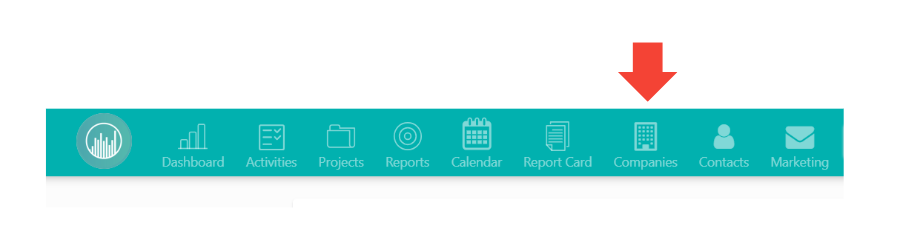
Go to Companies and open the company you want to update.
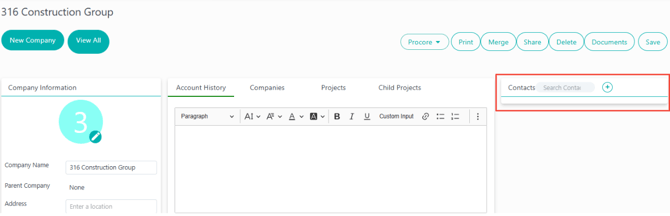
👤 Step 2: Add a new contact
Click Add Contact and enter the contact details.
✉️ Step 3: Enter the contact’s email address
Add a valid work email address (example: jane@acme.com).
ℹ️ Note: The system uses the part after
@(the domain) to build a website suggestion.
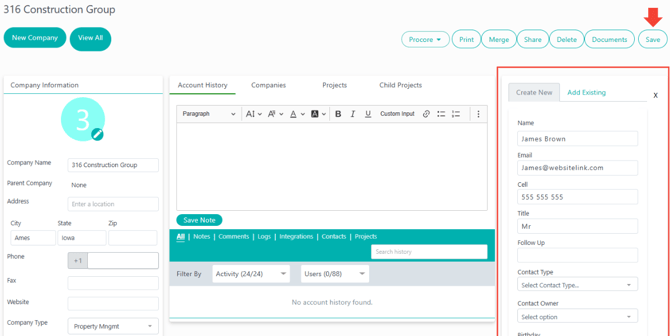
💾 Step 4: Save the contact
Save the contact record.
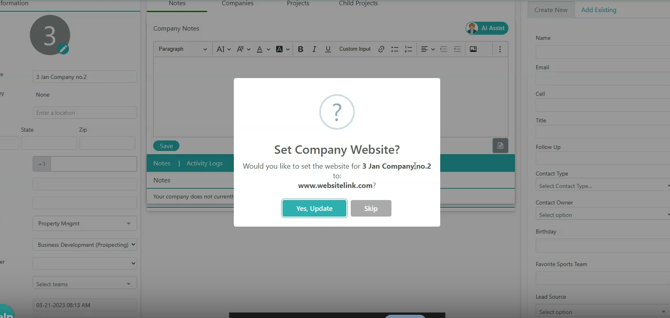
🌐 Step 5: Review the website update prompt
If applicable, you’ll see a prompt asking whether to set the company website based on the email domain.
- Select Yes, Update to apply the suggested website.
- Select Skip to keep the current website value unchanged.
✅ Step 6: Confirm the update
Check both records:
- The contact is linked to the company.
- The company Web Site field reflects your selected action.
Result
After completing these steps, the contact is linked to the correct company, and the company website is quickly populated (or left unchanged) based on your prompt selection.
Best Practices
- 🧹 Use valid business email addresses to improve website suggestions.
- 🔍 Always review the suggested domain before applying it.
- 🧾 Use Skip when the suggested website does not match the company’s preferred site.
- 🔗 Verify the company backlink on the contact record after save.
Happy Selling!