
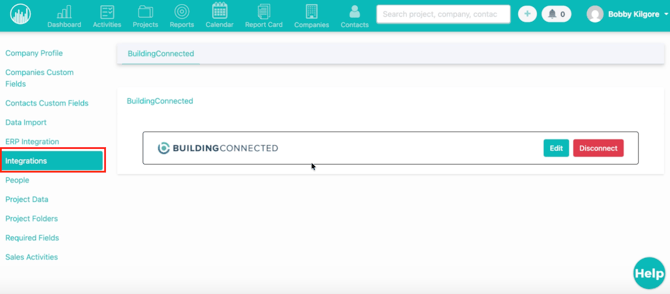
1️⃣ Open the Integration
-
Go to Settings → Integrations
-
Locate BuildingConnected
-
Confirm the connection is active
2️⃣ Access Field Mapping
-
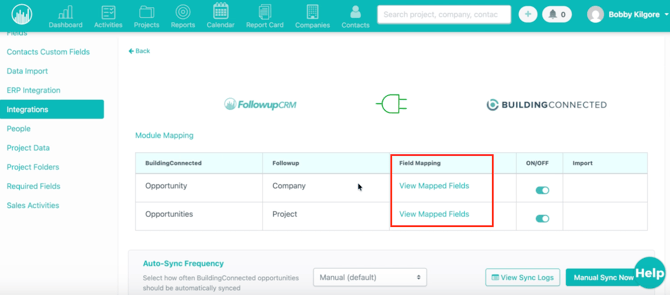
Click Mapped Fields
-
This opens the field configuration screen
This is where you control how data flows between both systems.
3️⃣ Review Default Modules
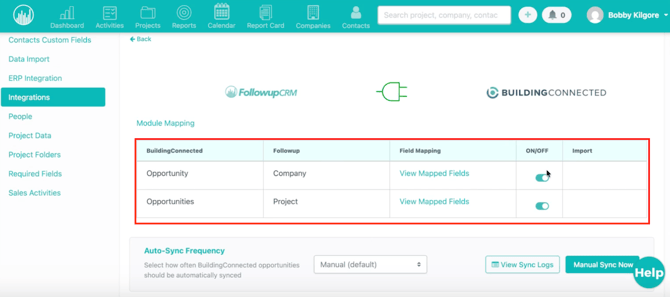
Two modules are automatically created:
-
🏢 Company
-
📁 Project
Both pull data from the BuildingConnected Opportunity.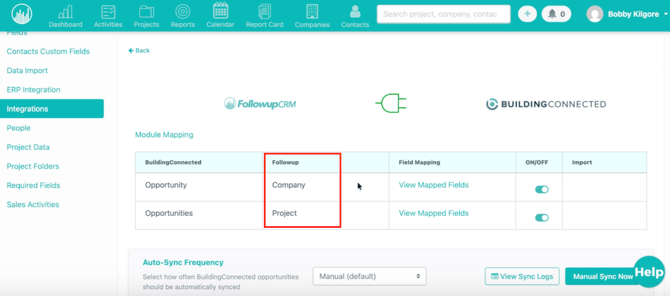
4️⃣ Understand the Layout
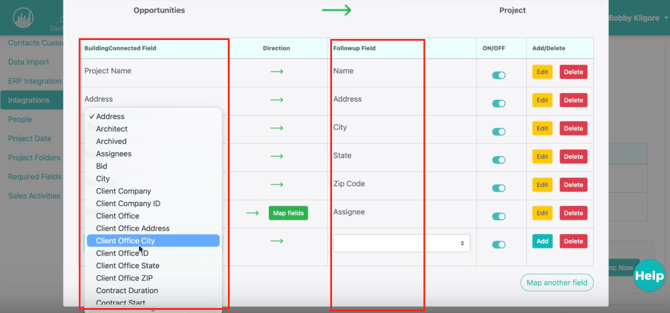
Inside the mapping screen:
-
Left side → BuildingConnected fields
-
Right side → Followup fields
Each row connects one field from BuildingConnected to one field in Followup.
5️⃣ Customize Your Field Mappings
You can:
-
✏️ Edit existing mappings
-
➕ Add new fields
-
❌ Delete unused mappings
-
🔁 Adjust each field line-by-line
Examples:
-
Company Name → Client Company
-
Contact Info → Contact fields
-
Opportunity details → Project fields
Customize this based on how your team tracks data.
6️⃣ Configure Company Mappings
-
Map company-level information
-
Examples:
-
Company name
-
Contact details
-
Client information
-
These create or update Company records in Followup.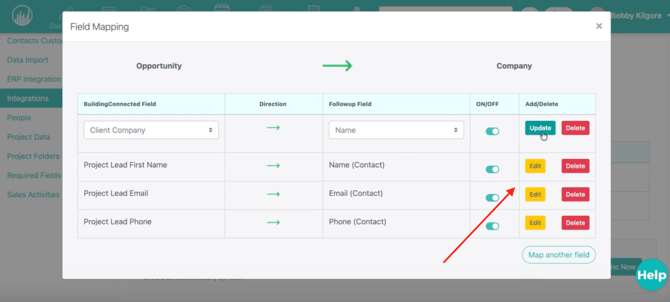
7️⃣ Turn On Modules
Make sure:
-
Project module = enabled
-
Company module = enabled
If disabled, data will not sync.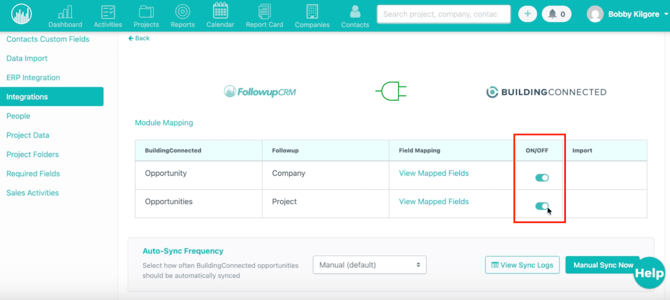
8️⃣ Check Sync Settings
Confirm your Sync Settings match your workflow.
These settings determine:
-
When records sync
-
What gets created
-
How updates are handled
9️⃣ Start Syncing
Once mapping and settings are complete:
Your BuildingConnected opportunities are ready to sync automatically into Followup as projects and companies.
✅ Result
After setup, you’ll be able to:
-
Automatically import opportunities
-
Keep project data consistent
-
Reduce manual entry
-
Align both systems with your workflow