
Overview
The AI Usage & Billing section gives Company Settings users a centralized view of Greg AI adoption and costs.
Use this page to:
- Track included monthly AI actions
- Enable or disable On-Demand Usage
- Manage Team Spend Limits
- Review member-level usage and activity history
- Monitor invoice and billing status
✅ Step 1: Confirm prerequisites
Before configuring billing and usage:
- Confirm Greg AI is enabled for your account by Followup CRM.
- Confirm you have access to Company Settings.
⚠️ Important: Users without Company Settings access cannot open AI Usage & Billing.
👤 Step 2: Open AI Usage & Billing
- Click your profile menu in the top-right corner.
- Select Company Settings.
.jpg?width=670&height=377&name=Untitled%20design%20(60).jpg)
- In the left-side menu, select AI Usage & Billing.
.jpg?width=670&height=377&name=Untitled%20design%20(61).jpg)
🔐 Step 3: Configure Greg AI access for individual users
- Go to Company Settings > People.
- Select a user.
.jpg?width=670&height=377&name=Untitled%20design%20(62).jpg)
- In Permissions, find the Voice AI section.
- Turn Voice AI access On or Off.
.jpg?width=670&height=377&name=Untitled%20design%20(63).jpg)
📝 Note: If Voice AI is off for a user, the Greg AI icon will not appear for that user.
🧩 Step 4: Configure Greg AI access through permission sets
- Open your permission sets area in Company Settings.
- Edit the desired permission set.
- Enable or disable Voice AI access for that set.
- Assign users to the updated permission set as needed.
📝 Note: Admins have Voice AI access by default.
📊 Step 5: Review Included AI Actions
At the top of AI Usage & Billing, review:
- Included actions per user per month
- Included action reset date
- Active AI users count
📝 Definition: An active AI user is someone who has used AI at least once.
💳 Step 6: Add or update payment method
In the Payment section:
- Click Add Card or Update Card.
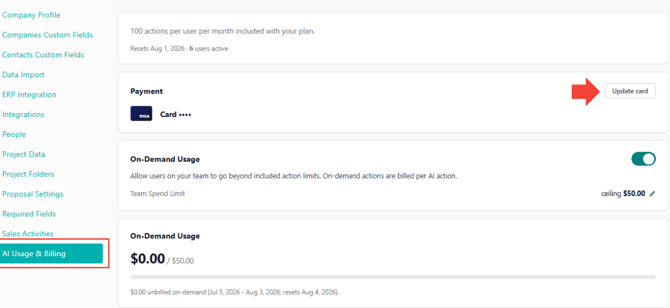
- Complete the secure Chargebee payment flow.
- Return to Followup CRM and confirm the card appears in Payment.
⚠️ Important: A valid payment method is required to enable On-Demand Usage.
⚙️ Step 7: Enable On-Demand Usage and set Team Spend Limit
In the On-Demand Usage section:
- Turn On-Demand Usage on or off.
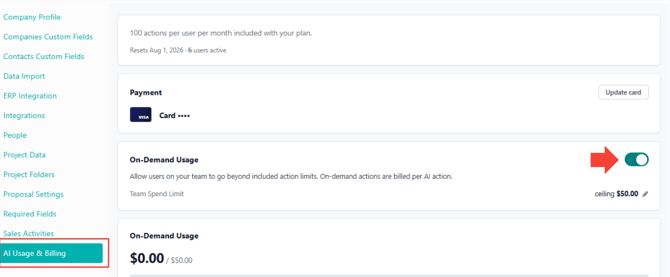
- Click the pencil icon next to Team Spend Limit.
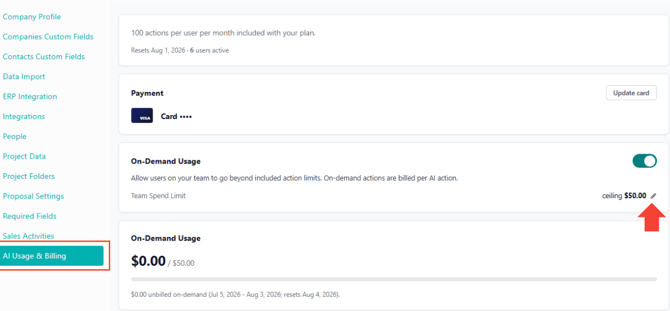
- Enter the monthly dollar limit and save.
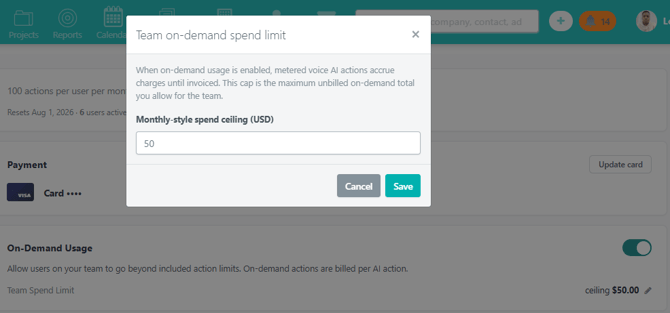
📝 How it works: Team Spend Limit is shared across the account.
If one user uses $10 and another uses $20, total on-demand usage is $30.
⚠️ Important: If payment is expired or declined, On-Demand Usage is blocked until billing is current.
👥 Step 8: Review member-level usage
In the Members section, review each active user:
- Member name
- Remaining Monthly Actions
- On-Demand Usage
Use this table to monitor who is consuming included actions and on-demand spend.
🔎 Step 9: Search detailed usage history
In Usage Details, review AI activity records:
- Date and time
- User
- Type
- Action
- Cost
Use search to filter by date, user, type, action, or cost.
📝 Note: Usage may appear as Included or On-Demand based on included-limit availability.
🧾 Step 10: Review invoices and billing tools
In Invoice & Billing Tools, review:
- Unbilled usage
- Open invoices
- Invoice dates and descriptions
- Invoice totals and statuses
- Downloadable invoice PDFs (when available)
At billing cycle close, on-demand usage is processed through Chargebee and usage resets for the next cycle.
After completing these steps, you will be able to control Greg AI access, manage payment and on-demand billing settings, monitor team usage, and review invoice activity from one centralized page.
Best Practices
✅ Keep a valid payment method on file before enabling On-Demand Usage.
✅ Set a Team Spend Limit that matches your monthly budget controls.
✅ Review Members and Usage Details regularly to identify high-usage trends early.
✅ Confirm permissions whenever a user reports missing Greg AI access.
✅ Check invoice status each billing cycle to avoid on-demand interruptions.
Happy Selling!