
The AI tool talks to Followup with your token. You stay in the AI chat. You can ask for reports (pipeline, base bid, contract value), open a project, change a sales status, or match ERP names.
Followup does not install Claude, ChatGPT, or Gemini for you. Use the AI you already have.
If you were shown Claude in Chrome, use Chrome. That add-in may not be available in other browsers.
You create the token and paste it into the AI tool. If you do not see the API tab, ask Followup to turn it on.
Before you start
You need:
- A Followup login
- The AI tool you want to use (Claude, ChatGPT, Gemini, or another tool that accepts an API token)
If you do not see API, stop and ask Followup. Do not guess.
Step 1: Create a token — Followup CRM
- Sign in to Followup.
- Click your name.
- Click Settings, then My Settings.
- Click the API tab.
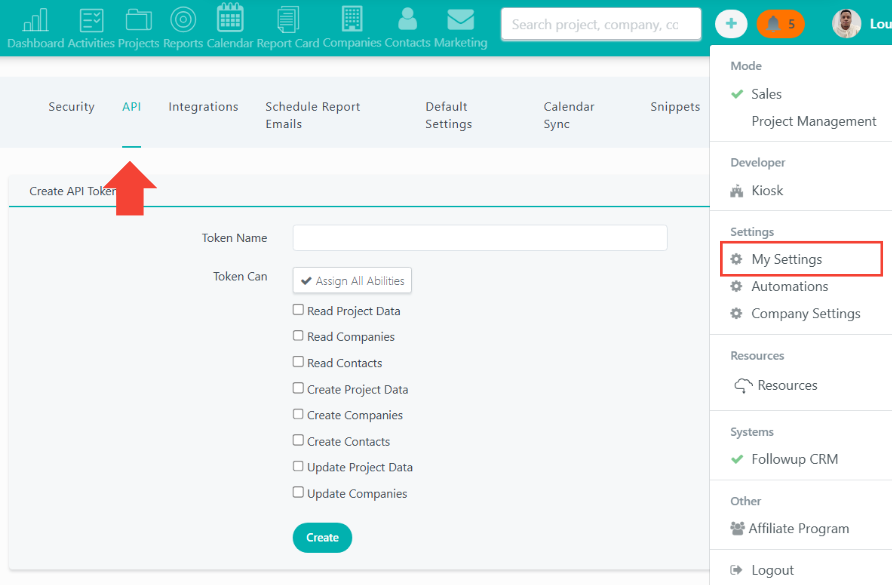
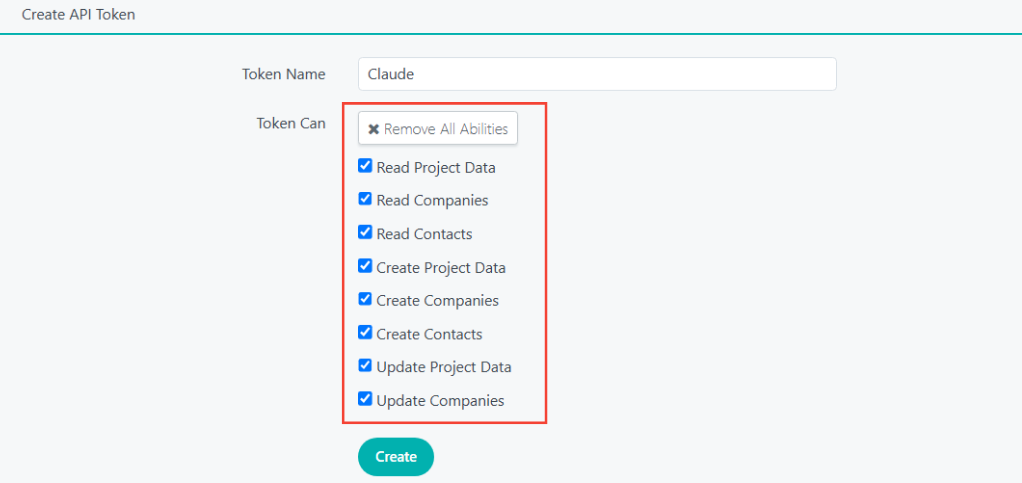
- Under Create API Token, type a Token Name you will recognise (for example Claude, ChatGPT, or Gemini).
- Under Token Can, click Assign All Abilities if you want the AI to read and update. Or tick only what you need:
- Read Project Data, Read Companies, Read Contacts — reports
- Update Project Data, Update Companies — change sales statuses and company details
- Create Project Data, Create Companies, Create Contacts — only if the AI should create records
- Click Create.
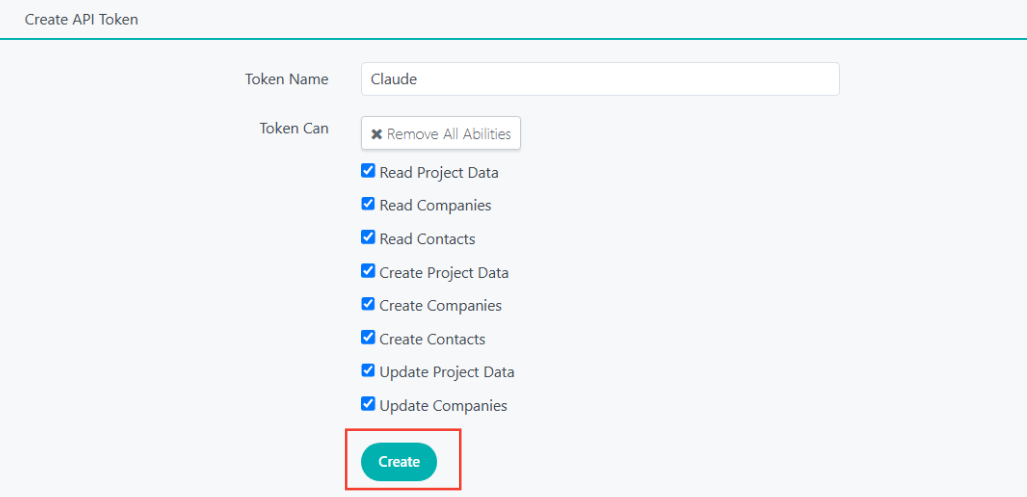
- A window opens: Here is your new API token. This is the only time Followup shows the full token.
- Click Copy To Clipboard.
- Click Close.
The token window is not shown here. It appears over the form and shows the token once, with a Copy To Clipboard button.
Do not send the token to Followup.
Step 2: Paste the token into the AI tool
- Open Claude, ChatGPT, Gemini, or the AI you use.
- Find that tool’s place to add an API key, connector, or custom connection. Follow its own screens. We do not document those screens here.
- Paste the Followup token.
- Save in the AI tool.
The token goes in the AI tool, not back into Followup.
Step 3: Try it
Ask something you already know, for example:
- Show my pipeline
- What is the base bid on [project]?
- What is the contract value?
- Open that project in Followup
- Change the sales status on [project] to [status]
- Match this name to the ERP name
Confirm the answer in Followup before you trust a change.
If the token is lost or seen by someone else
Followup cannot show the full token again.
- Click your name.
- Click Settings.
- Click API.
- In API Tokens, find the name.
- Click the red remove button.
- Confirm if you are asked.
- Create a new token (Step 1) and paste it into the AI tool again.
FAQ
Is there a fee?
No extra charge for API access.
Claude, ChatGPT, or Gemini?
Any of them, or another AI that accepts an API token. Same Followup steps.
We asked for MCP.
Create a token and put it in the AI tool. That is the Followup side.
I do not see API.
Ask Followup. Do not guess.
The AI is wrong.
Check Followup. Revoke the token if you did not mean to give it access.
Who do I contact for help?
Your Followup CRM Onboarding Specialist or Followup Support. Do not send the token.
Checklist
- API tab is visible under My Settings (ask Followup if it is not)
- Token created and copied (Copy To Clipboard)
- Token pasted into Claude, ChatGPT, Gemini, or your AI tool
- You asked a question you already know and checked the answer in Followup
You can connect Claude, ChatGPT, Gemini, or any AI that accepts a token by creating an API token in Followup Settings and pasting it into the AI tool.
Happy Selling!