
🧭 Overview
The Sage integration connects Followup CRM to your Sage 100 or Sage 300 environment through hh2.
Setup takes place in two parts: completing the required onboarding and connector installation with hh2, then connecting your ERP and configuring fields in Followup CRM.
Both integrations follow the same general setup process. Available fields, modules, and sync actions may differ depending on your Sage product and configuration.
Important: If you’re migrating from Agave, disconnect your Agave ERP connection before enabling hh2. Run the import commands first after connecting to link existing records and help prevent duplicates.
⚙️ Step-by-Step Instructions
Part 1: Complete hh2 Pre-Onboarding
1. 📝 Sign the hh2 EULA
Open the hh2 End User License Agreement, review the terms, and complete the electronic signoff at the bottom of the page.
2. 📋 Complete New Customer Registration
Complete the hh2 Integration Signup Form.
The Followup CRM team can assist with registration or submit it on your behalf with your approval.
You will receive a confirmation email directly from hh2.
3. 📅 Schedule the Synchronization Client Install
Open the hh2 installation scheduling page and select hh2 Synchronization Client Install.
During this appointment, hh2 will install the connector for your Sage 100 or Sage 300 environment.
Scheduling note: Allow approximately 2–3 business days after completing the EULA and registration for hh2 to prepare for the installation call.
4. ✅ Confirm Installation Is Complete
Before continuing, confirm that:
- hh2 has completed the connector installation.
- You have received the connection information from hh2. Check the email provided during registration.
- Your Sage environment is ready to connect.
Part 2: Connect Sage in Followup CRM
5. 🔓 Confirm Your Sage Integration Is Enabled
Ask the Followup CRM team to confirm that Sage 100 or Sage 300 is enabled for your account in Kiosk.
Once enabled, open Company Settings → ERP Integrations in Followup CRM.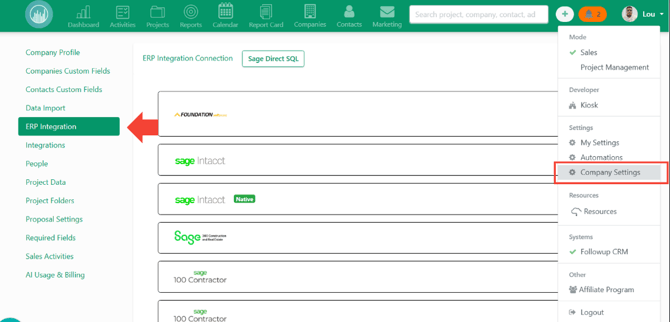
6. 🔄 Disconnect Agave if You Are Migrating
If you currently connect through Agave, disconnect the existing Agave ERP connection before enabling the hh2 ERP connection.
If you are setting up a new integration and do not use Agave, skip this step.
Important: Complete the import and linking steps below before beginning regular sync activity.
7. 🔌 Connect Your Sage ERP
- Locate Sage 100 or Sage 300 in ERP Integrations.
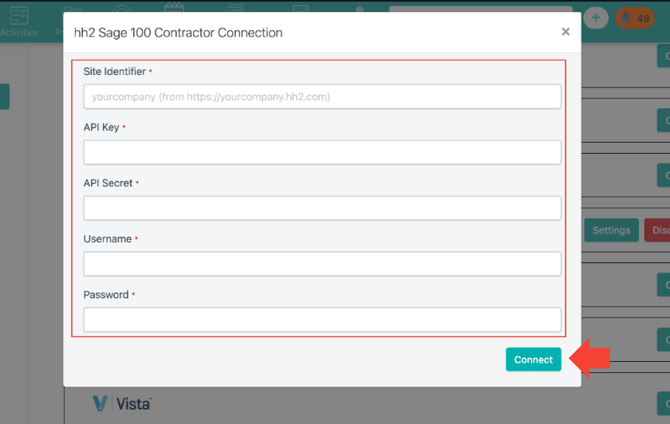
- Click Connect.

- Enter the connection information provided by hh2 after the installation call.
- Complete the connection process and confirm that it connects successfully.
Part 3: Configure Fields and Link Existing Records
8. 🗺️ Map Your Fields
After connecting successfully, open the field mapping settings.
- Select the supported module you want to configure.
- Match the Followup CRM fields to the corresponding Sage fields.
- Complete the required mappings.
- Review the supported sync direction for each mapping.
- Save your configuration.
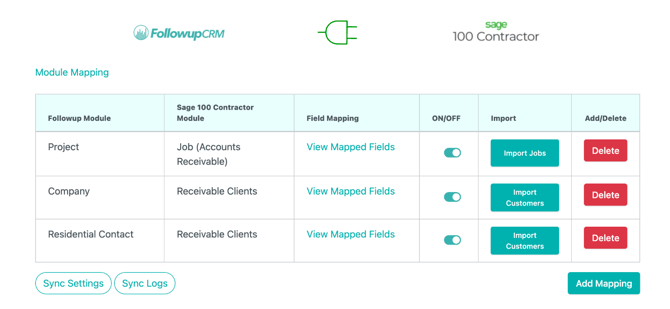
Use the field mapping guide for your specific Sage product.
Note: Sage 100 and Sage 300 mappings may differ. Do not assume that every module or field supports syncing in both directions.
9. 📥 Run Imports First if Migrating from Agave
Before sending records or starting regular sync activity, run the applicable Import commands.
These imports link existing projects, companies, and contacts previously connected through Agave to hh2, helping prevent duplicate records in either system.
Check that existing records are linked correctly before continuing.
If you are not migrating from Agave, skip this migration step.
10. 🧪 Validate Your Setup
Before using the integration for regular work:
- Confirm the correct Sage environment is connected.
- Check that required field mappings are complete.
- Test the supported sync actions using an approved sample record.
- Confirm that mapped information appears correctly in the destination system.
- If migrating, confirm existing records are linked without duplicates.
If the connection fails, confirm that hh2 installation is complete and recheck the connection information. If Sage does not appear in ERP Integrations, contact the Followup CRM team.
✅ Result
Your Sage 100 or Sage 300 environment is connected to Followup CRM through hh2, with field mappings configured for the supported workflows you have validated.
If you migrated from Agave, your existing records are linked through the import process before regular syncing begins.
💡 Best Practices
- Have your Sage administrator or IT contact available for the hh2 installation.
- Complete hh2 setup before configuring the connection in Followup CRM.
- Use the field mapping guide for your specific Sage product.
- Keep connection credentials secure.
- When migrating from Agave, run imports before sending records through the new connection.
- Validate supported workflows before using the integration for regular work.
Happy Selling!