
Note: The Email Marketing feature is offered as a plan-based add-on module. To purchase or activate it, please reach out to your Customer Success Manager
🚀 Step 1: Open Email Marketing
-
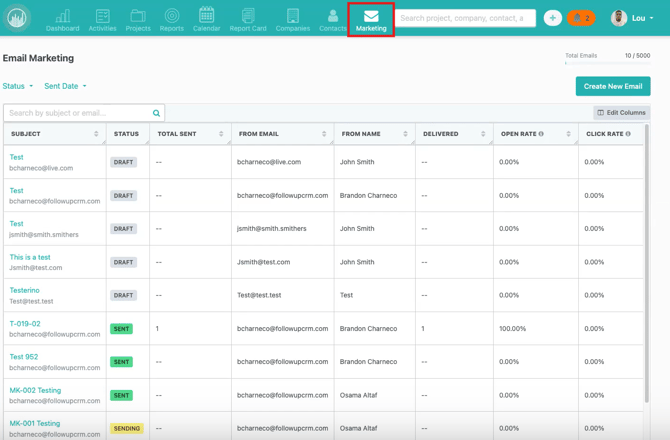
From the Dashboard, click Marketing in the top navigation.
-
This opens the Email Marketing list page where all campaigns are stored.
📋 Step 2: Review Existing Emails
Here you can:
-
View all marketing emails
-
Check campaign status
-
See high-level performance metrics
-
Use search and filters to find campaigns quickly
📊 Check Usage
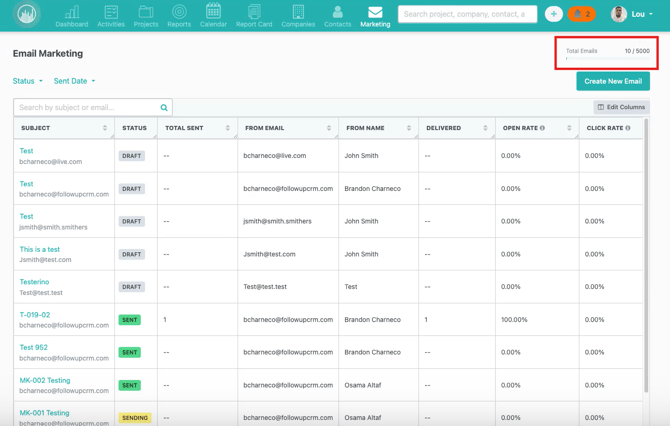
Look at the Usage Meter (top-right corner) to:
-
Monitor how many emails have been sent
-
Confirm you haven’t reached your sending limit
If emails can’t be sent, check this first.
➕ Step 3: Create a New Email
-
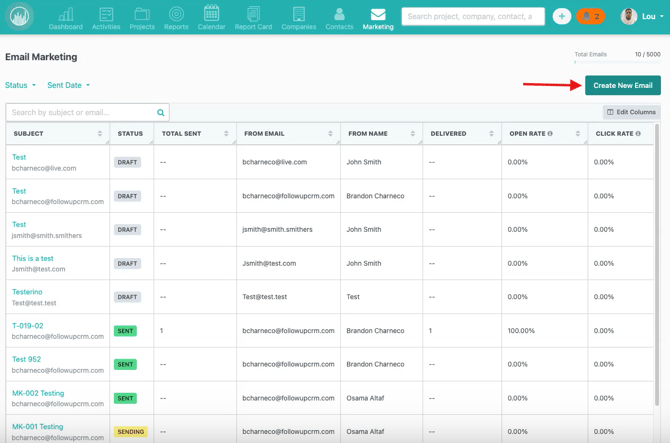
Click Create New Email
-
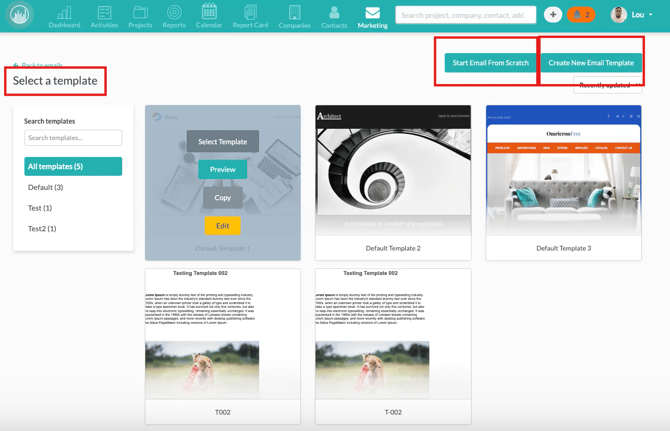
Choose one of the following:
-
Use an existing template
-
Create a new template
-
Start from scratch
-
Select your template to open the Email Builder.
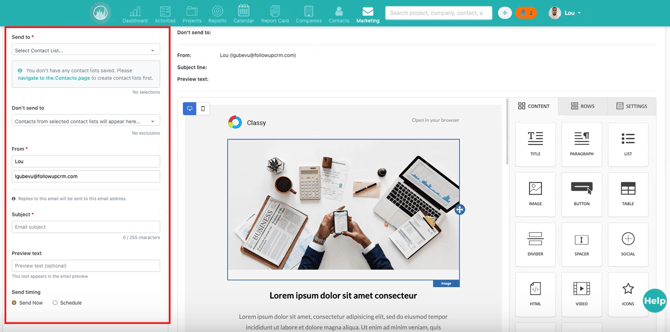
🧩 Step 4: Configure Email Settings
In the builder:
Left side → Settings
Set your campaign details:
-
Contact List
-
Optional Don’t Send To exclusions
-
Sender name
-
Sender email
-
Subject line
-
Preview text
-
Send now or schedule for later
🎨 Step 5: Design Your Email
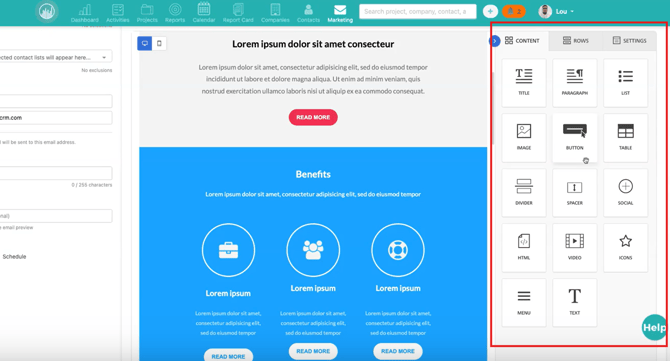
Right side → Visual Builder
Use drag-and-drop components to:
-
Add or remove sections
-
Insert content blocks
-
Duplicate elements
-
Adjust fonts, spacing, alignment, and colors
-
Match company branding
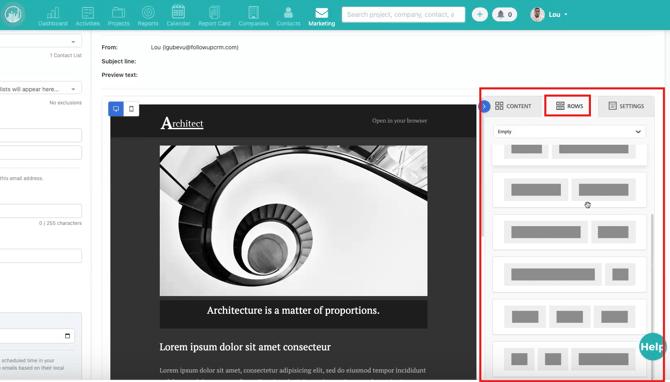
You can also:
-
Add new layout sections
-
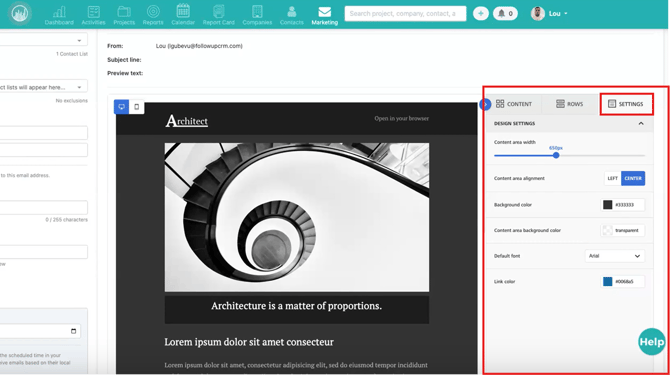
Customize background and link colors
-
Adjust email width and alignment
💾 Step 6: Save Your Work
-
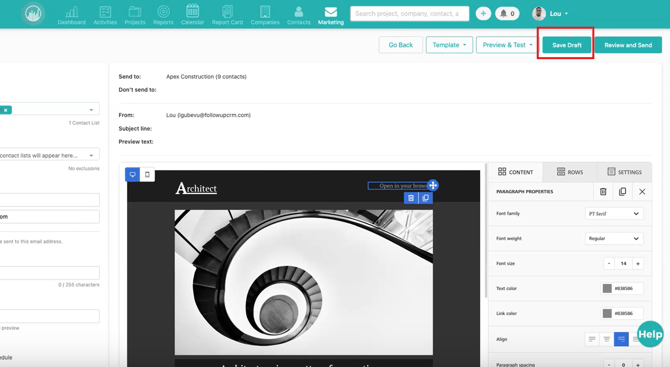
Click Save Draft anytime to preserve changes
-
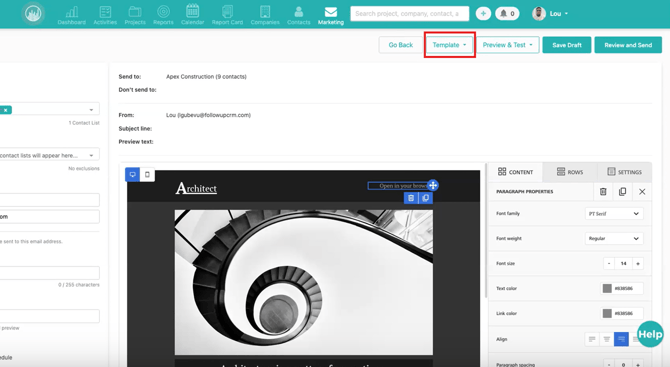
Update the current template or save as a new template for reuse
📤 Step 7: Review and Send
-
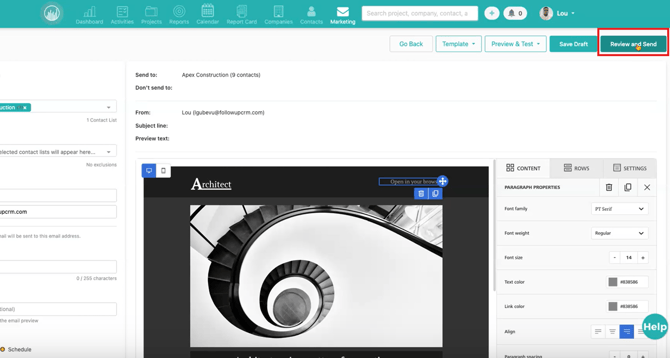
Click Review and Send
-
Confirm:
-
Recipients
-
Sender details
-
Subject line
-
Timing
-
-
Send immediately or schedule delivery
✅ Result
Your marketing email is sent and tracked directly within Followup CRM.