
Overview
Parent and child company relationships help you connect related companies in FollowUp CRM.
Use this feature when one company should be treated as the main or parent company, and another company should be connected as a child company. This is helpful for teams that manage branches, divisions, subsidiaries, or related business entities.
Once companies are linked, FollowUp CRM can use those relationships in company analytics, including pipeline and closing ratio charts. This gives your team a more complete view of activity across related companies.
🏢 How to Link Parent and Child Companies
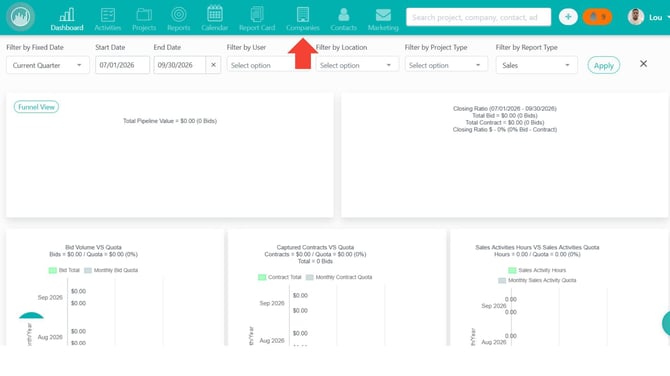
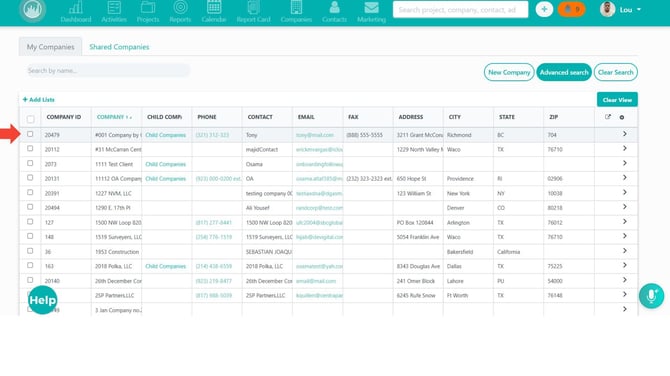
- Go to Companies.
2. Add a Company Association
- Click Add Company.
-1.jpg?width=670&height=377&name=Untitled%20design%20(1)-1.jpg)
-
- Create a new associated company, or
- Add an existing company
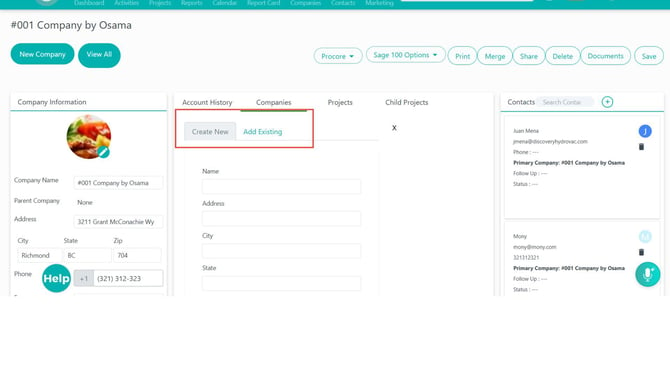
- Search for the company you want to associate.
- Select the company.
3. Choose the Association Type
After selecting a company, choose the relationship type:
- Parent Company — The selected company becomes the parent of the current company.
- Child Company — The selected company becomes a child of the current company.
Note: A company can only have one parent company. If a parent already exists, you may need to remove or update the existing association first.
.jpg?width=670&height=377&name=Untitled%20design%20(4).jpg)
4. Save the Association
- Confirm the selected association type.
- Click Add Association or Save Changes.
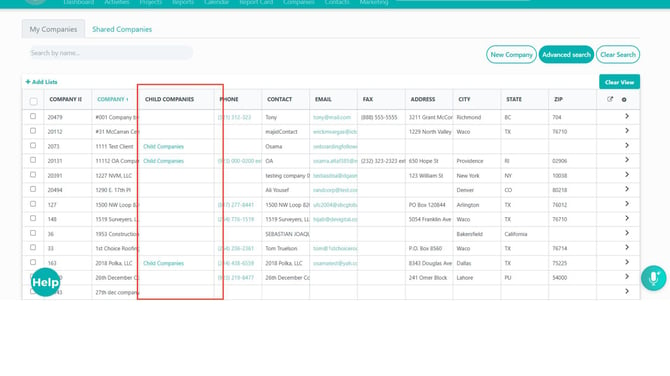
- The company relationship will appear in the company relationship table.
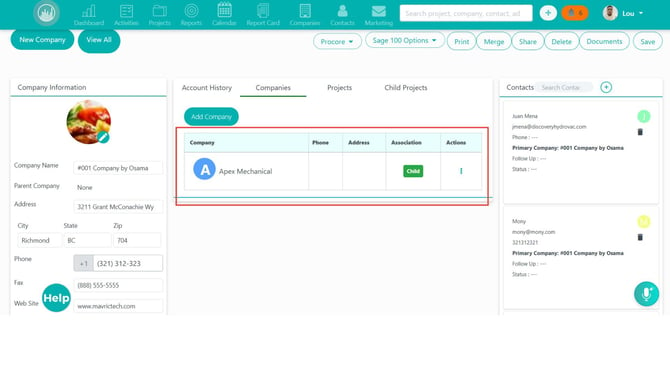
The table may show whether the associated company is a Parent or Child.
5. Edit a Company Association
To change an existing relationship:
- Find the associated company in the relationship table.
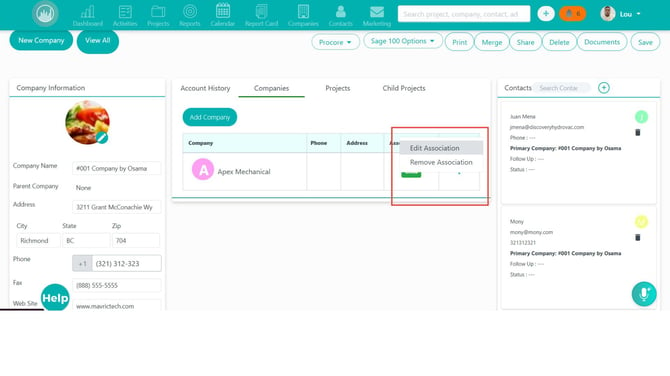
- Open the action menu.
- Select Edit Association.
- Choose the new relationship type.
- Save the change.
6. Remove a Company Association
To remove a relationship:
- Find the associated company in the relationship table.
- Open the action menu.
- Select Remove Association.
- Confirm the removal.
Removing the association does not delete either company. It only removes the parent/child relationship between them.
📊 How Parent/Child Relationships Affect Analytics
When companies are linked, FollowUp CRM can include related company activity in company analytics.
This may include:
- Pipeline chart roll-ups
- Closing ratio chart roll-ups
- Projects connected through child companies
- Projects connected through associated company contacts
This helps teams view a more complete picture of company performance when business activity is spread across related companies.
Result
After linking parent and child companies, your team can clearly see company relationships and review more complete company analytics across related business entities.
Best Practices
- Use parent/child relationships for companies that are truly connected, such as branches, subsidiaries, or divisions.
- Keep one clear parent company when possible.
- Review existing associations before adding new ones to avoid duplicate relationships.
- Use the analytics roll-up to understand total pipeline and closing activity across related companies.
- Remove outdated relationships if company structures change.
Happy Selling!