
Overview
Conditional Field Locking allows admins in Followup CRM to:
- Automatically make fields read-only
- Protect critical project data
- Enforce workflow rules based on conditions
This is especially useful for stages like Submitted, Approved, or Closed, where key values should no longer be edited.
Step-by-Step Instructions
1️⃣ Navigate to Locked Fields Settings
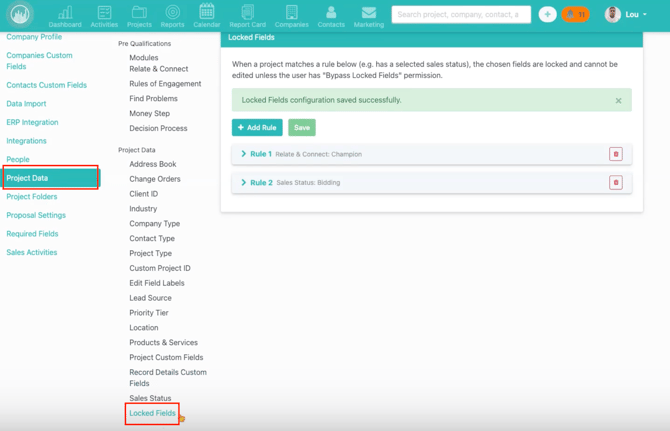
- Go to Company Settings
- Click Project Data
- Select Locked Fields
This is where all conditional locking rules are managed.

2️⃣ Add a New Rule
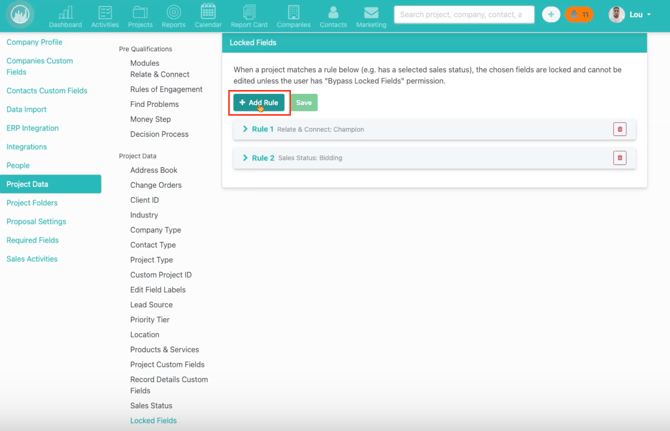
- Click Add Rule
This opens the configuration workflow.
3️⃣ Select the Trigger Field
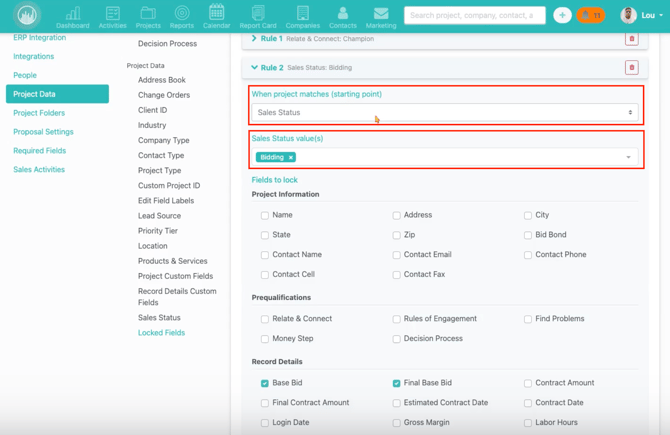
Choose:
- A trigger field (e.g., Project Status)
- A condition/value (e.g., Status = Submitted)
This defines when the lock should apply.
4️⃣ Choose Fields to Lock
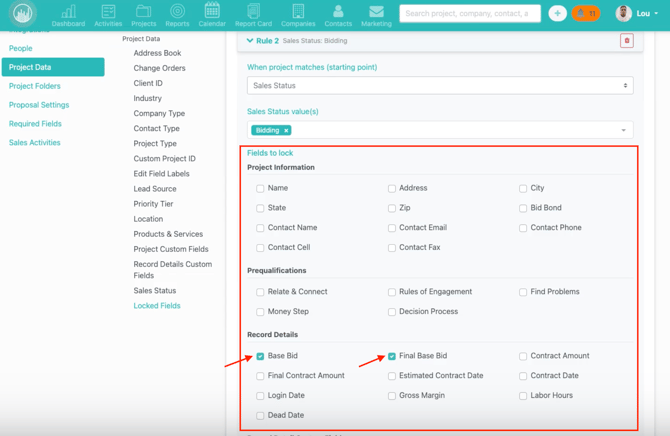
- Select one or multiple fields to lock
Examples:
- Base Bid
- Final Base Bid
- Budget fields
These fields will become read-only when the condition is met.
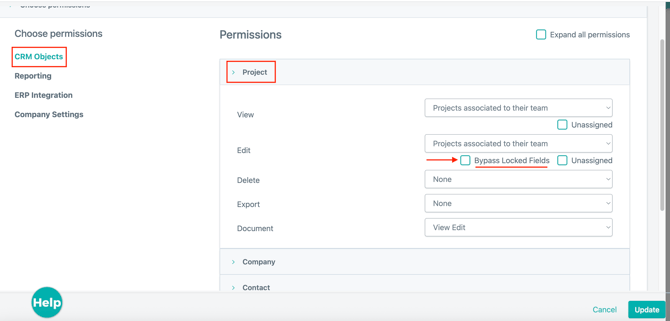
5️⃣ Assign Bypass Permissions
- Select users or roles who can bypass the lock
Typically:
- Admins have bypass access
- Standard users do not
This allows controlled editing when necessary.
6️⃣ Save the Rule
- Click Save
Your rule is now active.
👀 How It Works for Users
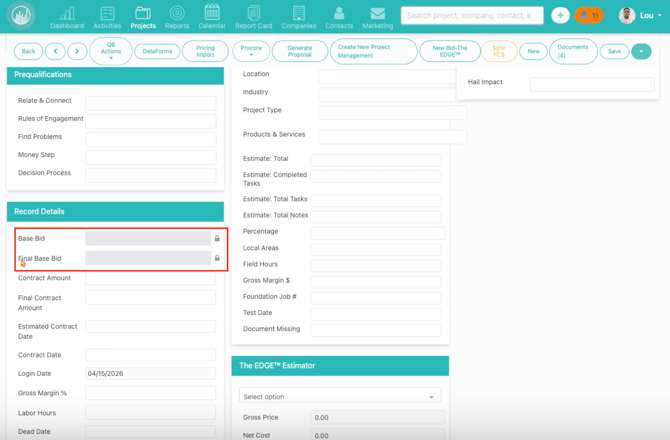
🔒 For Standard Users
- Fields are visible but read-only
- They cannot edit locked fields once the condition is met
🔓 For Admins / Bypass Users
- Fields remain fully editable
- Locking rules do not restrict them
🔁 Multiple Rules
You can create multiple rules to:
- Lock different fields
- Use different trigger conditions
- Apply rules at different workflow stages
This gives you flexible control over your data.
✅ Result
With Conditional Field Locking, you can:
- Protect important project data
- Enforce workflow consistency
- Prevent accidental edits
- Allow controlled overrides when needed
Happy Selling!