
Overview
Before Followup CRM can complete the Spectrum integration, your team must prepare your Spectrum environment and App Xchange access.
These steps are completed by the customer because they require Spectrum administrator access, Viewpoint Support access, and secure handling of customer-specific credentials.
After these customer-side steps are complete, contact your Followup CRM Customer Success team. They will help complete the App Xchange configuration, connector setup, onboarding, mapping, and validation.
Important: Do not share passwords, client secrets, API tokens, or database details through regular email, chat, screenshots, or implementation notes. Use your approved secure sharing method.
Step-by-Step Instructions 🧩
1. Confirm Required Access
Before starting, confirm your team has:
- Spectrum administrator access
- Viewpoint Support access
- App Xchange account access
- Info-Link enabled in Spectrum
- Data Exchange enabled in Spectrum
- Approved Spectrum company codes
- A secure method for sharing credentials with the Followup CRM Customer Success team
👤 2. Create a Dedicated Info-Link User
In Spectrum:
- Open Info-Link.
- Go to User Security Maintenance.
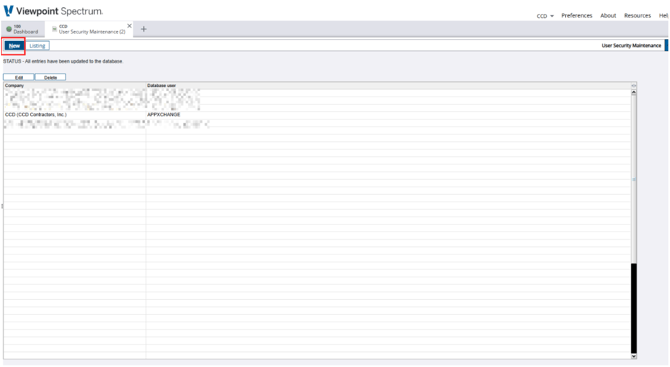
- Create a new dedicated integration user.
- Select the correct company.
- Enter the new database username.
- Set a strong password.
- Assign the required access level.
- Store the username and password securely.
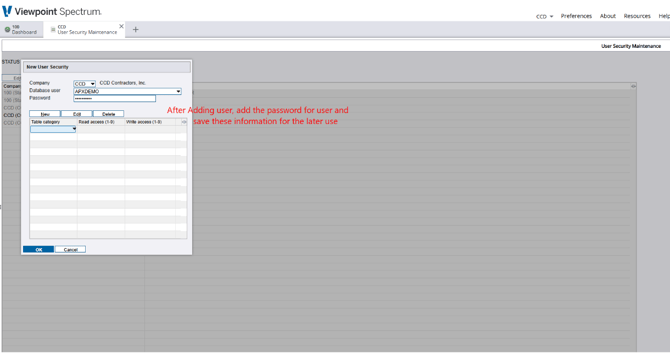
This user should be dedicated to the Followup CRM integration.
🛠️ 3. Request Viewpoint Support Permission Elevation
Your authorized Viewpoint Support user must submit a support case requesting read/write database access for the dedicated Info-Link user.
Include:
- Customer company code
- Info-Link username
Do not include the password in the support case.
Continue only after Viewpoint confirms the user has been elevated and any required scripts have been run.
🧑💼 4. Create the Spectrum Operator
In Spectrum:
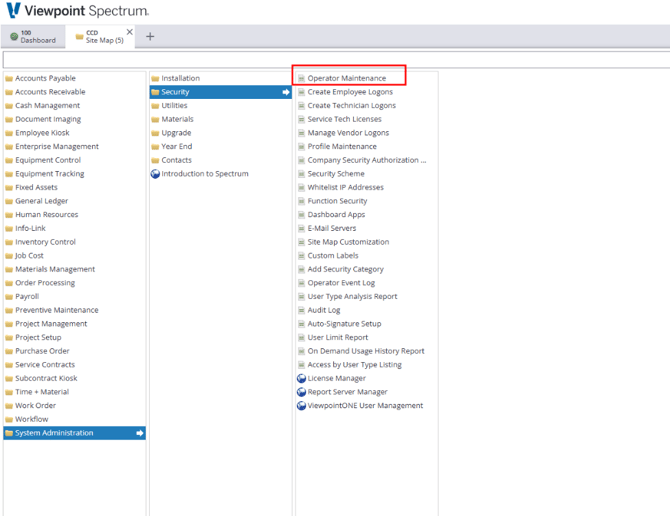
- Go to System Administration.
- Open Security.
- Select Operator Maintenance.
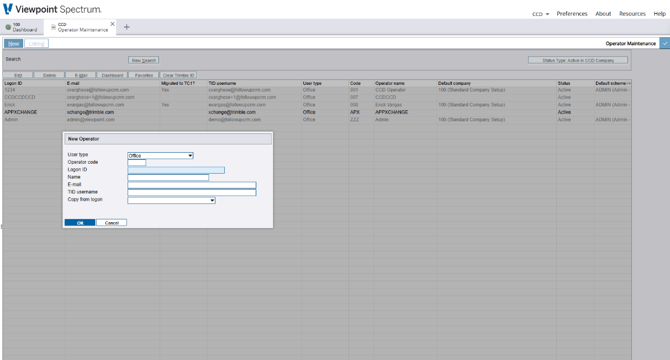
- Create an Office operator for App Xchange.
- Enter the approved operator code, login ID, name, and integration contact email.
- Open the Companies tab.
- Add every Spectrum company approved for Followup CRM sync.
🔐 5. Configure Data Exchange Authorization
In Spectrum:
- Go to System Administration.
- Open Installation.
- Select Data Exchange.
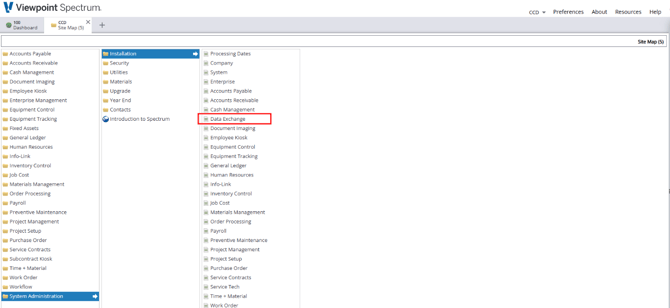
- Create a new active Authorization ID.
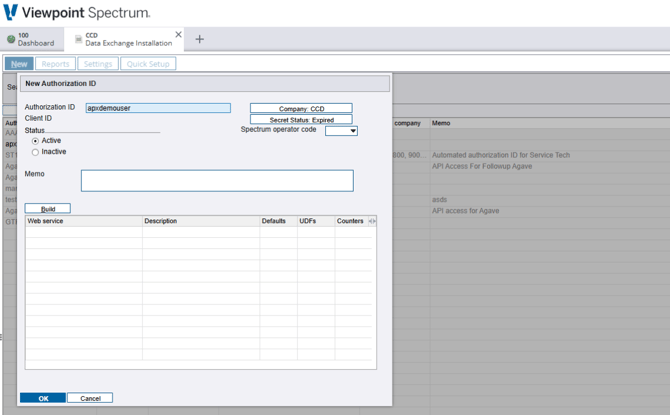
- Select the approved companies.
- Set the status to Active.
- Associate the Authorization ID with the Spectrum operator.
🧾 6. Authorize Required Web Services
Open the Web Services builder and authorize the required services for the integration.
Required service areas may include:
- Accounts Receivable services
- Customer services
- Customer update services
- Customer notes
- Customer UDF services
- Change request services
- Job Cost services
- Job create/update services
- Job contact services
- Job UDF services
- Phase services
Save after authorizing the required services.
🔑 7. Record Spectrum Connection Details
Record the customer-specific Spectrum connection details needed for setup.
These may include:
- Spectrum URL
- Database name
- Info-Link username
- Info-Link password
- Approved company codes
- OAuth Client ID
- Client secret
- Client secret expiration date
- Token URL
- Data Exchange URL and port
Share these details with your Followup CRM Customer Success team through the approved secure channel.
⏰ 8. Track the Client Secret Expiration Date
The Spectrum OAuth client secret expires on the date shown in Secret Management.
Assign a renewal owner and create a reminder at least 30 days before the expiration date.
If the secret expires before it is updated in App Xchange, Spectrum authentication may fail and syncing may stop.
📩 9. Accept the App Xchange Workspace Invitation
Your Followup CRM Customer Success team will send an App Xchange workspace invitation to the authorized customer contact.
When you receive the invitation:
- Open the App Xchange invitation email.
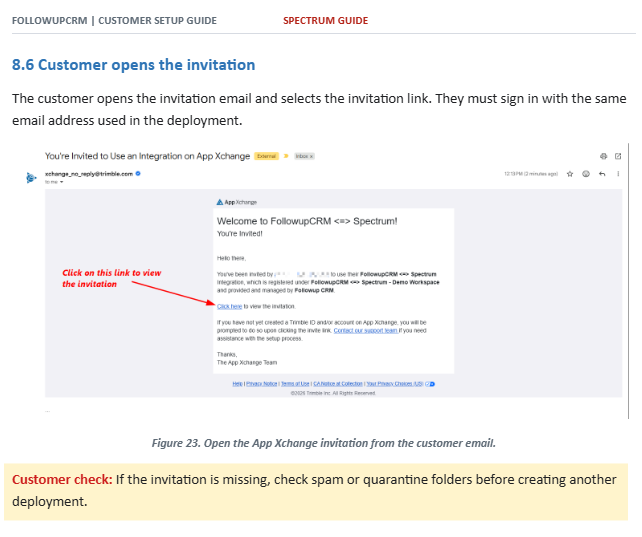
- Sign in using the same email address used for the invitation.
- Open Customer Workspaces.
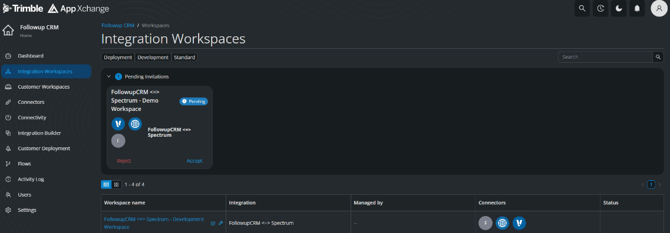
- Find the pending Followup CRM to Spectrum workspace.
- Select Accept.
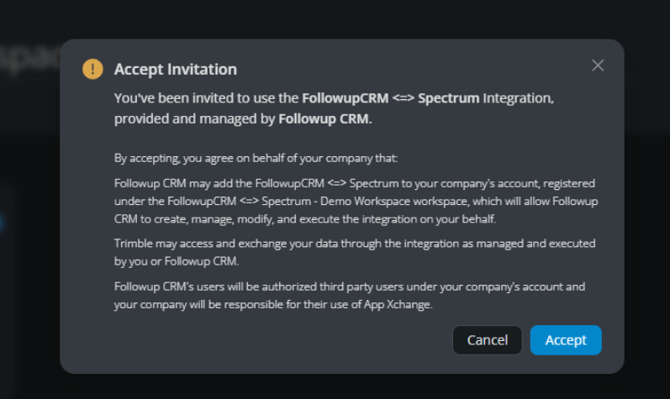
- Confirm the workspace opens successfully.
If you do not see the invitation, check your spam or quarantine folder before requesting a new invitation.
🤝 10. Contact Your Followup CRM Customer Success Team
After the customer-side steps are complete, contact your Followup CRM Customer Success team.
They will assist with:
- App Xchange connector configuration
- Followup CRM connection setup
- HTTP connection setup
- Spectrum OAuth Client setup
- Spectrum connection setup
- One-time onboarding
- Production feature activation
- Module and field mapping
- Validation and sync readiness
Result
After completing these steps, your Spectrum environment will be prepared for the Followup CRM integration, and your Customer Success team can complete the App Xchange configuration, mapping, and validation process.
Best Practices
✅ Use a dedicated integration user
Create a separate Info-Link user for the Followup CRM integration.
✅ Do not share secrets insecurely
Use an approved secure method for passwords, client secrets, and API tokens.
✅ Wait for Viewpoint confirmation
Do not proceed until Viewpoint confirms the Info-Link user has the required access.
✅ Authorize all required web services
Missing web services can prevent data from syncing correctly.
✅ Track client secret expiration
Set a reminder at least 30 days before expiration.
✅ Accept the App Xchange invite promptly
The Followup CRM team cannot complete setup until the workspace invite is accepted.
✅ Contact Customer Success after prep is complete
Your Followup CRM CS team will complete the remaining connector, onboarding, mapping, and validation steps.
Happy Selling!