
📍 Overview
The Job Packet feature allows users to create customized project printouts using live project data from Followup CRM.
Job packets can include:
- 📋 Project Information
- 🏢 Client Information
- 📑 Pre-Qualifications
- 📝 Record Details
- 📌 Miscellaneous Information
- 📞 Sales Activities
- 🎯 Milestones
- 💬 Comments
- ✏️ Custom Sections
Users can control exactly what information appears and save layouts as reusable templates for the entire team.
⚙️ Step-by-Step Instructions
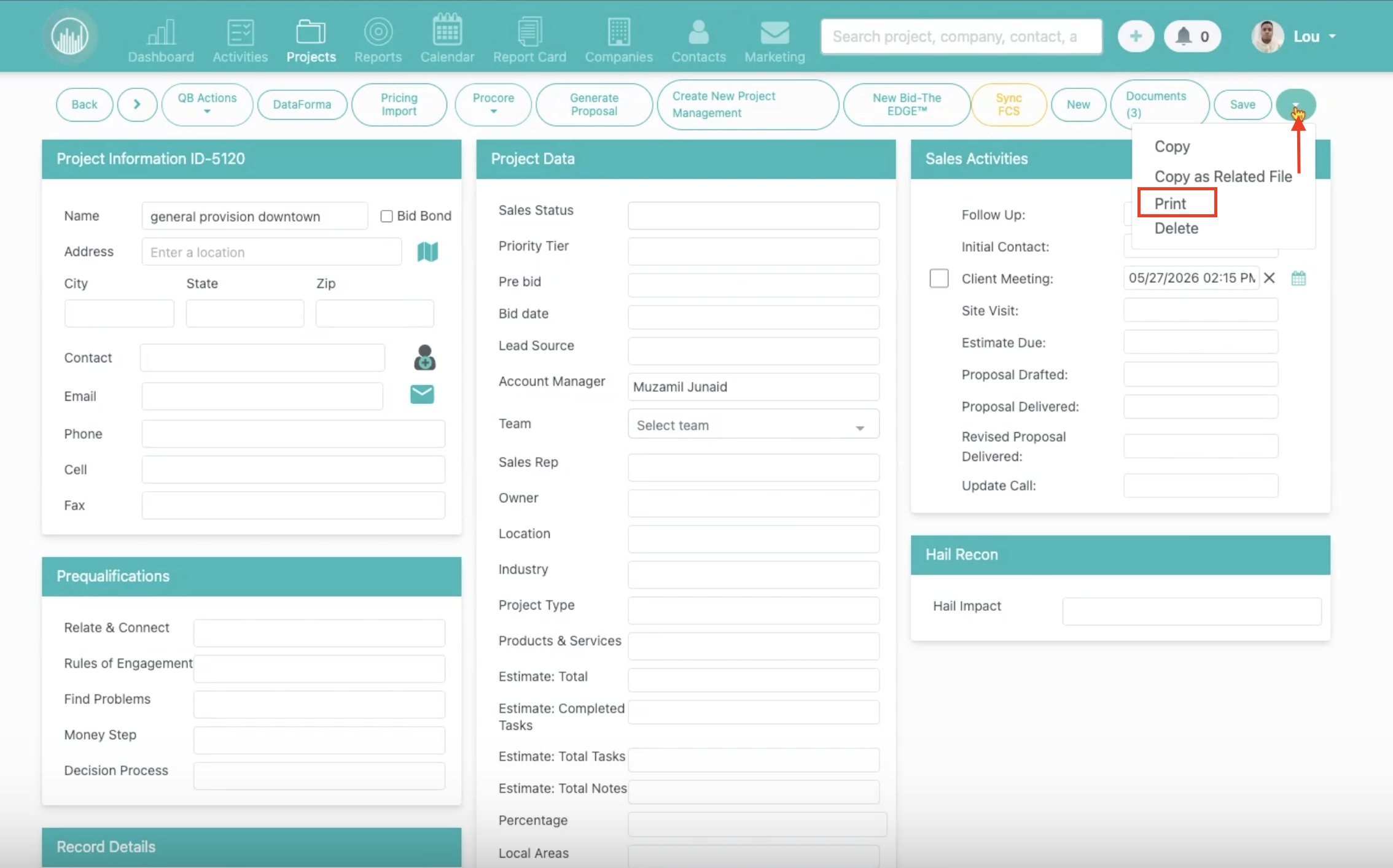
1️⃣ Open the Job Packet Print Screen
- Open the desired project
- Click Edit
- Click the teal dropdown arrow next to Save
- Select Print
A Job Packet window will open.
2️⃣ Review the Print Toolbar
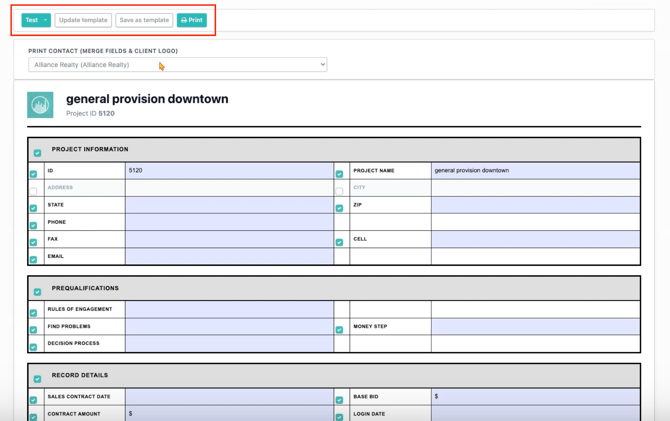
At the top of the page, you'll find several options:
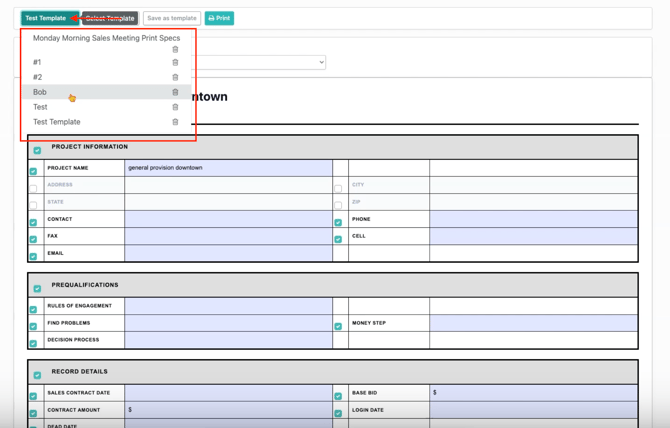
- 📂 Template Dropdown – Load saved templates
- 🔄 Update Template – Save changes to an existing template
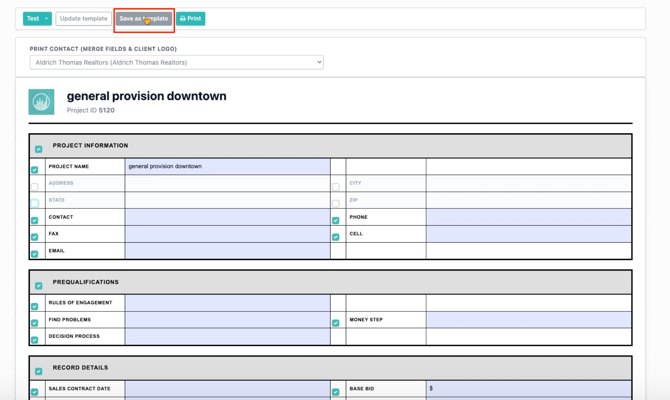
- 💾 Save as Template – Create a new template
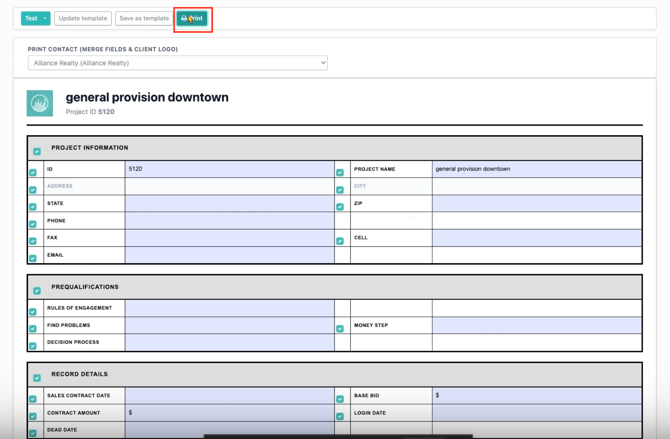
- 🖨️ Print – Generate the final packet
3️⃣ Select a Print Contact
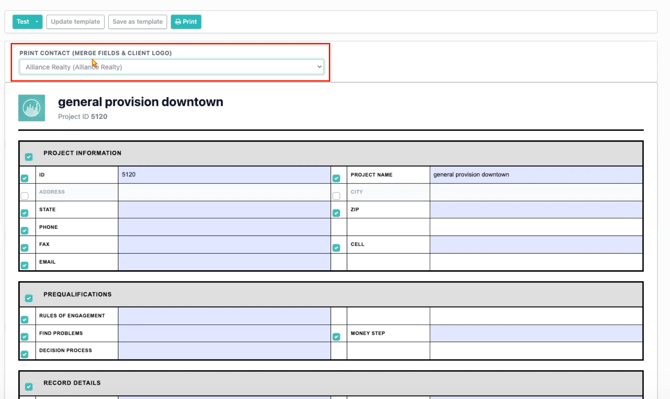
Use the Print Contact dropdown to choose which contact information appears on the packet.
This selection determines:
- Contact information displayed
- Company details displayed
- Company logo used in the packet
4️⃣ Customize Packet Sections
The packet is divided into sections such as:
- 📋 Project Information
- 📑 Pre-Qualifications
- 📝 Record Details
- 📌 Miscellaneous Information
- 📞 Sales Activities
- 🏢 Client Information
- 🎯 Milestones
- 💬 Comments
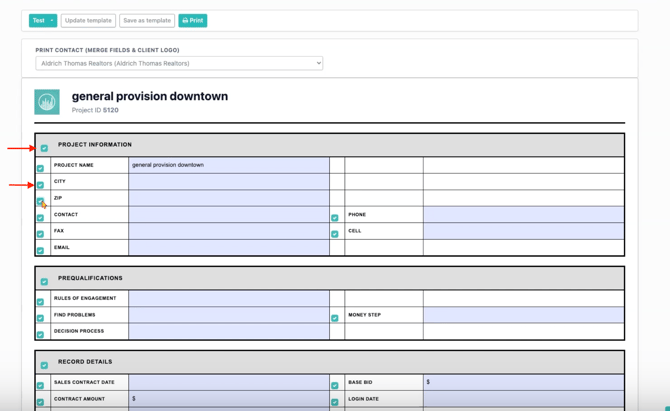
Each section includes a checkbox.
Section Checkbox
Selecting or deselecting a section checkbox will show or hide the entire section.
Field Checkbox
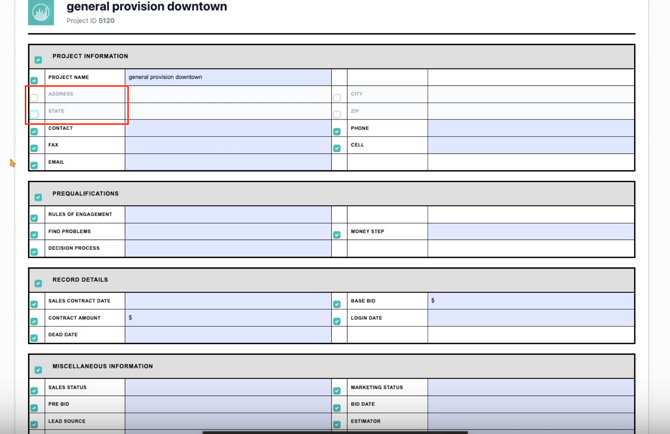
Each field within a section also has its own checkbox, allowing you to show or hide specific information.
Example:
- Keep Project Information visible
- Hide Address
- Hide City
5️⃣ Understand Field Visibility
✅ Checked Fields
- Display in blue
- Included in the printed packet
⬜ Unchecked Fields
- Appear dimmed
- Excluded from the printed packet
The layout automatically adjusts so there are no blank spaces left behind.
6️⃣ Save a Template
To save your layout for future use:
- Click Save as Template
- Enter a template name
- Click Save
The template becomes available to all users on your team.
7️⃣ Load an Existing Template
To use a previously saved template:
- Open the Template Dropdown
- Select the desired template
All saved section and field selections will be applied automatically.
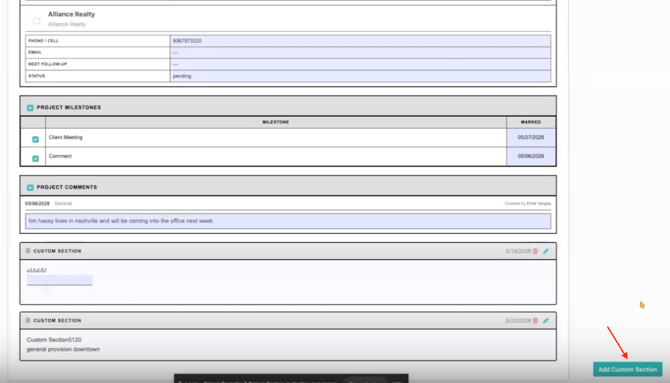
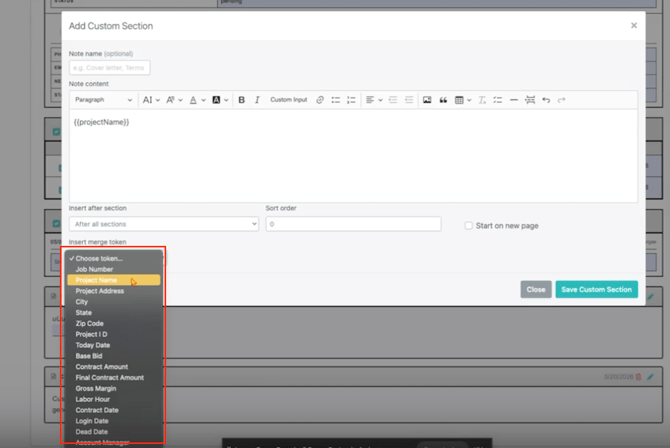
8️⃣ Add a Custom Section
To create additional content:
- Click Add Custom Section in the bottom-right corner
The editor allows you to:
- ✏️ Create a section name
- 📝 Add custom text
- 📍 Choose section placement
- 🔢 Define sort order
- 📄 Start the section on a new page (optional)
9️⃣ Insert Merge Tokens
Use the Insert Merge Token dropdown to add dynamic project data.
Examples include:
- Project Name
- Project Number
- Contact Name
- Contact Email
- Company Name
When the packet is generated, these placeholders are automatically replaced with live project information.
🔟 Print or Save as PDF
When your packet is ready:
- Click the green Print button
- The browser's print dialog will open
From there you can:
- 🖨️ Print a physical copy
- 📄 Save as PDF
💡 Best Practice
For the best visual results:
✔️ Enable Background Graphics in your browser's print settings.
This ensures section header shading and formatting appear correctly in the final output.
✅ Result
After completing these steps, you'll be able to:
- Customize job packet content
- Show or hide specific project information
- Save reusable templates
- Add custom sections
- Use merge tokens for dynamic data
- Print professional job packets or save them as PDFs
- Share standardized packet layouts across your team
Happy Selling!