
🔹 Accessing the Send Email Action
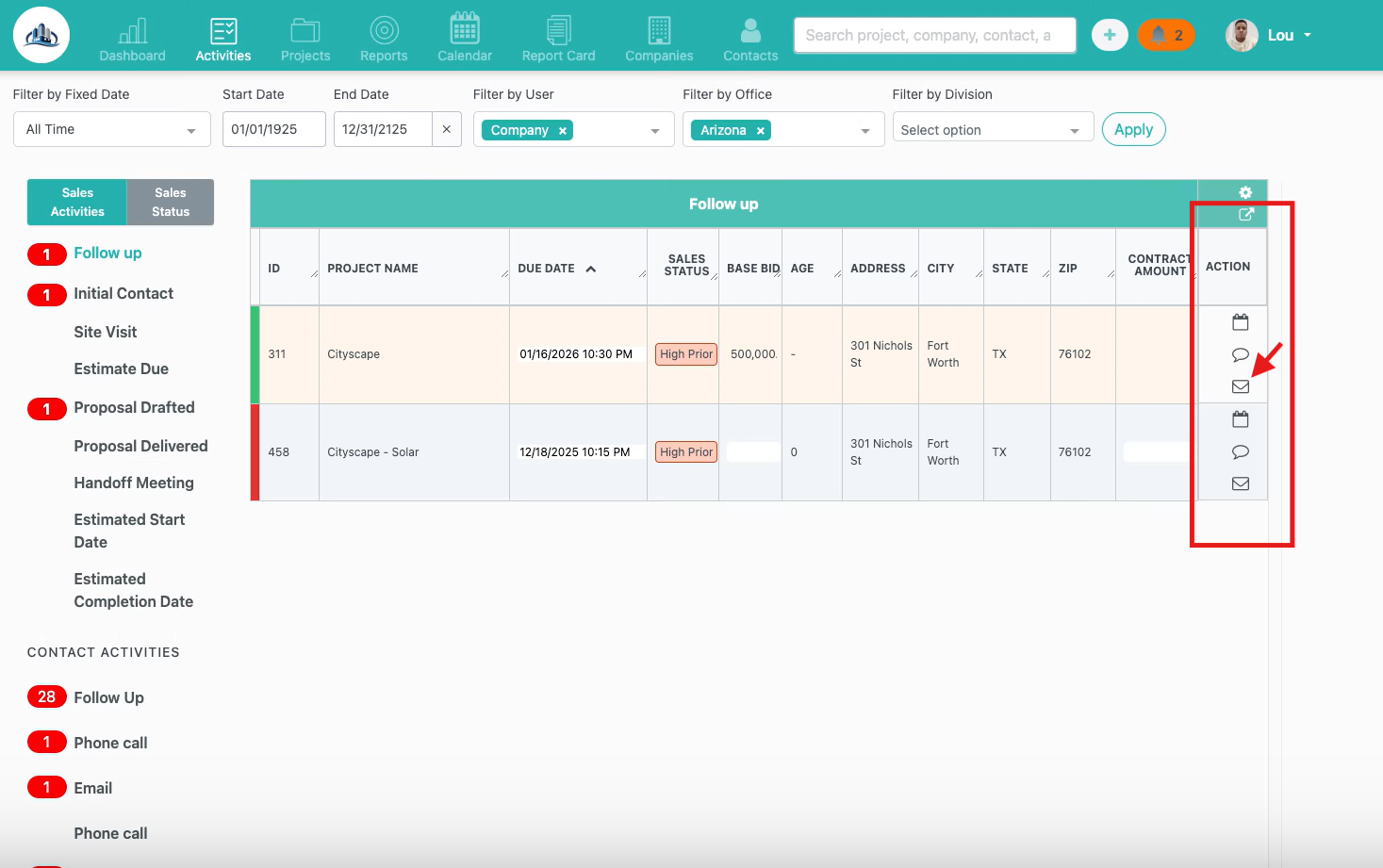
From the Activities tab, each activity includes an Actions column.
To open the email experience:
-
Click the email icon in the Actions column
-
An email modal opens without leaving the Activities page
This allows you to view and send emails related to the selected contact or project directly from the Activities view.
🔹 Viewing Related Emails
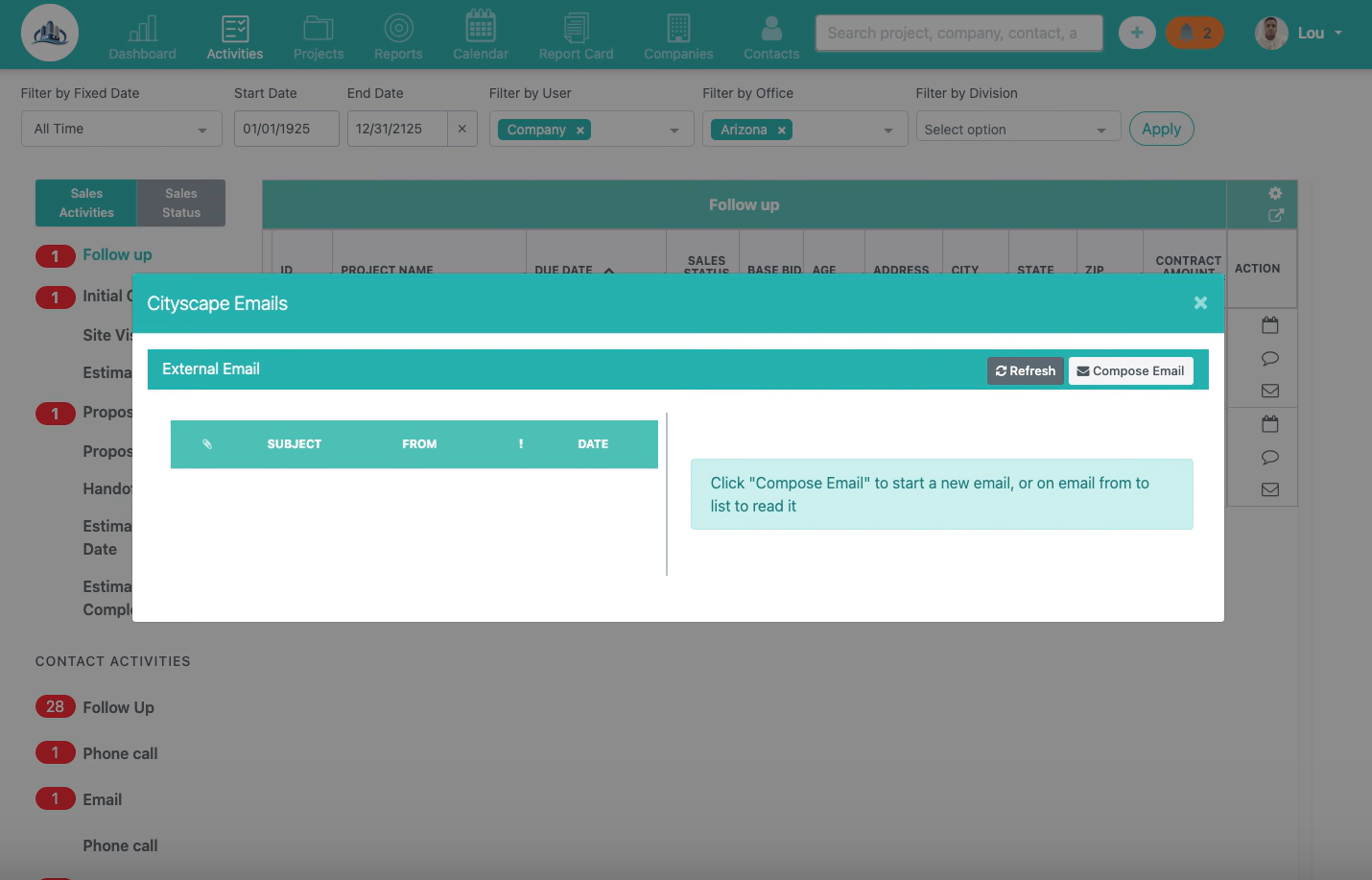
At the top of the modal, you’ll see the External Emails section.
Here you can:
-
View incoming and outgoing emails
-
See the subject, sender, and date
-
Track communication tied to the selected contact or project
If no emails are available, a prompt appears allowing you to compose a new message.
✉️ Composing a New Email
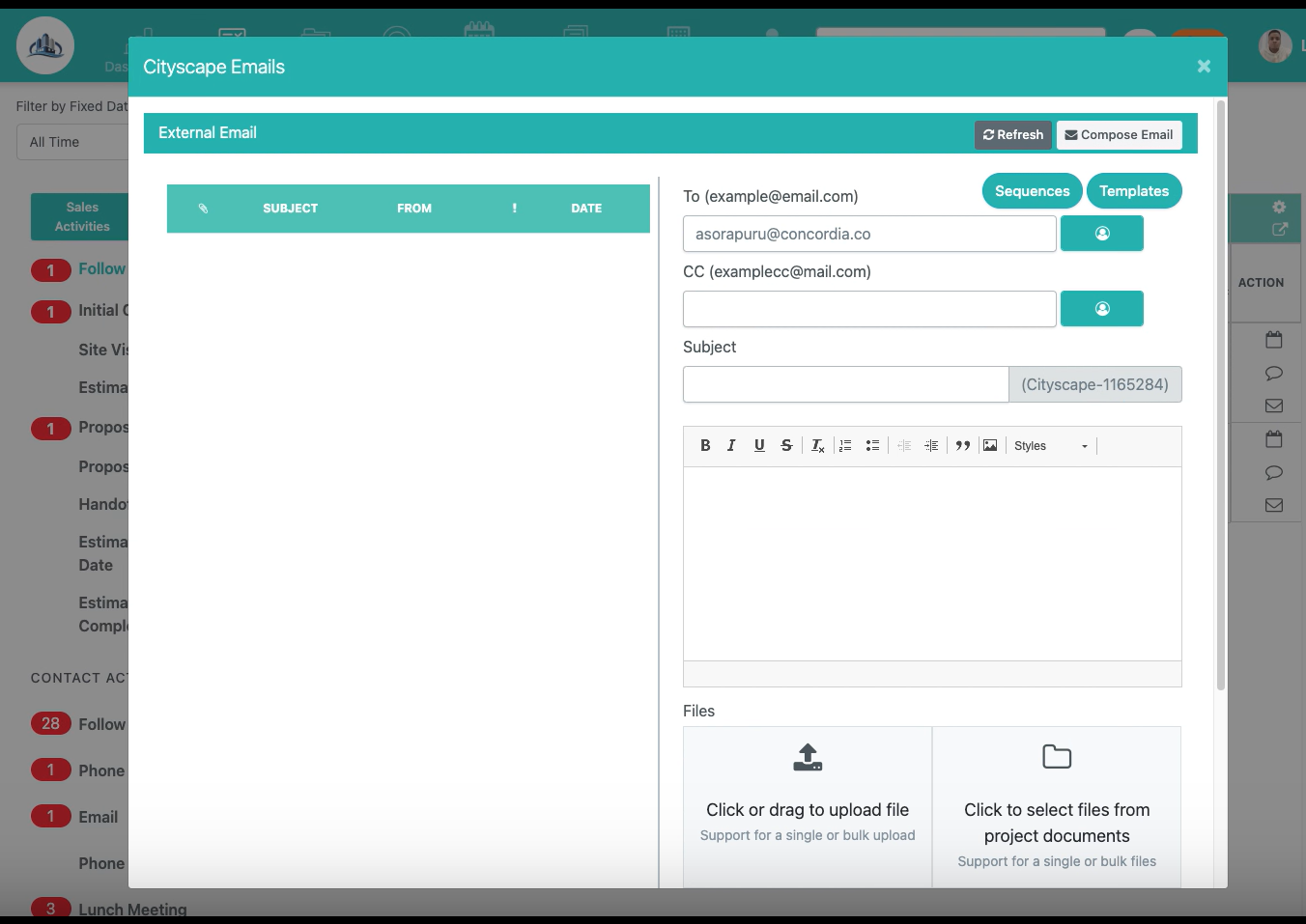
To start a new message:
-
Click Compose Email
-
Confirm or edit the To field
-
Add recipients in CC if needed
-
Enter a subject line (automatically includes the project reference)
-
Write your message in the email body
This ensures emails remain properly associated with the correct record.
📎 Adding Attachments
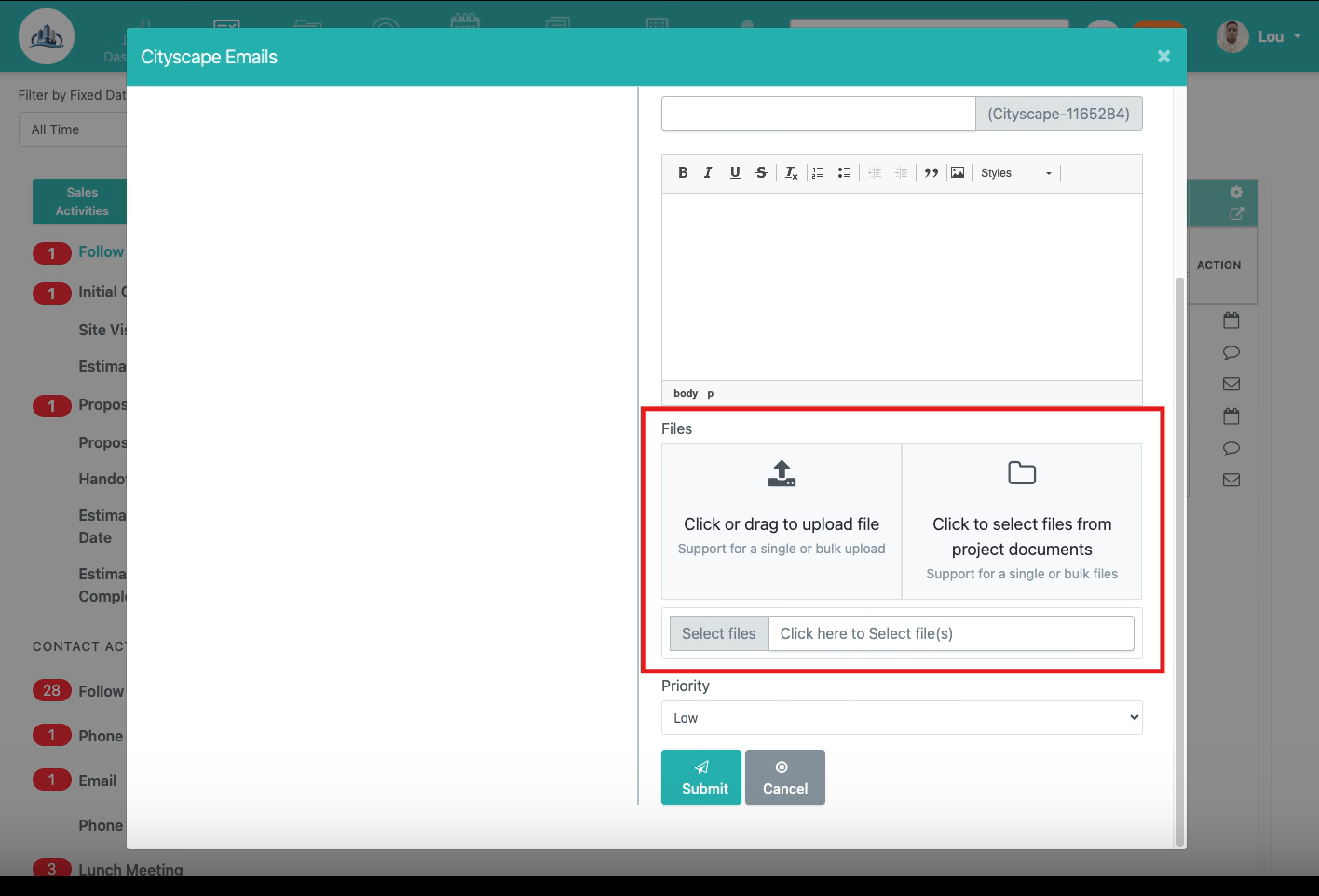
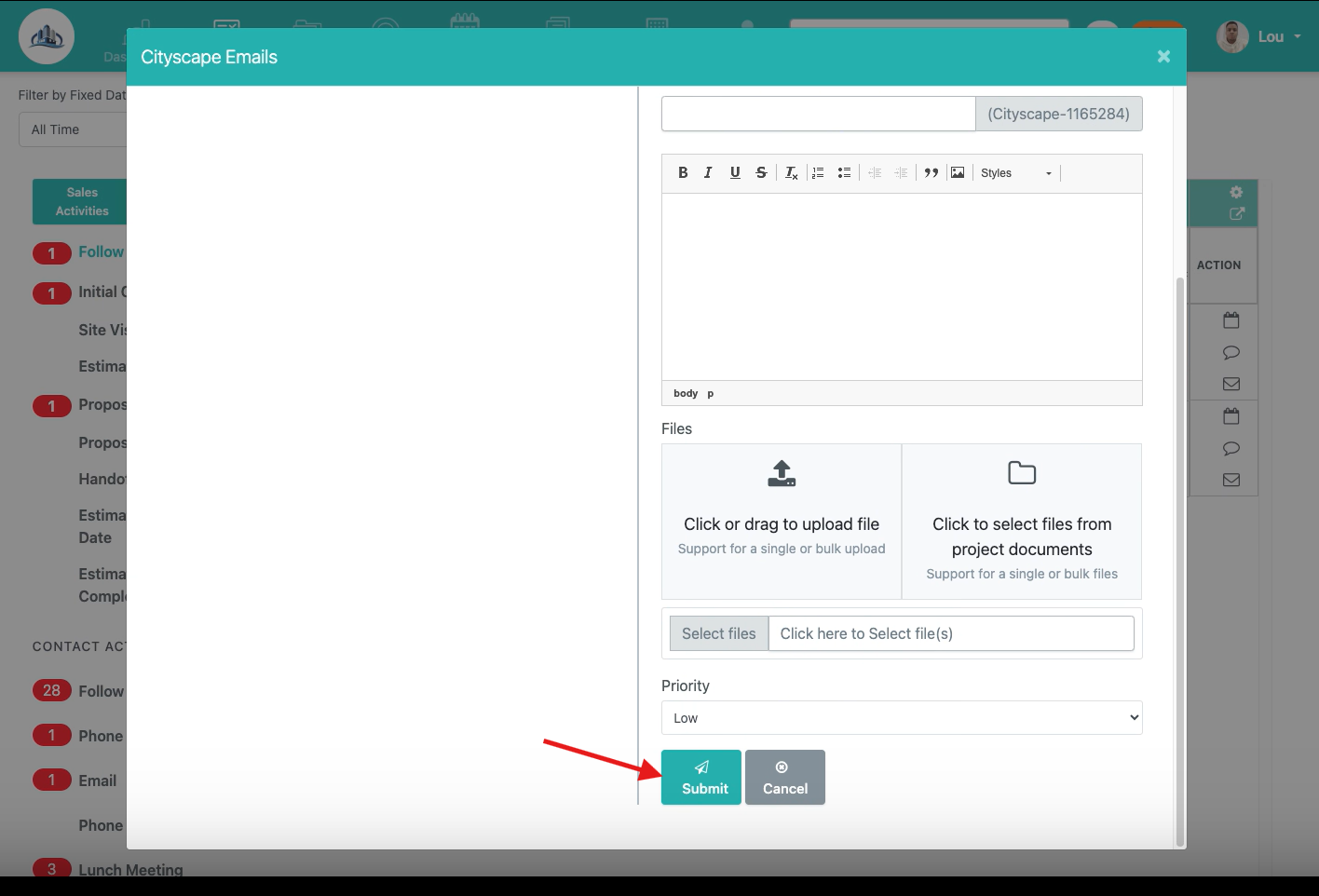
Below the message body, you can attach files by:
-
Uploading files directly from your computer
-
Selecting files from the project’s existing documents
Both single and bulk uploads are supported.
🔄 Sending and Refreshing
-
Click Submit to send the email
-
Click Refresh at any time to load the most recent messages
All communication remains connected to the correct contact or project.
✅ Key Takeaways
-
Send emails without leaving the Activities page
-
Keep communication tied to the right records
-
Reduce screen switching and improve workflow efficiency
-
Maintain a complete email history in one place