
📍 Overview
The Procore integration in Followup CRM allows teams to:
- Send projects to Procore
- Push files and project content
- Transfer drawings and RFIs
- Maintain folder structure between systems
- Use both Bid Board and Standard Portfolio workflows
Only modules enabled in your integration settings will appear within projects.
⚙️ Step-by-Step Instructions
1️⃣ Open a Project
- Open any project in Followup CRM
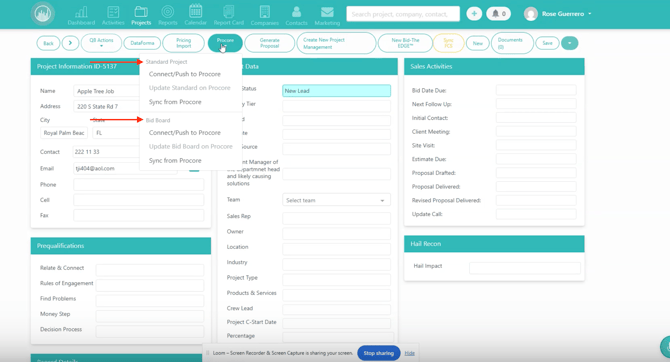
- Open the Procore dropdown
You’ll see:
- 📁 Standard Portfolio options
- 🏗️ Bid Board options
These reflect the modules enabled during setup.
2️⃣ Verify Enabled Modules
Only enabled modules appear inside the project.
Examples include:
- 📄 Documents
- 📐 Drawings
- ❓ RFIs
- 📚 Specifications
📌 If a module is disabled in settings, it will not appear as an option.
🏗️ Sending Projects to the Bid Board
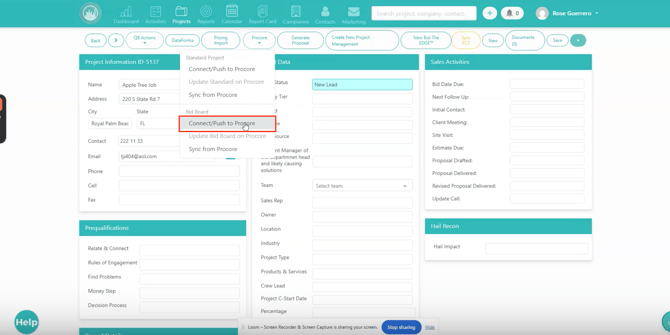
3️⃣ Send to Bid Board
- Click Connect to Bid Board
The project:
- Sends immediately
- Requires no additional prompts
4️⃣ Confirm the Push
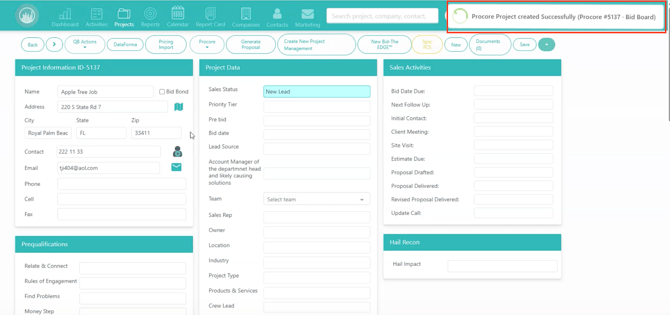
After sending:
- The project number appears
- The destination is confirmed
- The action is recorded in the sync log
📁 Sending Projects to the Standard Portfolio
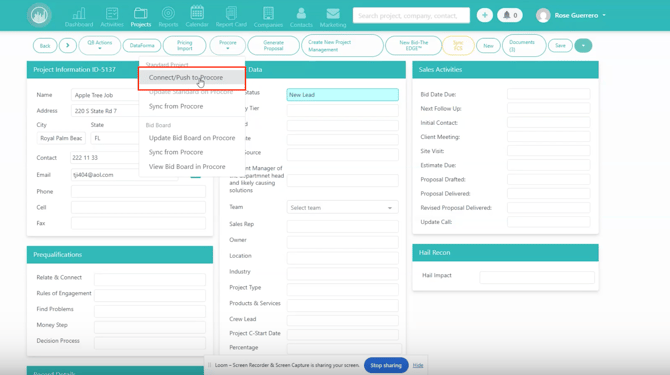
5️⃣ Push the Project to Procore
- Click Push to Procore
You may see additional options before creation.
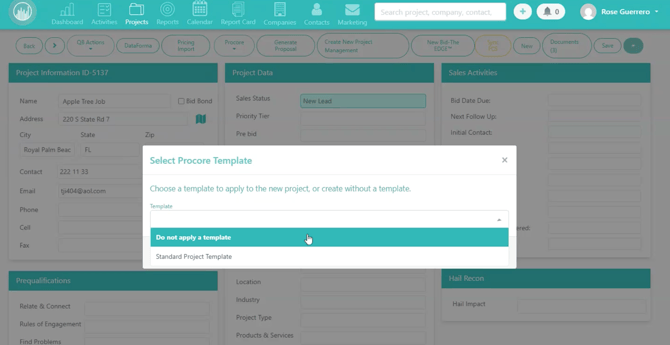
6️⃣ Apply Templates (Optional)
If your team uses Procore templates:
You can:
- Select a project template
- Skip the step if unused
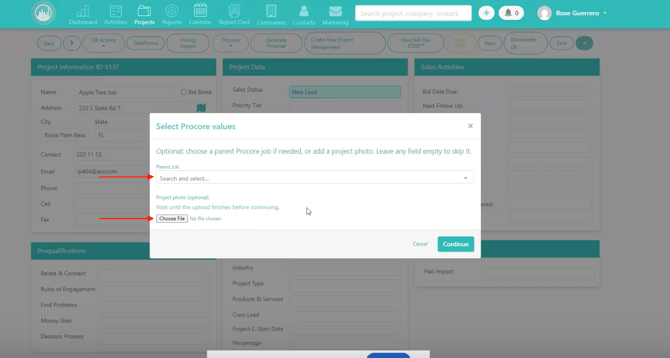
Optional items may include:
- Parent job selection
- Project photos or attachments
Once complete:
- Click Continue
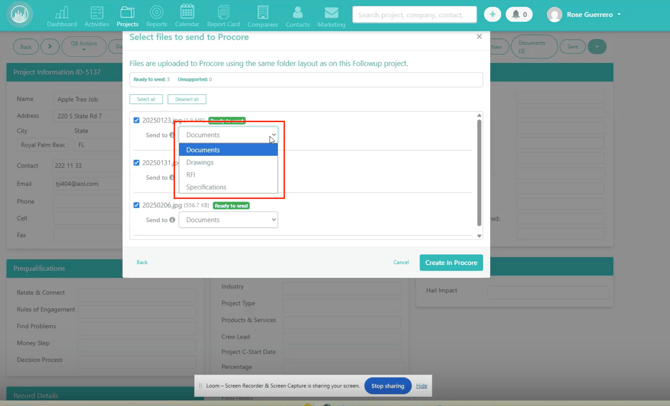
7️⃣ Review the File Selection Screen
After continuing, you’ll see the content selection screen.
Available options depend on enabled modules.
Examples:
- 📄 Documents
- 📐 Drawings
- ❓ RFIs
- 📚 Specifications
📌 If only Documents are enabled, only Documents will appear.
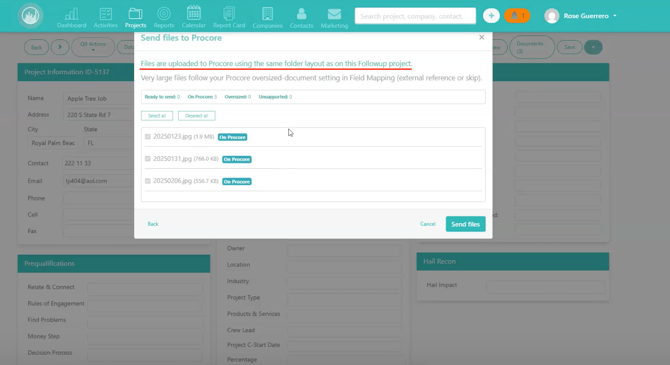
8️⃣ Select Files to Transfer
Each file displays:
- 📄 File name
- 📏 File size
- ✅ Transfer status
Use:
- Individual checkboxes
- ✅ Select All
- ❌ Deselect All
Choose the content you want to send.
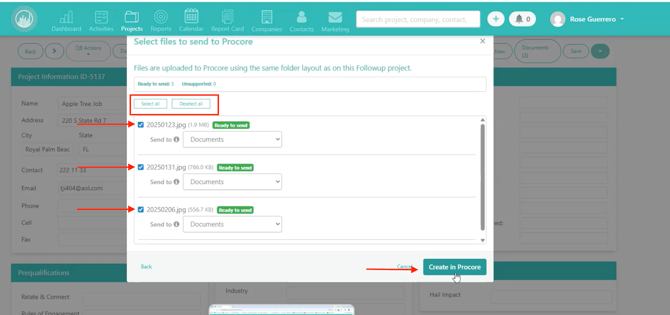
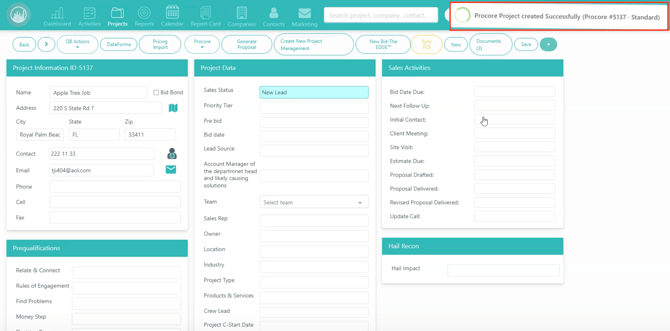
9️⃣ Create the Project in Procore
When ready:
- Click Create
You’ll receive:
- Project confirmation
- Destination details
- Sync log entry
❓ Sending RFIs to Procore
🔟 Create an RFI
If the RFI module is enabled:
Select RFI from the Procore dropdown.
You’ll be prompted to complete required Procore fields, including:
- Subject
- Question
- RFI Manager
After submission:
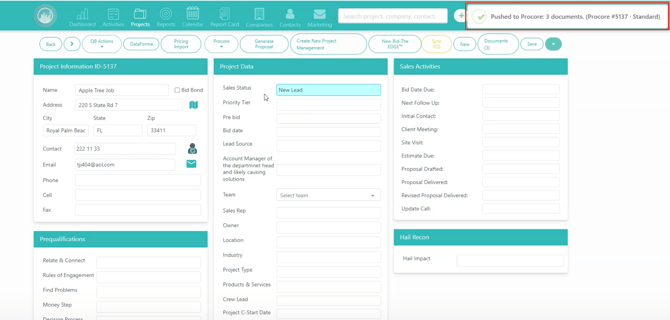
- The RFI is created in Procore
📂 Understanding Folder Structure
1️⃣1️⃣ Maintain Folder Organization
When documents are sent to Procore:
📁 Folder structure is preserved automatically.
Example:
- Files stored in a specific folder in Followup
- Appear in the same folder structure in Procore
This keeps document organization consistent across both systems.
✅ Result
After setup, your team will be able to:
- Send projects to Bid Board and Portfolio
- Push documents and drawings
- Create RFIs from Followup
- Maintain folder organization
- Use templates and parent jobs
- Track pushes through sync logs
💡 Best Practices
✔️ Enable only the modules your team uses
✔️ Review transfer status before pushing files
✔️ Use templates for consistent project setup
✔️ Keep folder structures organized in Followup
✔️ Monitor sync logs after transfers
Happy Selling!