
⚙️ Step-by-Step Instructions
1️⃣ Open Integration Settings
-
Go to Company Settings
-
Navigate to Integrations
-
Select BuildingConnected
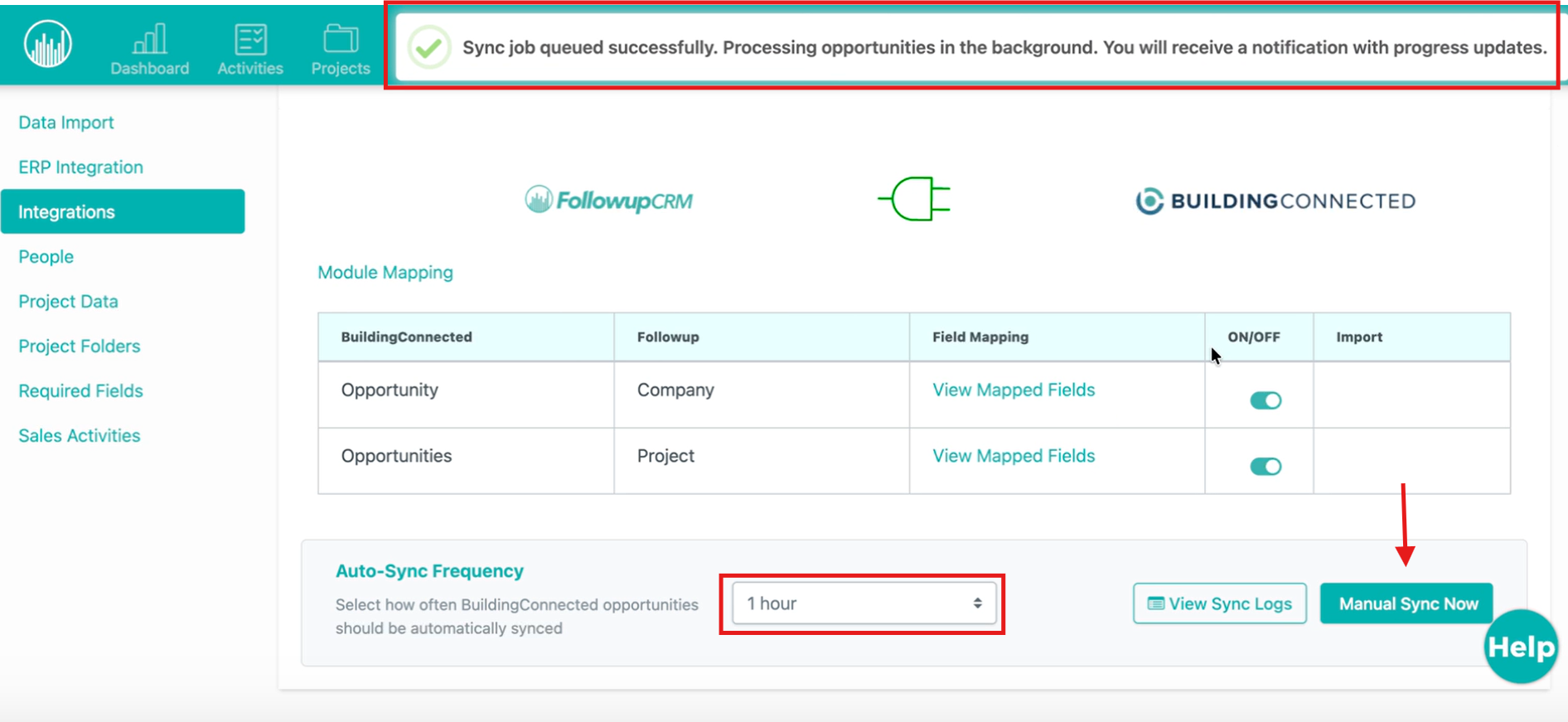
Locate the Sync Frequency dropdown.
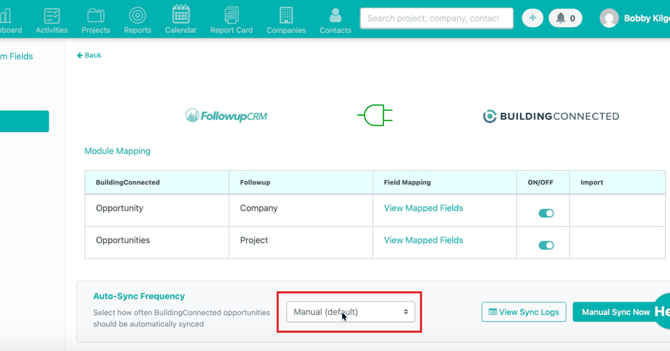
2️⃣ Choose Your Sync Frequency
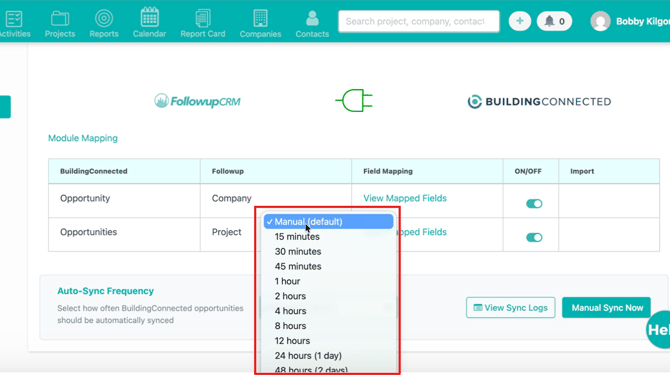
Click the dropdown to view available options.
Options typically include:
-
🖱️ Manual (default)
-
⏱️ Hourly or scheduled intervals
3️⃣ Understand Manual Sync (Default)
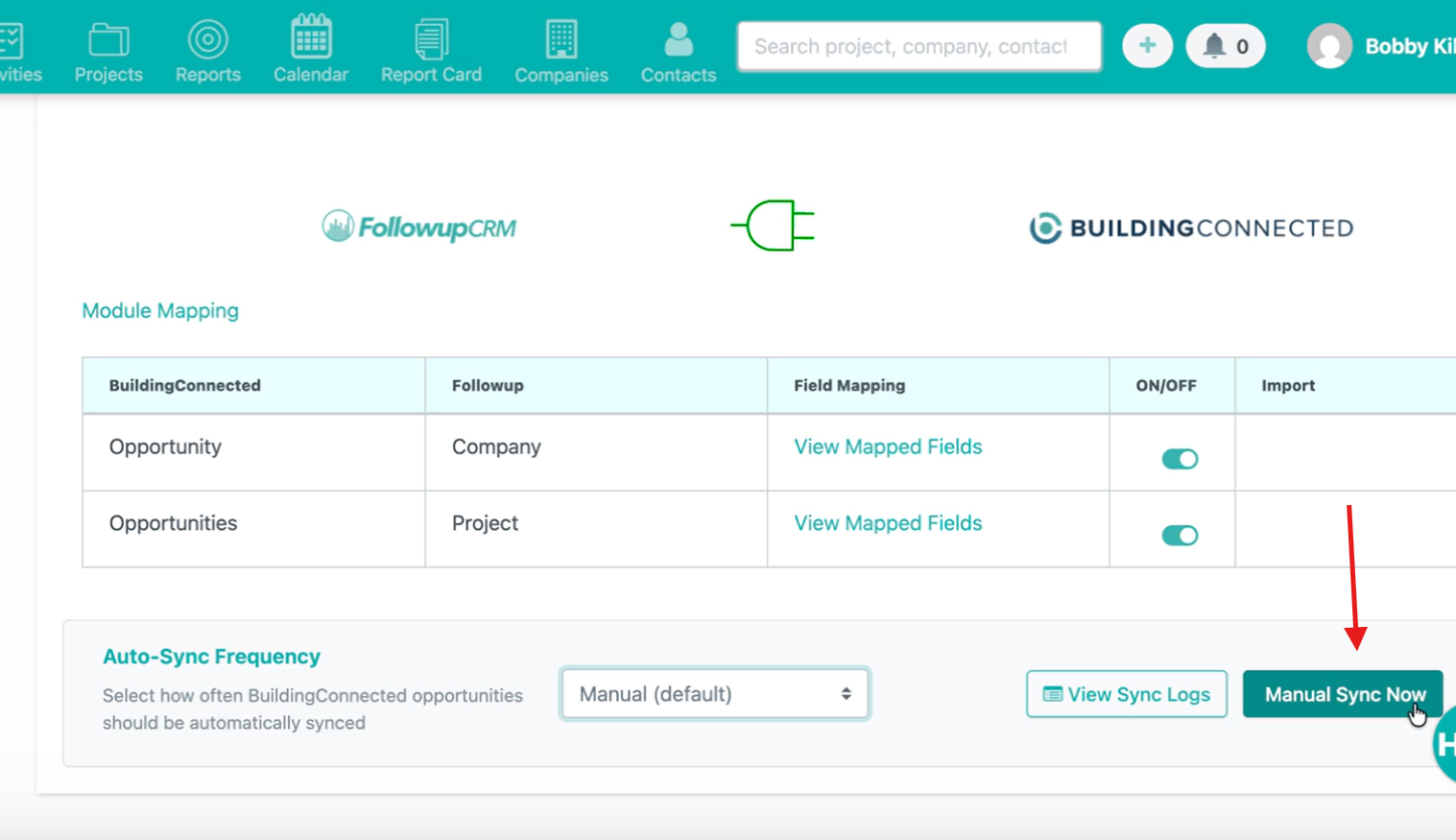
If set to Manual:
-
Syncs only happen when you click Manual Sync Now
-
No automatic updates occur
Use this if:
-
You prefer full control
-
You only sync occasionally
-
You’re testing mappings
4️⃣ Enable Automatic Sync
To automate:
-
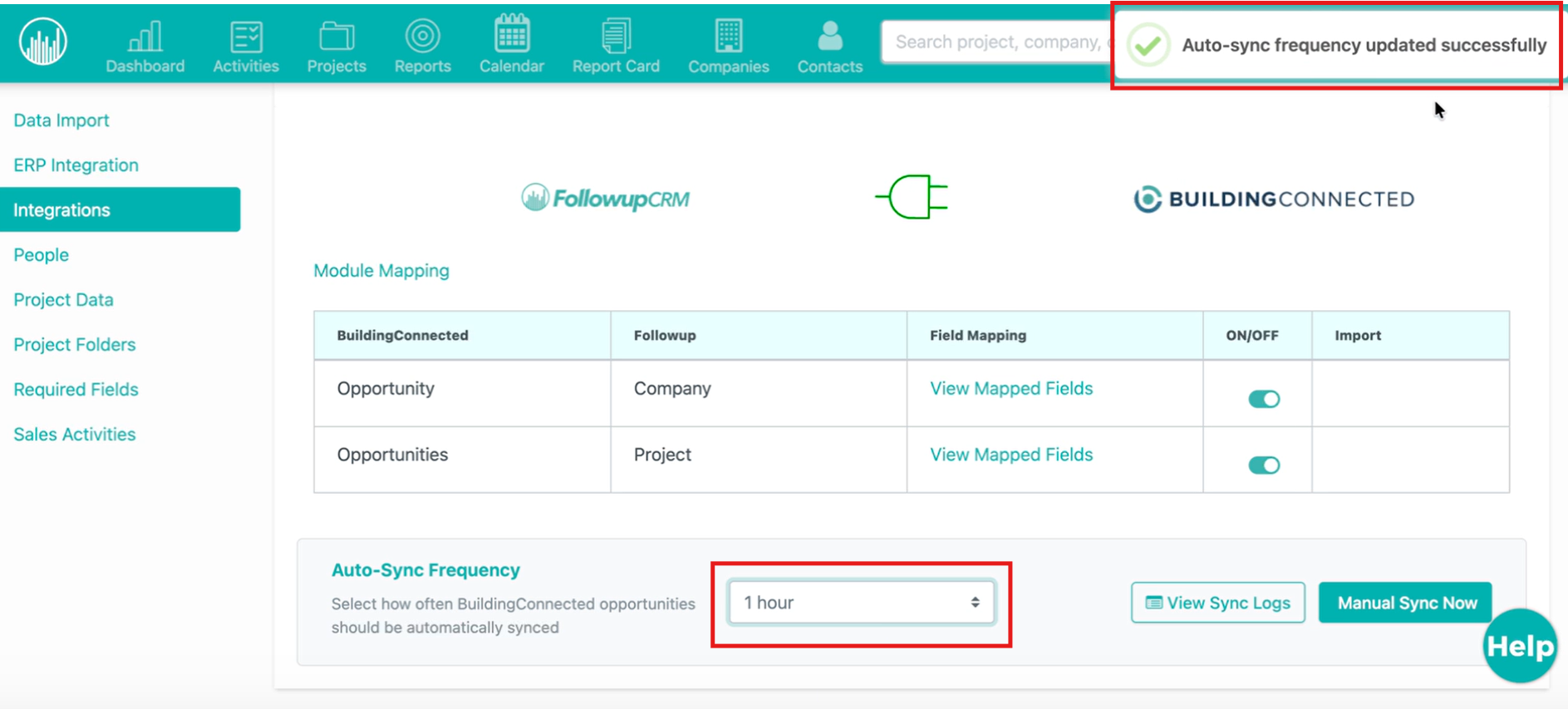
Select a frequency (ex: Every hour)
-
The setting saves automatically
Followup will now:
-
Sync existing projects
-
Import newly tagged opportunities
-
Update mapped fields
All in the background.
5️⃣ Run a Manual Sync Anytime
Even with automation enabled, you can still:
-
Click Manual Sync Now
This:
-
Immediately starts a sync
-
Processes new and updated records
-
Sends a notification when complete
Great for urgent updates.
6️⃣ Review Sync Logs
To monitor activity:
-
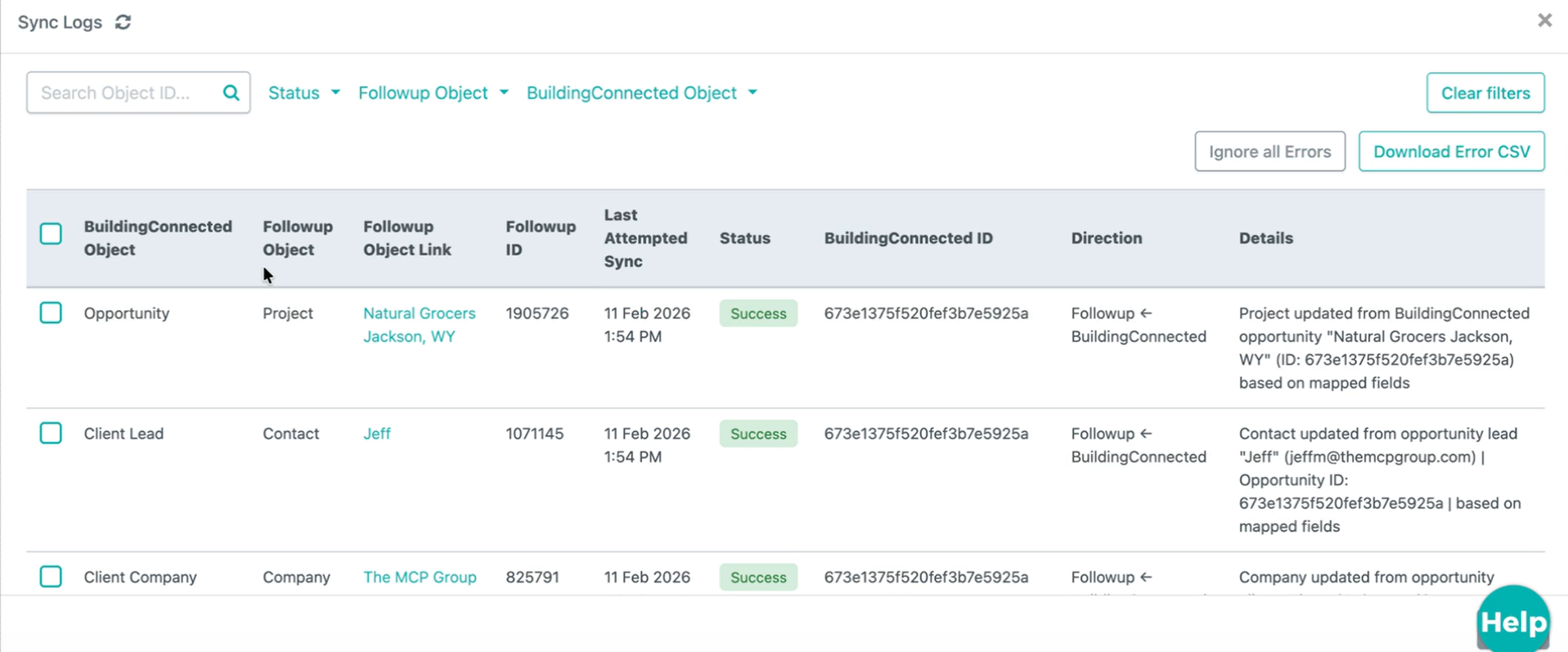
Open Sync Logs
Here you can see:
-
🕒 Sync time/date
-
✅ Success or errors
-
📄 Details for each run
This helps troubleshoot or confirm updates.
✅ Result
After setup, you’ll be able to:
-
Automatically sync on a schedule
-
Manually sync whenever needed
-
Track sync history
-
Keep projects and bids continuously updated