
📖 Gregg Voice AIOverview
Gregg is FollowUp CRM's built-in Voice AI assistant. Instead of clicking through menus and filling out forms, you speak your request in plain language and Gregg handles the rest — creating projects, updating fields, adding notes, querying data, and marking activities complete, all within your CRM.
Gregg works across projects, companies, and contacts. Every action that changes your data shows a confirmation preview before anything is saved, so your team is always in control.
Voice AI requires a Deepgram API key, an Anthropic API key, and a team access flag to be enabled. Contact your FollowUp account manager if these are not yet configured on your account.
⚙️ Part 1: Setup & Configuration (Administrators)
Step 1: Add API Keys to Your Server Configuration
Add the following to your server environment:
DEEPGRAM_API_KEY— Your Deepgram speech-to-text keyANTHROPIC_API_KEY— Your Anthropic Claude keyVOICE_ENABLED=true
If you are on a managed FollowUp instance, your account manager will configure this for you.
Step 2: Enable Voice AI Access for Your Team
- Navigate to Team Settings.
- Locate the Voice AI Access toggle.
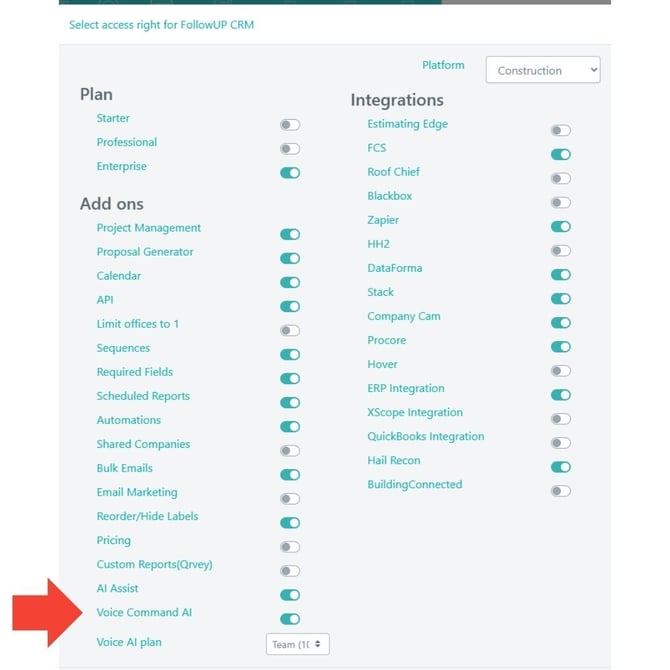
- Turn the toggle on.
- Save your changes.
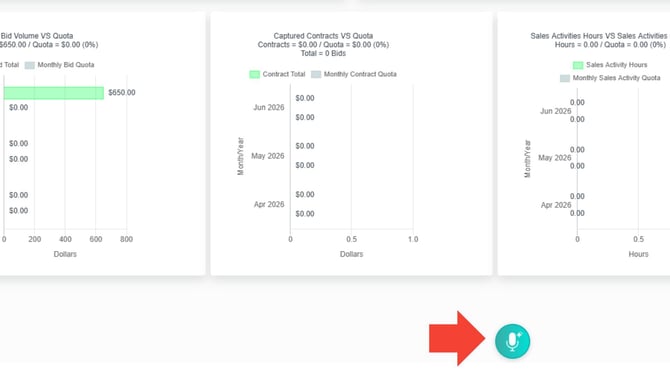
Once enabled, the Gregg button appears in the bottom corner of the screen for every member of that team.
You can enable Voice AI for one team at a time to allow a controlled rollout before expanding to your entire organization.
🎙️ Part 2: Your First Voice Command
Step 1: Open Gregg
Click the Gregg button in the bottom corner of any page in FollowUp CRM.
Step 2: Complete the First-Time Walkthrough
The first time you open Gregg, a short five-step walkthrough appears. It explains:
- What Gregg can do
- How to speak commands
- How confirmations work
The walkthrough takes approximately 30 seconds to complete.
You can replay the walkthrough at any time by clicking the question mark icon in the top-right corner of the voice panel.
Step 3: Speak Your Request
- Click Speak.
- Wait for the button to glow, indicating Gregg is listening.
- Speak your request in plain language.
- Click Stop & Send.
.png?width=670&height=838&name=Untitled%20design%20(2).png)
Step 4: Review and Confirm
Gregg displays the transcribed text for review.
- Verify the transcription.
- Make edits if needed.
- Click Accept.
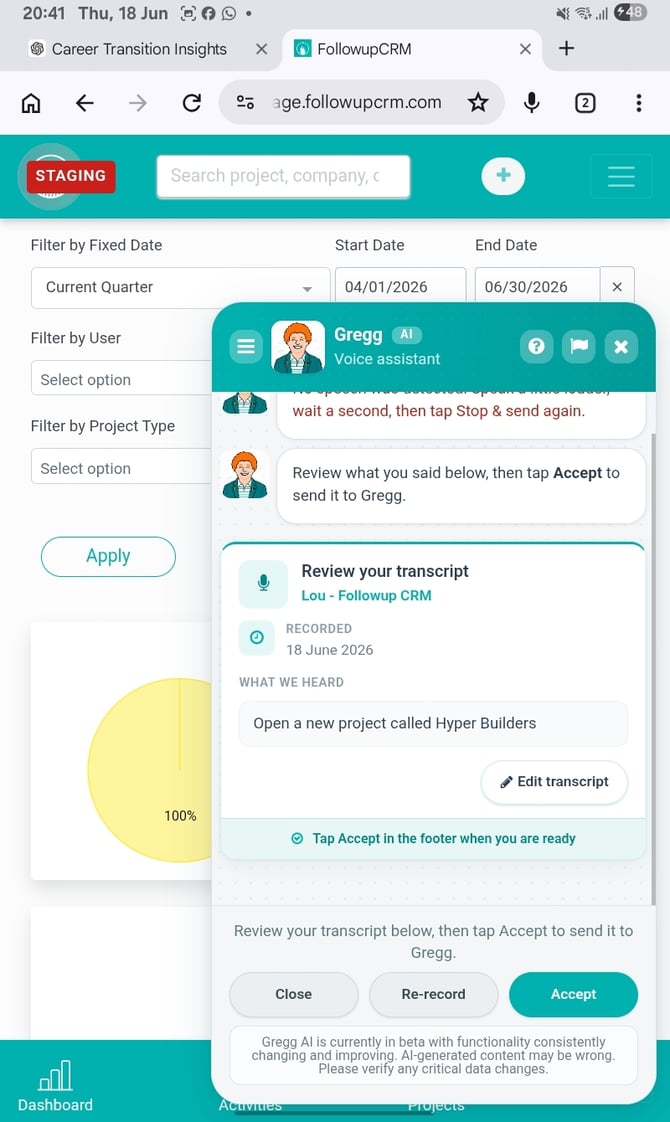
For actions that modify data, Gregg displays a confirmation card showing exactly what will happen.
Review the details and click Confirm to save.
Pending confirmations expire after 2 minutes. If the timer expires, simply repeat your request.
📋 Part 3: What Gregg Can Do
🏗️ Projects
| Action | Example Command |
|---|---|
| Create a project | "Create a new project called Riverdale Office Park Expansion, set the base bid to six hundred and twenty thousand dollars." |
| Read project status | "What's the status of the Riverdale Office Park Expansion?" |
| Update project fields | "Update Riverdale Office Park Expansion, set the sales status to Closed Won." |
| Add a project note | "Add a note to Riverdale Office Park Expansion: permit submitted to city planning yesterday." |
| Query project data | "What is the total contract amount for projects created year to date?" |
| Mark an activity complete | "Mark site visit complete on the Riverdale Office Park Expansion." |
| Delete a project | "Delete the project Riverdale Office Park Expansion." |
Available project query types include:
- Current sales status
- Specific field values
- Base bid values
- Contract amounts
- Assigned estimators
- Pipeline counts
- Contract totals
- Projects within a date range
- Record counts using flexible timeframes
Supported timeframes include:
- Today
- This week
- This month
- This quarter
- Year to date
- Last 30 days
🏢 Companies
| Action | Example Command |
|---|---|
| Create a company | "Create a new company called Summit Commercial Properties." |
| Query a company field | "Who is the owner of Summit Commercial Properties?" |
| Update a company | "Update Summit Commercial Properties, change the address to 875 Commerce Drive, Dallas Texas 75201." |
| Add a company note | "Add a note to Summit Commercial Properties: follow up required before end of month." |
| Delete a company | "Delete the company Summit Commercial Properties." |
👤 Contacts
| Action | Example Command |
|---|---|
| Create a contact | "Create a contact named Marcus Webb at Summit Commercial Properties, email marcus.webb@summitcp.com, cell 512-555-0184, title Procurement Manager." |
| Query a contact | "What is the next follow-up date for Marcus Webb?" |
| Update a contact | "Update Marcus Webb, change his title to Senior Procurement Manager." |
| Add a contact note | "Add a note to Marcus Webb: met in person today, moving forward on the contract." |
| Mark a contact activity complete | "Mark proposal delivered as complete on Marcus Webb." |
| Create a residential contact | "Create a residential contact named Brian Foster, cell 720-555-0094." |
| Delete a contact | "Delete the contact Marcus Webb." |
🔢 Counts & Lists
| Action | Example Command |
|---|---|
| Count records | "How many projects were created this month?" |
| List records | "List all projects created this quarter." |
| Count all records | "How many companies does our team have in total?" |
| Search by name | "List all projects with Riverdale in the name." |
Say "show me more" to page through long lists of results.
💡 Part 4: Advanced Features
🔄 Multi-Turn Conversation
Gregg remembers context throughout your session.
Example:
User: "What's the status of Riverdale Office Park Expansion?"
User: "Update it to Closed Won."
User: "Now add a note: project has been awarded."
Gregg automatically understands that "it" refers to the project mentioned previously.
📝 Field Collection Loop
If Gregg needs more information, he asks for it one field at a time instead of failing the request.
Example:
User: "Create a new project called Northside Parking Garage."
Gregg: "What sales status would you like to set?"
User: "Active."
📄 Note Dictation
Instead of speaking an entire note in a single command, you can start note dictation mode.
Example:
User: "Add a note to Riverdale Office Park Expansion."
Gregg then prompts you to dictate the note separately.
↩️ Undo
After a successful save, an Undo option appears for approximately three minutes on supported actions.
Supported actions include:
- Adding a project note
- Updating a project
Click Undo from the success message to immediately reverse the change.
🛡️ Delete Passphrase Protection
For critical delete operations, Gregg requires a confirmation passphrase before proceeding.
This provides a second layer of protection in addition to the standard confirmation card.
🔙 Go Back
During a multi-step conversation, you can say:
- "Go back" to return to the previous step
- "Cancel" to stop the request entirely
❌ What Gregg Cannot Do
Gregg currently cannot:
- Send emails
- Send calendar invitations
- Book meetings in Outlook
- Book meetings in Google Calendar
- Book meetings in Zoom
- Set personal reminders
- Export data to spreadsheets
- Merge records
- Bulk delete records
- Access data from other teams
When a request falls outside of Gregg's capabilities, he will explain the limitation and suggest the closest supported alternative.
Result
After setup is complete, your team can use Gregg to create, update, query, and manage projects, companies, and contacts entirely by voice without navigating menus or manually entering data.
Every action is previewed before saving, helping maintain data accuracy and user control.
Best Practices
✅ Be specific with names to help Gregg identify records quickly.
✅ Use natural language. You do not need to memorize commands.
✅ Review confirmation cards carefully before saving updates or deletes.
✅ Use the Undo option immediately if a note or project update needs to be reversed.
✅ Start with simple actions such as status checks or note creation before testing create and delete commands.
✅ Report issues using the flag icon within the Gregg panel if something is misunderstood.
Happy Selling! 🎉