
Overview
Brand Theme Color lets your team replace Followup CRM’s default teal accent with your company brand color.
This is a team setting. Once saved, every team member sees the updated accent color across Followup CRM.
Use this feature when you want Followup CRM to match your company branding in the app.
Step-by-Step Instructions
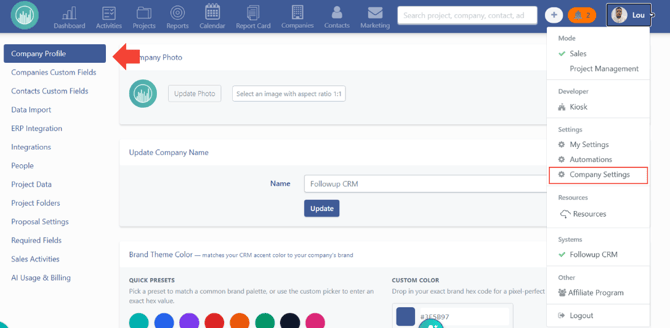
⚙️ Step 1: Open Company Profile
- Go to Company Settings.
- Open the Company Profile tab.
🎨 Step 2: Open Brand Theme Color
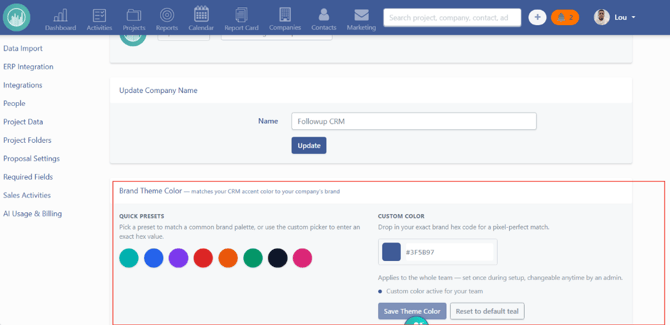
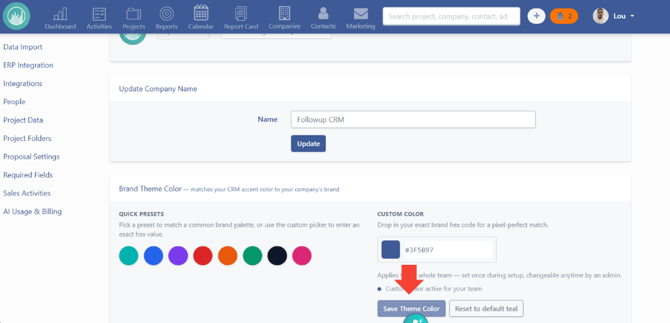
Scroll to the Brand Theme Color section.
From here, you can choose a preset color or enter a custom hex color.
🎯 Step 3: Choose Your Color
Select a color using one of these options:
Option A: Use a quick preset
Select one of the available preset colors to preview it on screen.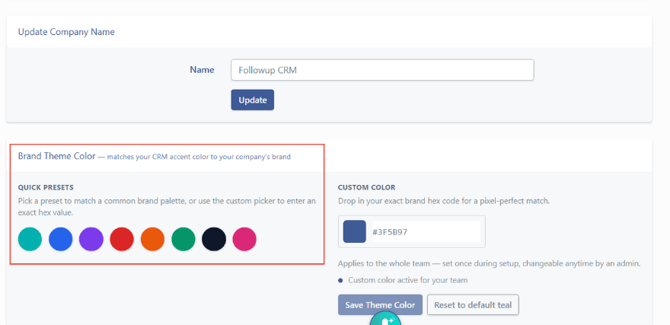
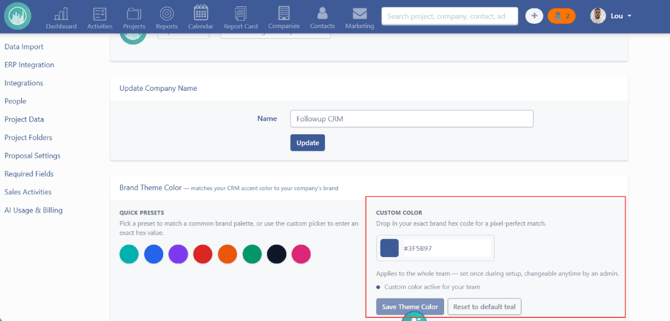
Option B: Enter a custom color
Use the color picker or type your exact brand hex code.
Example:
#2563EB
Note: The hex value must be a valid 6-digit color code.
👀 Step 4: Review the Live Preview
After selecting a color, Followup CRM shows a live preview.
Use the preview to confirm the color looks right before saving.
Warning: If the color is too light for white text, Followup CRM may show a warning. Choose a darker shade before saving.
💾 Step 5: Save Theme Color
Select Save Theme Color.
The brand color is now applied across the CRM for your team.
Primary buttons, links, and other accent elements update to match your selected color.
↩️ Step 6: Reset to Default Teal (Optional)
If you want to return to the standard Followup look:
- Open Brand Theme Color.
- Select Reset to default teal.
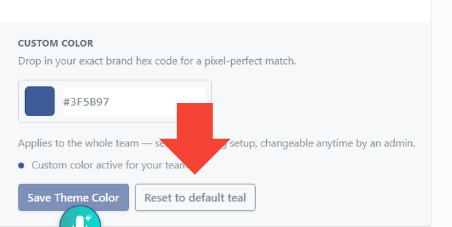
This removes the custom color and restores the default Followup teal.
Important Notes
- Brand Theme Color is a team setting. Individual users cannot set a personal theme color.
- You need Company Profile access to change it.
- Emails, PDFs, and some external pages keep the default Followup teal.
- After saving, confirm the color looks correct across the CRM. Update the hex value or reset to the default teal if needed.
Result
After completing these steps, your team’s Brand Theme Color will be saved and applied across Followup CRM. Team members will see the updated accent color in the app, while emails, PDFs, and some external pages continue using the default Followup teal.
Best Practices
- Use your official company brand hex code when possible.
- Preview the color before saving.
- Avoid colors that are too light for white text.
- Confirm the saved color looks correct across key CRM screens.
- Reset to default teal if you need to return to the standard Followup look.
- Remember that this setting applies to the whole team, not individual users.
Happy Selling!