
1️⃣ Open the Opportunity in BuildingConnected
-
Navigate to the bid/opportunity you want to import
-
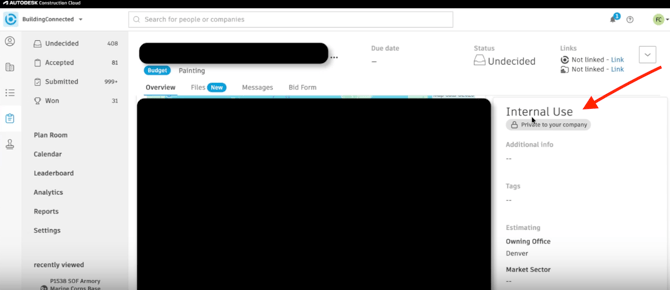
Scroll to the Internal Use section on the right side
2️⃣ Add the Followup Tag
-
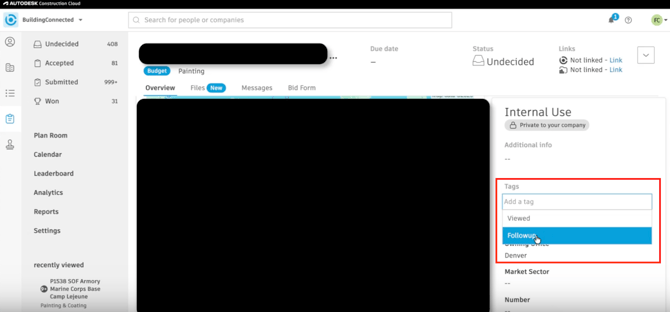
Click the Tags field
-
Select Followup
-
Save
🏷️ This tag tells the system the bid should sync into Followup.
Once saved, the opportunity is queued for syncing based on your integration settings.
3️⃣ Run a Manual Sync (Optional but Faster)
If you want the bid to appear immediately:
-
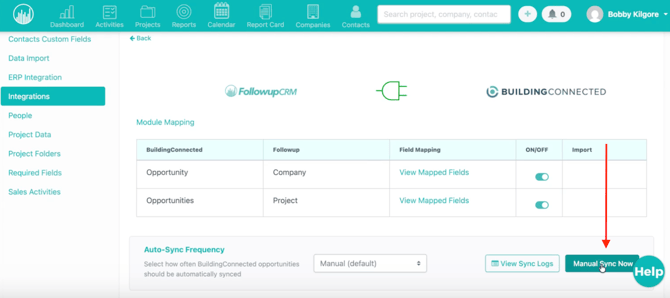
Go to Followup → Integrations → BuildingConnected
-
Click Manual Sync
This:
-
Checks for newly tagged bids
-
Queues them for import
-
Pulls them into Followup right away
4️⃣ View the Project in Followup
After syncing:
-
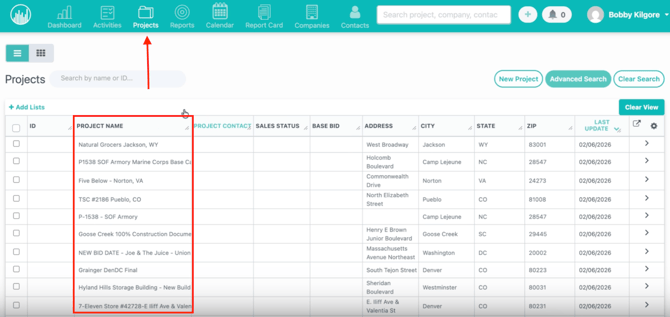
Open your Projects page
-
The bid appears as a new project
Data populates automatically based on your mapped fields, including:
-
📁 Project details
-
🏢 Company name
-
👤 Contact information
-
Any other mapped fields
If the company doesn’t already exist, Followup creates it automatically.
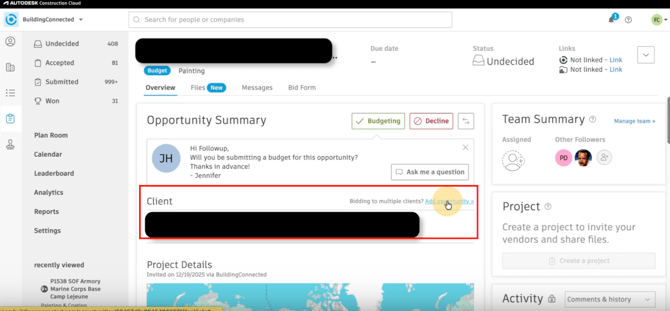
5️⃣ Combine Multiple Bids for the Same Project (Optional)
If you receive multiple bids for one project:
-
Tag each bid with Followup
-
In the opportunity, use the option to add/link another bid
-
Search and select related bids
Followup will:
-
Group them into the same project
-
Keep all bids connected together
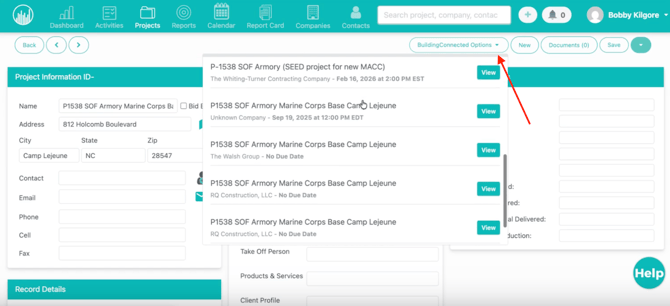
6️⃣ View Connected Bids Inside the Project
Inside the project:
-
Open the BuildingConnected dropdown
-
You’ll see all linked bids listed together
This makes it easy to track multiple submissions for one job.
✅ Result
After setup, you’ll be able to:
-
Import bids with one tag
-
Sync instantly or automatically
-
Auto-create companies and contacts
-
Keep multiple bids organized under one project
-
Eliminate manual data entry