
📍 Overview
The Procore integration in Followup CRM allows teams to:
- Pull project data from Procore
- Sync documents and drawings
- Import RFIs and specifications
- Prevent duplicate file imports
- Manage oversized document behavior
The available sync options depend on which modules are enabled in your integration settings.
⚙️ Step-by-Step Instructions
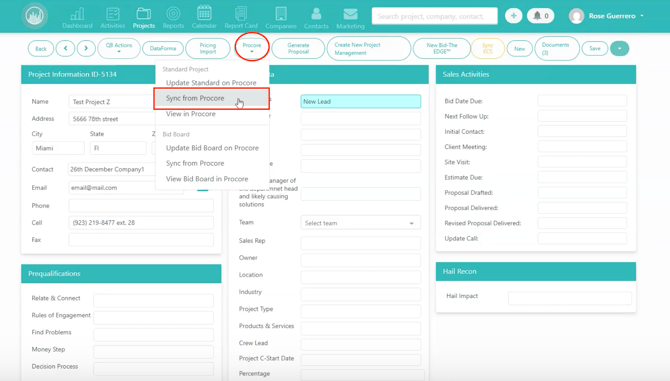
1️⃣ Open the Project Sync Options
- Open a project in Followup CRM
- Open the Procore dropdown
- Select Sync from Procore
2️⃣ Review Enabled Content Modules
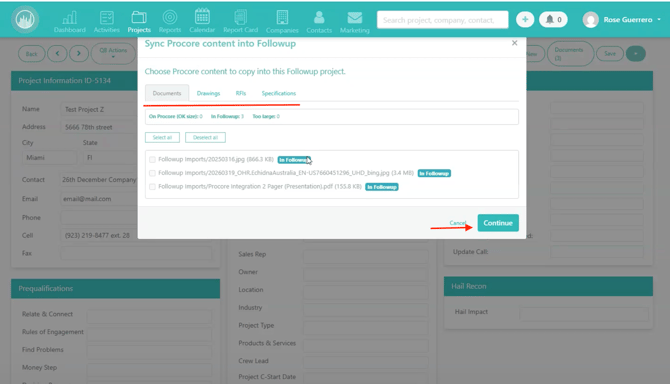
After selecting the project, you’ll see tabs for the enabled modules.
These may include:
- 📄 Documents
- 📐 Drawings
- ❓ RFIs
- 📚 Specifications
Module Overview
- Documents → Main Procore document files
- Drawings → Drawing files from Procore
- RFIs → Project RFIs from Procore
- Specifications → Specification sets from Procore
3️⃣ Select the Content to Sync
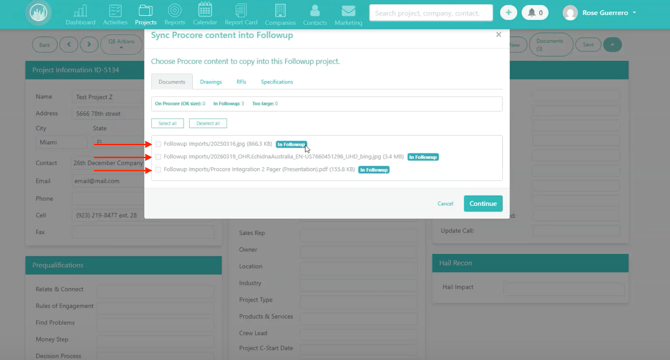
- Open each tab
- Review available items
- Select only the content you want to import
📌 You are not required to sync everything.
4️⃣ Avoid Duplicate Imports
If content has already been synced previously:
- It will be marked as Already Present
- This helps prevent duplicate files and records
5️⃣ Understand Oversized File Limitations
Followup CRM supports files up to:
📏 200MB
If a Procore file exceeds this limit:
- It cannot be downloaded directly
- It will appear as:
- ⛔ Too Large to Pull
6️⃣ Review Oversized File Behavior
How oversized files behave depends on your integration settings.
You have two possible configurations:
🔗 Create External Reference
A placeholder file is created in Followup that:
- Links directly to the Procore document
- Opens/downloads the file from Procore
✅ Recommended for maintaining complete document visibility.
⛔ Skip Oversized Files
Oversized files:
- Will not appear during sync
- Are automatically excluded
Use this if your team prefers a cleaner document library.
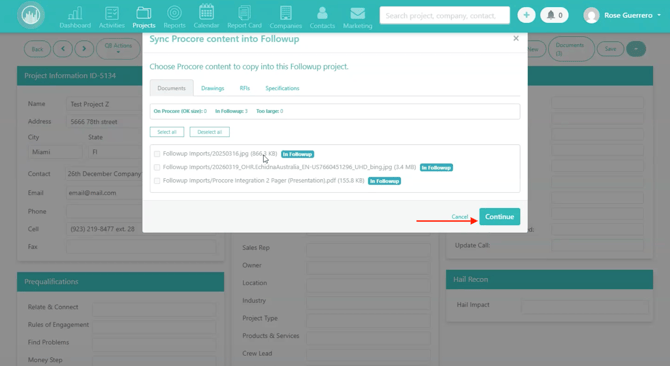
7️⃣ Complete the Sync
After selecting your items:
- Click Continue
The selected content will sync into Followup CRM.
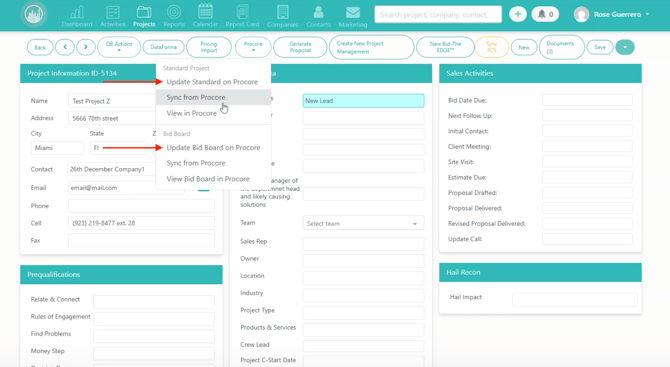
8️⃣ Use the Update Button
Once the project connection exists:
The Connect button changes to:
🔄 Update
Use this whenever:
- Project information changes
- New content needs to sync
- Files or records are updated in Procore
9️⃣ Open the Project in Procore
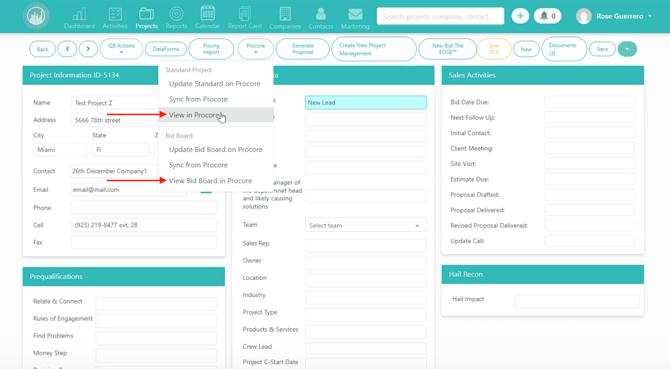
After connection, you’ll also see:
🔗 View in Procore
Clicking this button:
- Opens the project directly in Procore
- Provides quick access between systems
✅ Result
After syncing, your team will be able to:
- Pull project data from Procore
- Import drawings, RFIs, and specifications
- Prevent duplicate imports
- Manage oversized files efficiently
- Update synced projects as changes occur
- Access projects directly in Procore
💡 Best Practices
✔️ Sync only the files and modules your team needs
✔️ Use External References for oversized files
✔️ Review “Already Present” indicators before syncing
✔️ Use the Update button regularly for active projects
✔️ Keep integration modules organized and relevant
Happy Selling!