
📌 @ Tags in Comments & Notes
Overview
The @ tagging feature allows users to connect related CRM records directly inside notes and comments across Followup CRM.
When writing a Project Note/Comment, Company Note, or Contact Note, users can type @ to search for and tag:
- Users
- Contacts
- Companies
- Projects
This makes it easier to connect work across records without manually copying the same note into multiple places. For example, you can tag multiple contacts in a project note, tag a project in a contact note, or tag a company in a contact or project note.
Tagged records help keep related context visible from the places users work most, including project, company, and contact records.
📌 Tag a Contact, Company, or Project in a Project Note/Comment
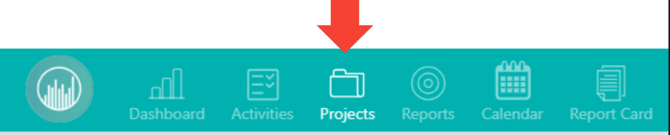
- Navigate to Projects.
- Open the project you want to update.
- Scroll to the Project Notes, Project Comments, or Project History section.
- Click Add Comment.
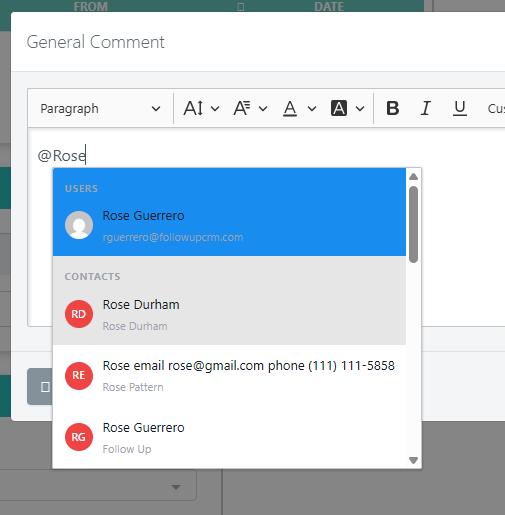
- In the comment editor, type @.
- Search for and select the contact, company, project, or user you want to tag.
- Finish writing your note/comment.
- Complete your comment.
- Click Save.
👤 Tag a Project, Company, Contact, or User in a Contact Note
- Navigate to Contacts.
- Open the contact record.
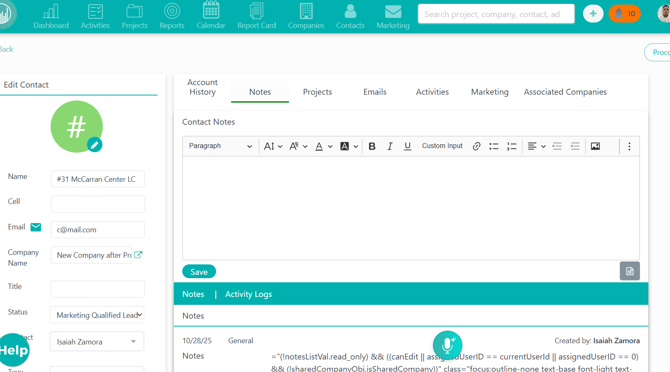
- Go to the Contact Notes section.
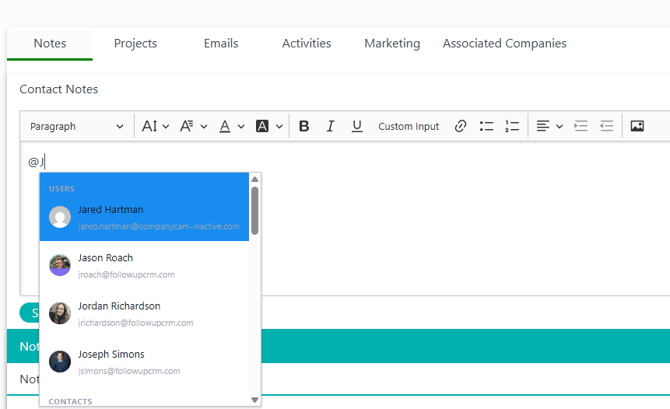
- Click into the note editor.
- Type
@. - Search for and select the project, company, contact, or user you want to tag.
- Finish writing your note.
- Click Save.
- Search for and select the project, company, contact, or user you want to tag.
- Complete the note.
- Click Save.
Contact Notes editor showing a project selected from the @ dropdown.
🏢 Tag a CRM Record in a Company Note
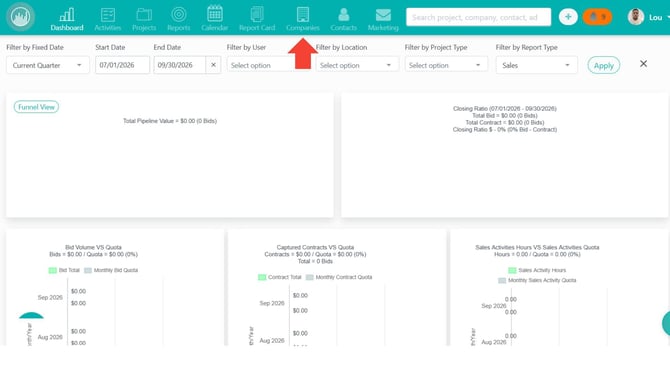
- Navigate to Companies.
- Open the company record.
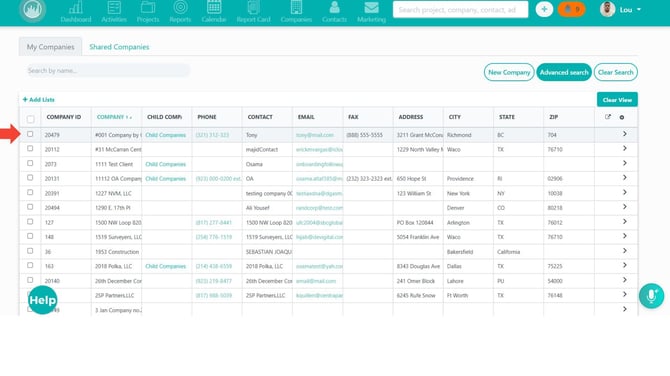
- Go to the Company Notes section.
- Click into the note editor.
- Type @.
- Select the user, contact, company, or project you want to tag.
- Complete the note.
- Click Save.
.jpg?width=670&height=377&name=Untitled%20design%20(17).jpg)
Company Notes editor with a tagged CRM record in the note.
🔁 View Synced Notes on a Contact Record
- Navigate to Contacts.
.jpg?width=670&height=377&name=Untitled%20design%20(18).jpg)
- Open the contact record.
- Go to Contact Notes.
- Look for notes labeled:
Synced from project · Read-only
- Click the project link to open the original project record.
Contact Notes list showing a synced project note with the Synced from project · Read-only label.
Result
After using @ tags, related CRM records are connected directly inside comments and notes.
Users can quickly view project, contact, company, and user context from the appropriate record without creating duplicate notes.
Note: Tagging projects, companies, and contacts is used to link related CRM records for internal context only. These records are not notified when tagged. Only tagged users receive a notification
Best Practices
✅ Use @ tags when a comment or note relates to more than one CRM record.
✅ Tag the specific contact, company, or project involved so the context is easier to find later.
✅ Use project comments for project-related updates.
✅ Use contact notes for contact-specific conversations or follow-ups.
✅ If a note appears as read-only, edit it from the original source record.
✅ Avoid creating duplicate notes when tagging can connect the same context across records.
Happy Selling! 🎉