
📘 Overview
Account History is a single, newest-first timeline on a Company or Contact record. It brings together notes, comments, emails, activity, record changes, and integration entries so you don’t have to hunt across multiple places.
You can:
- 📂 Open Account History on a company or contact
- 🗂️ Switch type tabs with live counts
- 🔍 Narrow the feed with Show groups and filters
- 🧹 Clear filters when you’re done
📂 Step 1: Open Account History
On a company
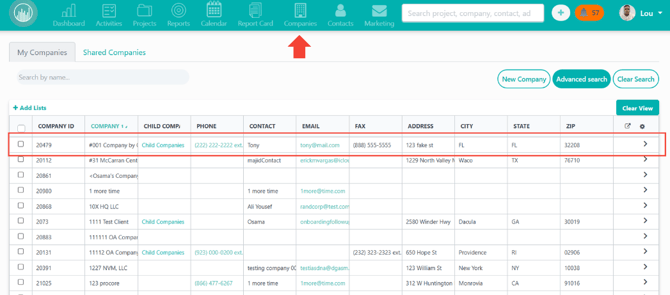
- Go to Companies and open the company.
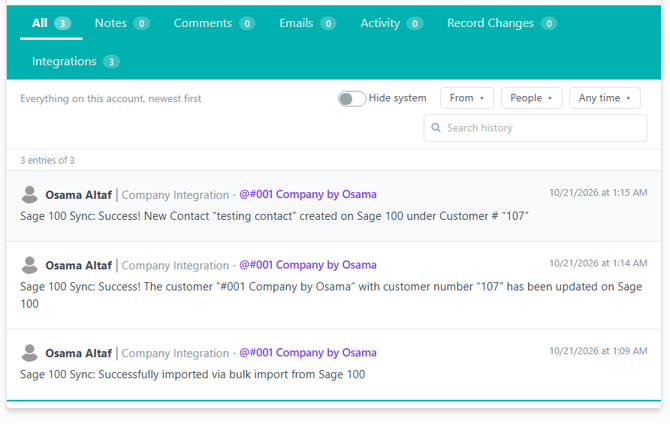
- Click the Account History tab.
On a contact
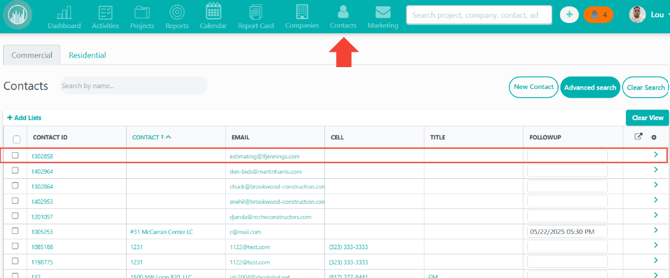
- Go to Contacts and open the contact.
- Click the Account History tab.
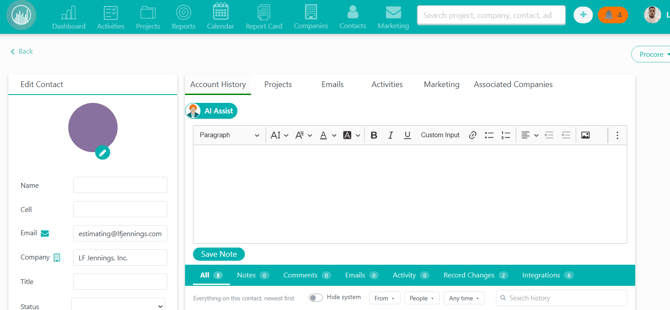
✅ The feed loads with the newest entries at the top.
🗂️ Step 2: Choose a type tab
Use the tabs above the feed to focus on one kind of history:
| Tab | What you’ll see |
|---|---|
| All | Full timeline |
| Notes | Notes |
| Comments | Comments |
| Emails | Email activity |
| Activity | Sales / activity entries |
| Record Changes | Field and record changes |
| Integrations | Integration-related entries |
Each tab shows a count so you can see how much is in that category.
🏷️ Step 3: Use Show groups (when available)
On some tabs, Show pills appear under the tab row.
- Leave them unselected to see the whole tab.
- Click one or more pills to show only those groups.
- Click again to turn a group off.
💡 The All tab usually won’t show Show pills — it displays the full mixed timeline instead.
🔍 Step 4: Filter the feed
Use the toolbar to narrow results further:
| Filter | What it does |
|---|---|
| Hide system | Hides system-generated rows |
| From | Limit to company, contacts, and/or projects |
| People | Show entries from selected users |
| Date | Any time, Today, Last 7 / 30 / 90 days, or a custom range |
| Search | Find matching text in the history |
Active filters appear as Filtered by chips under the toolbar. Remove a chip to clear that filter only.
🧭 Which view should I use?
| I want to… | Do this |
|---|---|
| See everything recent | All + Date Any time + no chips |
| Find emails only | Emails tab |
| See only this company’s own rows | From → This company |
| Review one teammate’s updates | People → select that user |
| Cut system noise | Turn on Hide system |
❓ FAQ
Why is a From or People option greyed out?
It has no entries in the tab you’re on. Switch tabs or clear other filters.
Why are company, contact, and project items mixed together?
Account History is one newest-first timeline across related sources—not separate lists by source.
I can’t find an entry I expect
Switch to All, clear all Filtered by chips, set Date to Any time, clear Search, then look again.
💡 Best practices
- 📂 Start on All, then narrow with tabs and filters.
- 🔍 Use Search plus a date range when you know roughly when something happened.
- 🧹 Clear chips when you’re done so the next visit isn’t still filtered.
- ✅ Use Hide system when you only want people-driven activity.
✅ Result
You can open Account History on any company or contact, move between Notes, Emails, Activity, and more, and filter by source, person, and date so the timeline stays easy to scan.
Happy Selling! 🎯