
Overview
🚀 Company Account History Rollup gives you one place to review account activity across:
- Company notes and logs
- Associated contact notes and logs
- Associated project comments, emails, logs, sales activities, integrations, and milestones
This helps your team quickly understand relationship context without opening multiple records.
Step-by-Step Instructions
🧭 Step 1: Open the Company Record
- Go to Companies.
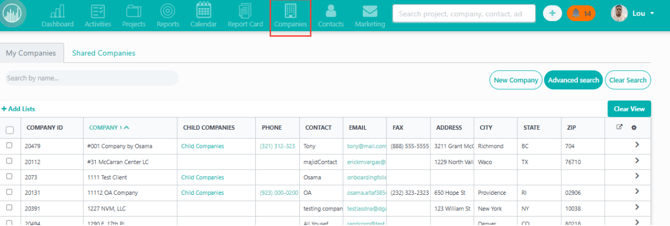
- Select the company you want to review.
- Scroll to the Account History section.
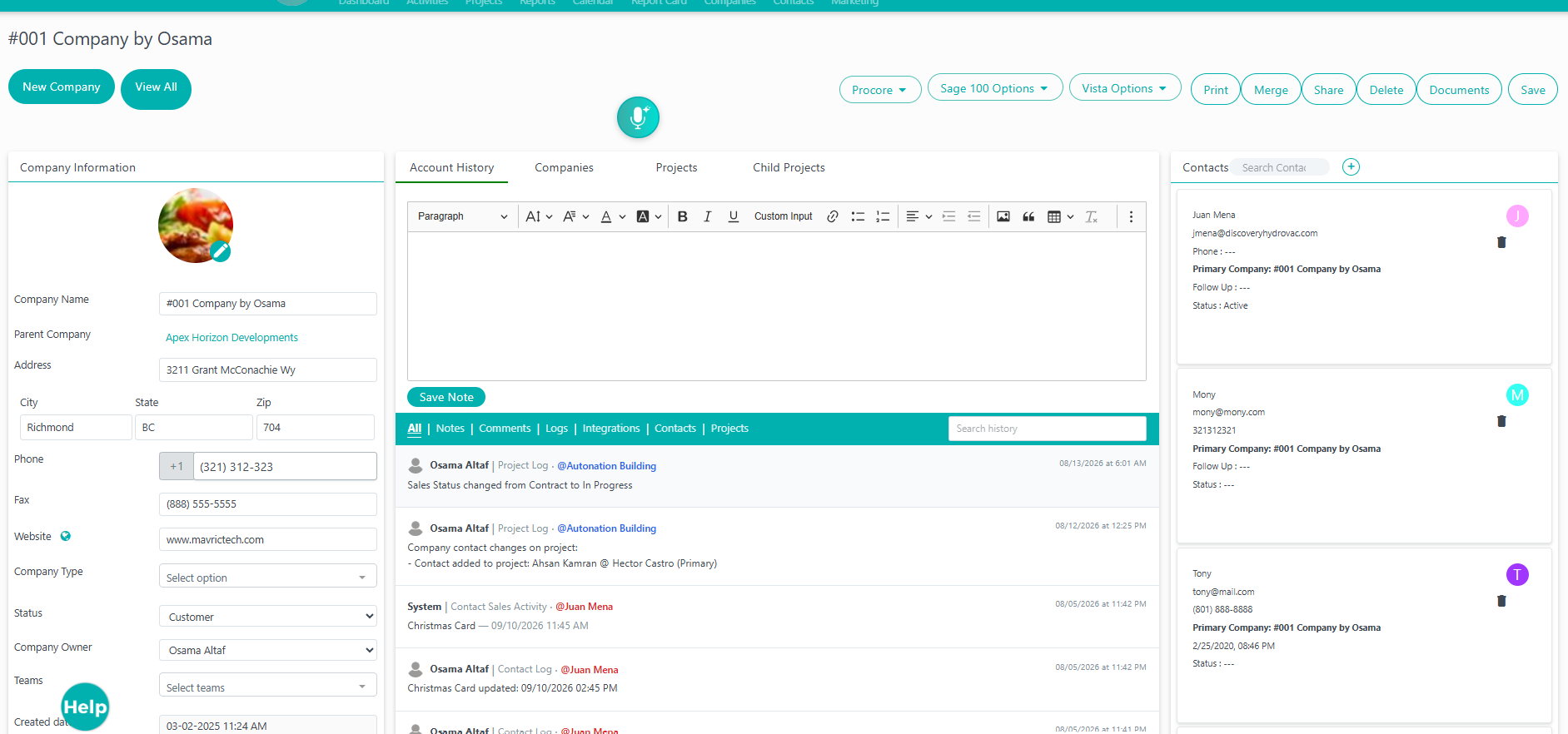
🕒 Step 2: Start with the Default Timeline
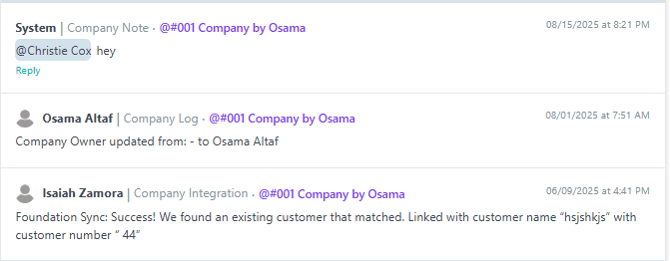
- Confirm the feed is sorted newest first.
- Review the compact history rows (summary view).
- Look for each row’s:
- Date/Time
- Type badge (Example: Company Note, Contact Log, Project Email)
- Actor (who created it)
- Source context (Company, Contact, or Project)
🧩 Step 3: Use Top-Level History Tabs
Use the top-level filters to narrow the feed:
- All
- Notes
- Comments
- Integrations
- Contacts
- Projects
🔎 Step 4: Apply Advanced Filters
Use the filters shown in the Account History tab to narrow results.
1) Use top filter tabs
At the top of the feed, click:
- All
- Notes
- Comments
- Logs
- Integrations
- Contacts
- Projects
These tabs are the primary way to filter by history category/source.
2) Use the Activity filter
Click Activity (x/x) to open detailed activity options, then choose what to include:
- Sales Activities
- Record Details
- Communication (Emails, Comments)
- Others (Project/Contact/Company changes, Project Data changes)
Then click Apply & Save.
3) Use the Users filter
Click Users (x/x) and select one or more users to show only history created by those users.
4) Use Search history
Use the search box to filter visible history content by keyword.
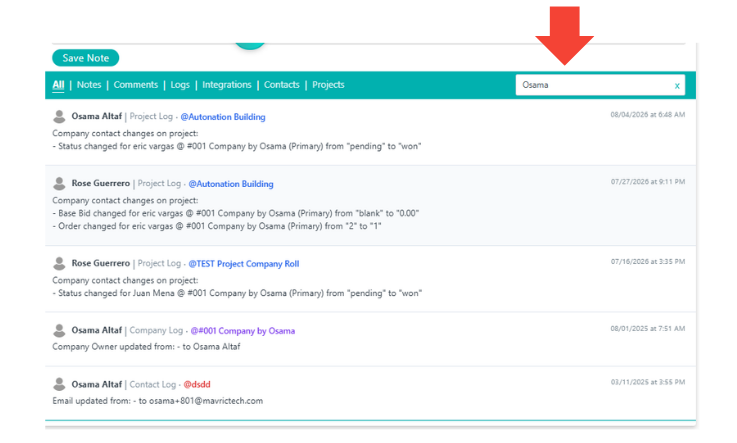
🔍 Step 5: Search the Timeline
- Enter keywords in Search history.
- Use names, status terms, or project references to find specific activity quickly.
♻️ Step 6: Reset and Continue
- Clear filters/search when needed.
- Move through pagination to review older history.
Result
✅ After completing these steps, you can quickly review complete account context (company + contacts + projects) from one timeline and investigate details without switching between multiple pages.
Best Practices
💡 Recommended usage
- Start with All, then narrow using tabs and filters.
- Use Projects filter when validating project-specific updates.
- Use Contacts filter for relationship and communication history.
- Add clear, structured notes to improve timeline readability.
⚠️ Important notes
- You will only see records you are authorized to access.
- Project visibility and team restrictions can limit what appears.
- Raw integration payloads are hidden in rollup view for clarity/security.
- Editing project comments/logs from the company page is not part of this workflow.
Happy Selling!