
Overview
🚀 Contact History Rollup gives you one place to review:
- Direct contact activity (notes, logs, sales activities, and related updates)
- Activity from projects associated with that contact (comments, emails, logs, sales activities, integrations, and milestones)
This makes it easier to understand full relationship context without opening every project individually.
Step-by-Step Instructions
🧭 Step 1: Open the Contact Record
- Go to Contacts.
.jpg?width=670&height=377&name=Untitled%20design%20(59).jpg)
- Open the contact you want to review.
- Navigate to the History section/tab.
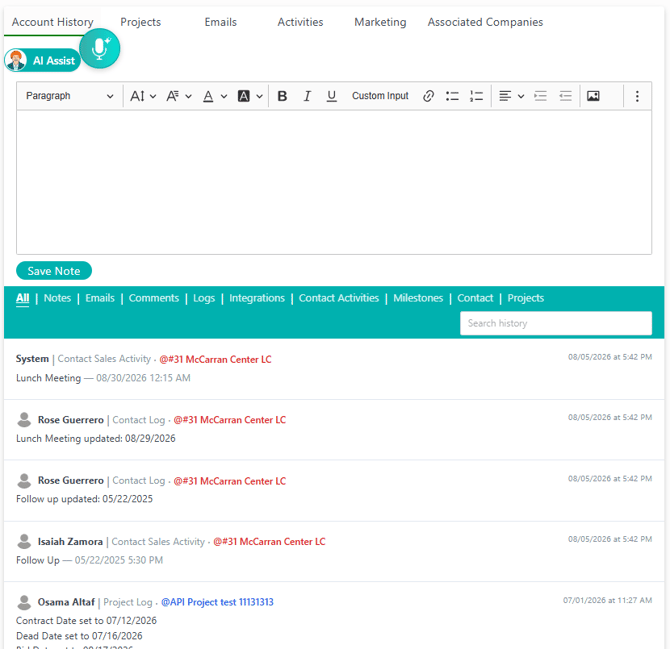
🕒 Step 2: Review the Default Feed
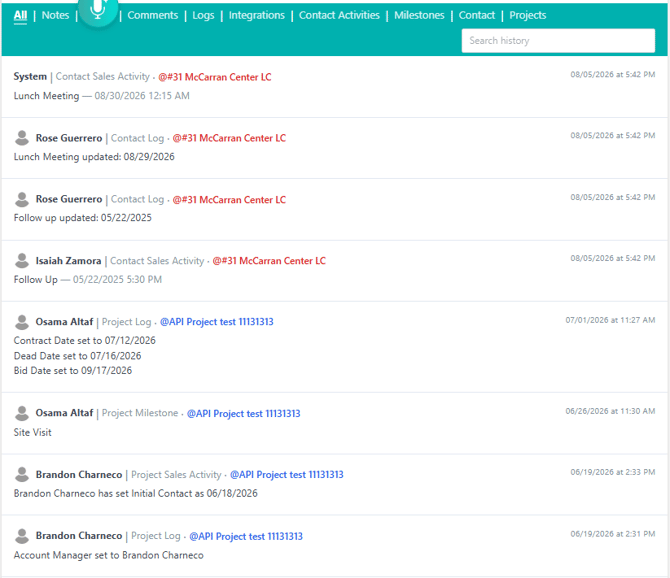
- Confirm the feed is sorted newest first.
- Scan compact history rows.
- For each row, review:
- Date/Time
- Type badge (Example: Contact Note, Project Comment, Project Email)
- Actor (who created the item)
- Source context (Contact or Project)
- Project name when applicable
🔍 Step 3: Search for Specific Activity
- Use the search field in the history area.
- Search by names, keywords, project references, or update terms.
📂 Step 4: Expand for Full Detail
- Select a row to expand it.
- Review full message/log content and metadata.
- Use project links (when provided) to open related records for deeper context.
Result
✅ After completing these steps, you can review full contact-related context in one place, including associated project activity, and quickly find the exact history needed for follow-up decisions.
Best Practices
💡 Recommended usag
- Use Projects when preparing project-specific follow-ups.
- Use Contact Activity to focus on direct relationship updates.
- Keep notes concise and clear to improve future timeline scanning.
⚠️ Important notes
- Visibility is permission-based: users only see authorized contact and project activity.
- Team and sub-team restrictions can affect what appears.
- Integration payload details are summarized to keep history readable.
- Editing project comments/logs from Contact History is not part of this workflow.
Happy Selling!