
Overview
Forecasted Contract Date is a native project field in FollowUp CRM that helps your team estimate when an open project is expected to become a contract.
Use this field to support pipeline forecasting, revenue planning, and resource planning. Instead of using a custom field or workaround, your team can track forecasted contract timing directly on the project record.
Forecasted Contract Date is different from Contract Date:
- Forecasted Contract Date = the expected or projected contract date
- Contract Date = the actual date the project becomes contracted
📅 How to Use Forecasted Contract Date1. Open a Project
- Go to Projects.
- Open the project you want to review or update.
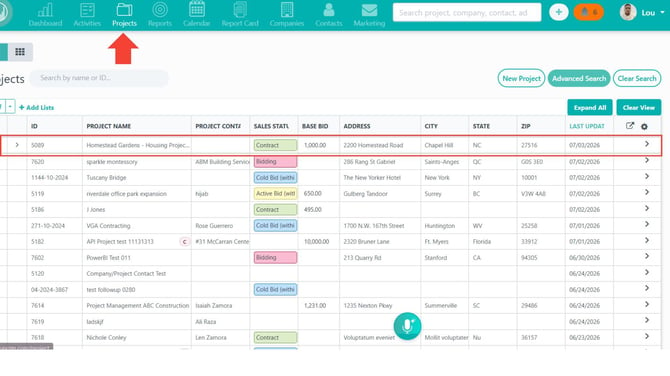
3. Locate the Record Details section on the project record.
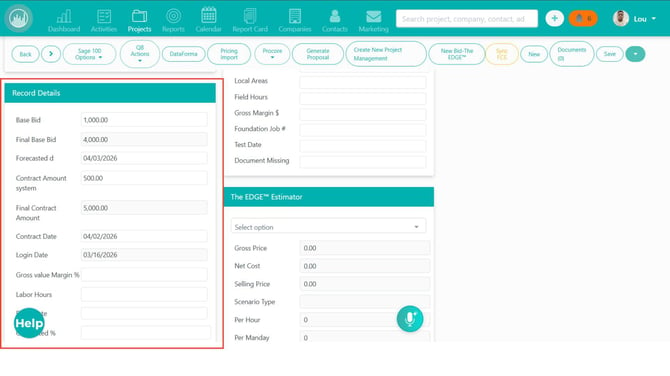
2. Find Forecasted Contract Date
In the project details, look for Forecasted Contract Date near the other contract-related fields.
This field may appear near Contract Date so you can compare the projected contract date with the actual contract date once the project is awarded or contracted.
Note: If you do not see Forecasted Contract Date, your company settings or permissions may control whether the field is visible.
3. Add or Edit the Forecasted Contract Date
- Click into the Forecasted Contract Date field.
- Enter a date manually or select one from the date picker.
- Save the project or allow the field to save based on your team’s project workflow.
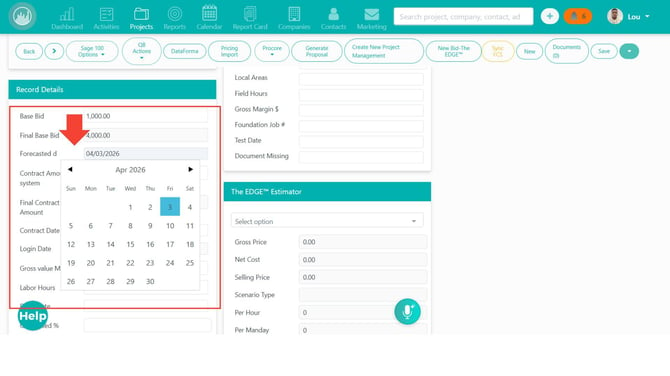
Use this date to represent when the project is expected to become a contract.
4. Clear the Forecasted Contract Date
If the expected contract timing is no longer known:
- Open the Forecasted Contract Date field.
- Clear the existing date.
- Save the change.
5. Review Changes in the Activity Log
When Forecasted Contract Date is updated, the project activity history may show the change.
The activity log can help your team track:
- The previous date
- The new date
- Who updated the field
- When the change was made
6. Use Forecasted Contract Date in Project Views and Reporting
Depending on your permissions and company setup, Forecasted Contract Date may also be available in:
- Project Listing columns
- Advanced Search
- Kanban cards
- Excel exports
- Custom Reporting
- Data Import
This allows your team to review and forecast projects by expected contract timing.
7. Admin-Controlled Settings
Your admin may configure Forecasted Contract Date in Company Settings.
Admins may be able to:
- Show or hide the field on project records
- Make the field required during certain project phases
- Lock the field so only certain users can edit it
If the field is required or locked, follow your company’s workflow requirements before advancing or updating the project.
Result
After using Forecasted Contract Date, your team can track expected contract timing directly on project records and use that information for pipeline forecasting, revenue planning, and follow-up prioritization.
Best Practices
- Use Forecasted Contract Date for projected contract timing only.
- Use Contract Date for the actual date once the project becomes contracted.
- Keep forecast dates updated as project timing changes.
- Review projects by month or quarter to forecast upcoming pipeline.
- Use reporting or exports to identify projects with missing forecast dates.
- Contact your admin if the field is hidden, required, or locked unexpectedly.
Happy Selling!