
Overview
The Parent/Child Project Roll-Up feature helps teams organize related project records under one Parent project while keeping each Child project as its own editable record.
This is especially helpful for multi-phase jobs or projects with multiple scopes. When Roll-Up is enabled on a Parent project, Followup CRM displays combined Child-project financial values on the Parent record for visibility and comparison.
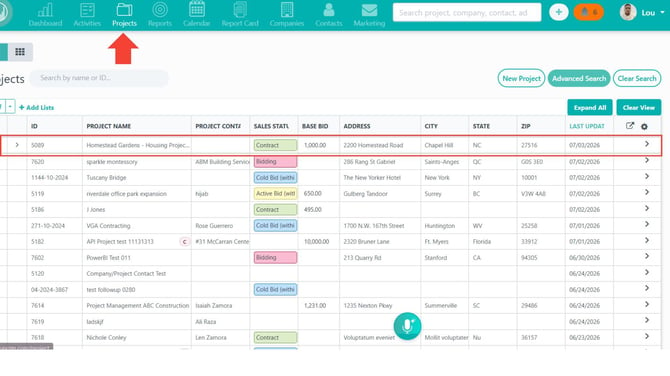
📍 Step 1: Open the project you want to use as the Parent
- Go to Projects.
- Open the project that should become the Parent.
- Scroll to the Related Projects section.
🔁 Step 2: Turn on Roll-Up
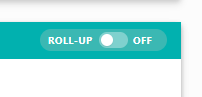
- In the Related Projects section header, locate the ROLL-UP toggle.
- Turn the toggle On.
- If prompted, confirm conversion of existing related projects into Child projects.
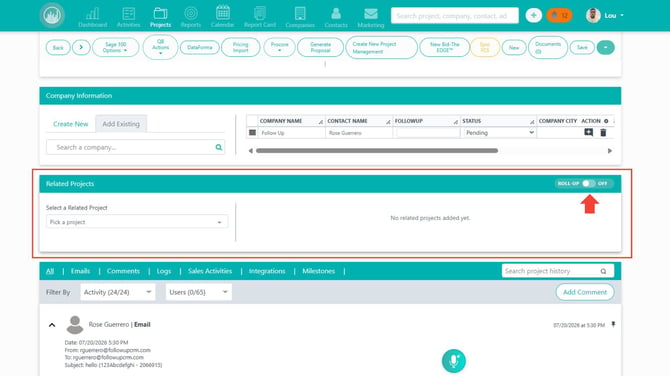
✅ Once enabled:
- The project becomes a Parent project.
- The section label changes from Related Projects to Child Projects.
📝 Note: Turning on Roll-Up does not merge project records. Child projects remain separate records.
➕ Step 3: Add Child projects
- In the Child Projects section, use the project selector/search field.
- Search for the project to add.
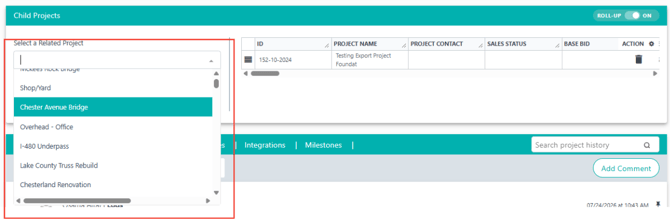

If the selected project is already a Child under another Parent, choose whether to move it to the current Parent.
⚠️ Important: A Child project can belong to only one Parent at a time.
➖ Step 4: Remove a Child project from a Parent
- In the Child Projects table, locate the Child project.
- Click the Remove/Delete relationship icon.

📝 Note: This removes only the Parent/Child relationship. It does not delete the Child project record.
💰 Step 5: Review rolled-up financial values
- Stay on the Parent project.
- Go to the financial/record details area.
- Compare Parent-entered values with rolled-up Child values.
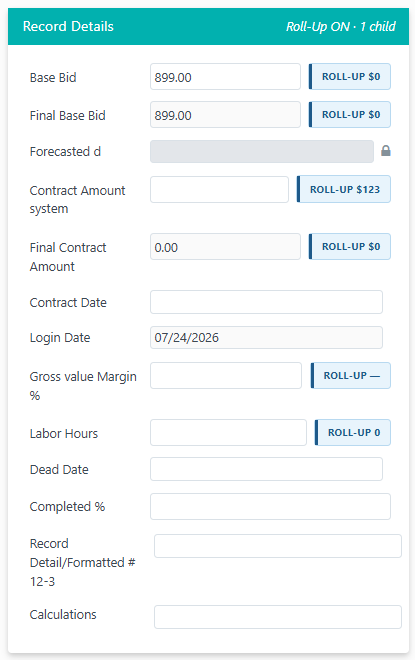
Rolled-up values may include:
- Base Bid
- Final Base Bid
- Contract Amount
- Final Contract Amount
- Gross Margin %
- Labor Hours
📝 Note: Roll-Up values are display-only and do not overwrite manual Parent values.
📊 Step 6: Understand roll-up calculation behavior
- Most financial values are summed across included Child projects.
- Gross Margin % is calculated as a simple average across included Child projects.
- Child projects in Dead status are excluded from roll-up calculations.
- Updates to Child financials appear when the Parent page is refreshed/re-rendered.
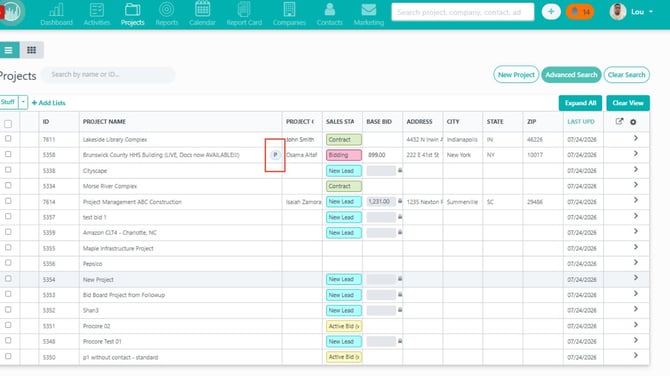
🔎 Step 7: Use Parent/Child indicators and filters
- Open project lists, search results, or advanced search.
- Look for Parent/Child indicators (for example, Parent and Child markers).
- Use Advanced Search to filter by hierarchy status, such as:
- Parent projects
- Child projects
- Both
- Standalone/excluded projects
📴 Step 8: Turn off Roll-Up (if needed)
- Return to the Parent project’s Child Projects section.
- Turn the ROLL-UP toggle Off.
When disabled:
- Parent/Child indicators are removed.
- The section changes back to Related Projects.
- Project records are not deleted.
🗑️ Step 9: Delete a Parent project safely
If you need to delete a Parent project:
- First turn Roll-Up Off.
- Then proceed with normal project deletion.
⚠️ Important: A Parent project cannot be deleted while Roll-Up is enabled.
Result
After completing these steps, you can structure multi-phase work under Parent/Child relationships, view rolled-up Child financials on the Parent project, and quickly locate hierarchy records through search and filters.
Best Practices
✅ Use Parent/Child Roll-Up for multi-scope or phased jobs only.
✅ Keep Child assignments clean; each Child should map to one clear Parent.
✅ Review Dead-status handling during financial audits since those Children are excluded.
✅ Treat Parent manual values and rolled-up values as comparison tools, not interchangeable fields.
✅ Confirm Roll-Up is off before attempting to delete a Parent project.