
Overview
The Contact Activities Hours VS Contact Activities Quota report helps teams measure contact-engagement effort against monthly targets.
This dashboard card shows:
- Actual contact activity hours (completed activities only)
- Monthly contact activity quota
- Total hours, total quota, and attainment percentage for the selected range
It mirrors the behavior of the Sales Activities hours vs quota report so teams can track both activity types consistently.
Step-by-Step Instructions
📍 Step 1: Open the dashboard report
- Go to your default Dashboard.
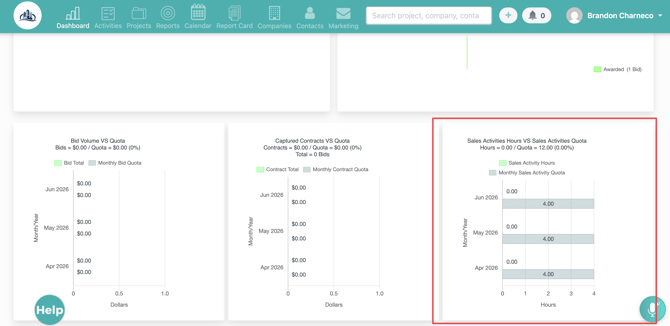
- Locate the card titled Contact Activities Hours VS Contact Activities Quota.
📊 Step 2: Read the chart and summary header
- Review the two monthly series:
- Contact Activity Hours (actual)
- Monthly Contact Activity Quota
- Review the card header totals:
- Total Hours
- Total Quota
- Attainment % (Hours ÷ Quota)
📝 Note: Actual hours come from the configured hour value on completed contact activities.
🎯 Step 3: Apply filters
Use dashboard filters to narrow results by:
- Date range
- User
- Office
- Contract type
- Sub-team visibility (where applicable)
The card updates using the same filter/scoping behavior as the Sales Activities quota card.
🔎 Step 4: Drill into monthly details
- Click a month’s bar in the chart.
- Open the detail view for that month.
- Review contributing records, including:
- Contact name
- Activity date
- Activity type
- Hours
⚙️ Step 5: Configure contact activity quotas (authorized admins)
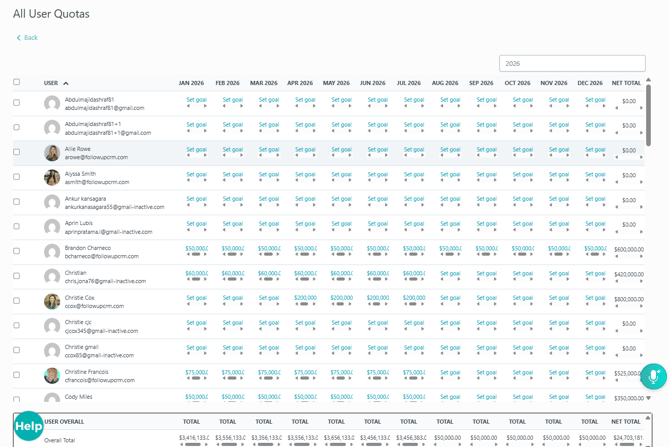
- Open your quota settings area (single-member or all-member quota screens).
.jpg?width=670&height=377&name=Untitled%20design%20(58).jpg)
- Locate Contact Activity (Hrs).
- Enter/update values at the needed levels:
- Per-user
- Per-office
- Per-contract-type
- Save changes.
🔐 Permission Note: Only authorized users can edit quota settings.
✅ Step 6: Validate quota behavior
After saving quota changes:
- Return to the dashboard card.
- Reapply relevant filters (user/office/contract type).
- Confirm the quota series reflects configured splits and updated totals.
Result
You can now track completed contact activity hours against monthly quota targets, analyze attainment by month, and drill into detailed activity records for follow-up and coaching.
Best Practices
✅ Keep contact activity type hour values current so actuals remain accurate.
✅ Review quota settings monthly for user, office, and contract-type alignment.
✅ Use filters during team reviews to isolate performance by region, team, or role.
✅ Verify completion status workflows—only completed contact activities count toward actual hours.
✅ Use drill-down details to audit unusual spikes or low-attainment periods.
Helpful Notes
- Only completed contact activities are included in actual-hours totals.
- Incomplete or not-completed activities are excluded.
- Quota values are scoped by your existing team isolation and visibility rules.
- Existing Sales Activities quota reporting behavior remains unchanged.
Happy Selling!