
📋 Overview
The FollowupCRM add in sits next to the email in Outlook. Use it when you want to find a project or contact, create or update a record, file mail onto Followup, or let Gregg Analyze with AI suggest the match.
AI does not start by itself. You click the action you want.
Your mailbox must already be connected in Followup. If you do not see AI Inbox Parsing in Followup, or you do not see the FollowupCRM add in in Outlook, stop and ask Followup. Do not guess.
⚠️ Do not email passwords. Do not screenshot a real mailbox address.
✅ Before you start
You need:
- A Followup login
- Outlook with the FollowupCRM add in
- A mailbox already connected in Followup
- An email you are happy to use (not private mail you should not share)
If the add in is missing, stop and ask Followup.
You work in Outlook for Steps 1 to 9. Step 10 is Followup.
🧭 Step-by-step instructions
🔹 Step 1: Open the add in
- Open Outlook.
- Open an email. Stay in the reading pane. Do not start a new draft.
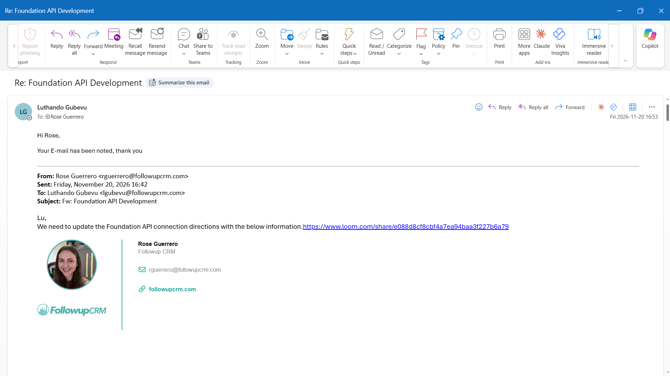
- Open the FollowupCRM add in.
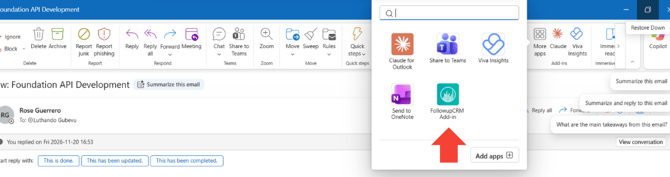
You should see New Project, New Contact, Search Projects/Contacts, and Gregg Analyze with AI.
🔹 Step 2: Search Projects/Contacts
- Find Search Projects/Contacts.
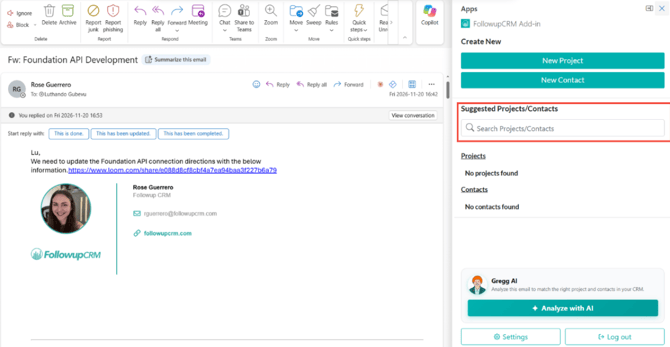
- Type a project name. If nothing matches, you should see No projects found.
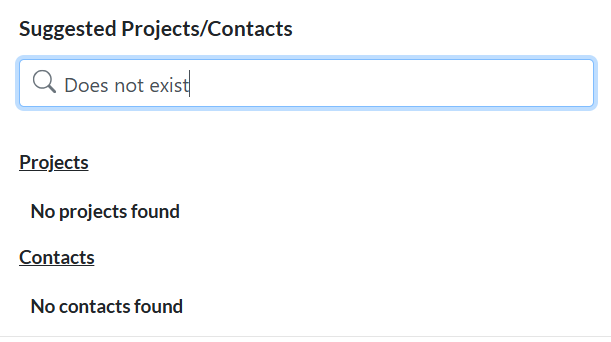
- Clear the search.
- Type a project that exists, then click that row.
- Or type a contact that exists, then click that contact.
Use search when you already know the record. You do not need AI for this.
🔹 Step 3: Create, update, or View in CRM
- Click New Project if this is a new project.
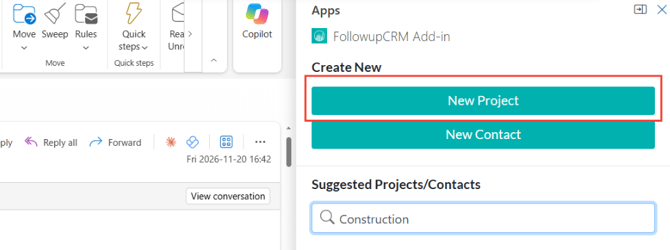
- Click New Contact if this is a new contact.
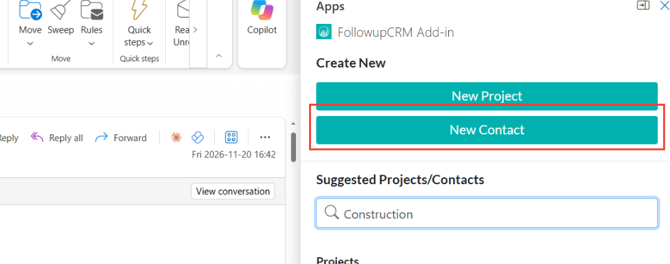
- A company is created with the contact when the add in asks for it. There is no separate New Company button on the home menu.
- Click Update Contact if the contact is already there and needs a change.
- Click View in CRM, or Review in CRM if that is the label you see. The record opens in Followup.
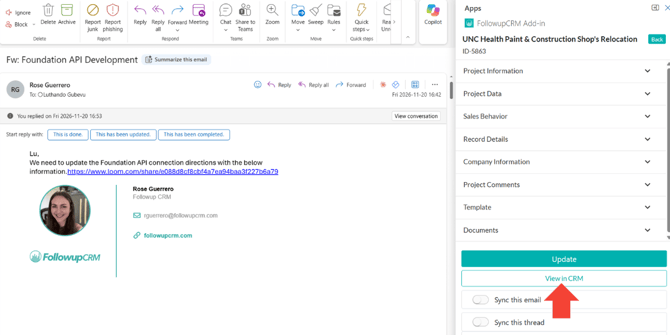
- Return to Outlook.
🔹 Step 4: Sync this email or this thread
- Click Sync this email to put this one email on the record.
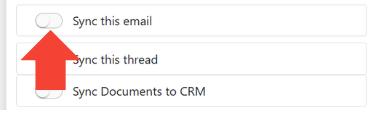
- Click Sync this thread to put the whole thread on the record.
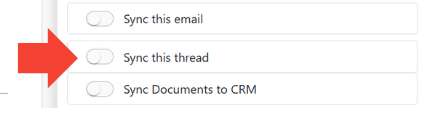
📝 Sync this thread files the mail. It does not run AI on the whole conversation.
- In Followup, open that project or contact, then open External Email.
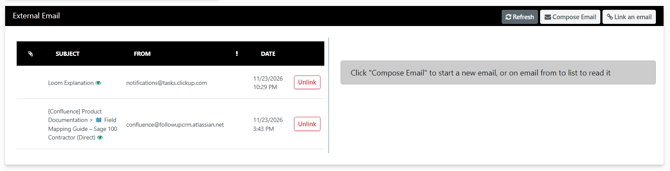
- Confirm the synced email is on the list as an email, not a note.
- Return to Outlook.
🔹 Step 5: Analyze with AI
- Click Gregg Analyze with AI.
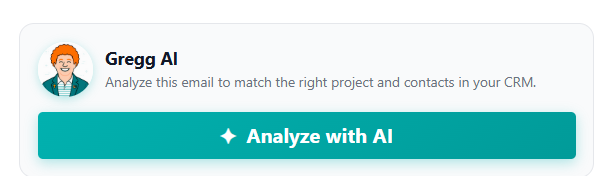
- Wait until that finishes.
- If you see Retry, click Retry once.
- If it fails again, stop and ask Followup.
⚠️ AI can be wrong. Check Followup before you trust a create or a change.
🔹 Step 6: Choose what to do with the AI result
After Analyze with AI, you will see one of these.
Already linked The project or contact is already linked. There is no Sync on that card. You may see Suggested updates if a field in the email differs from Followup.
One match Click Sync to link this email. Click Create New only if that match is the wrong record.
A few matches Pick the right row, then click Sync.
Not in Followup Fill what is required, then create the project or the contact. On a contact create, the add in may ask for a company. Type or pick the company. A company is not linked on its own.
📝 People in this email should include TO and CC, not only the sender. Do not force a wrong contact.
🔹 Step 7: Review suggested updates
Suggested updates only show when the project or contact is already linked.
- Read each suggestion.
- If it is right, accept it. That writes to Followup.
- If it is wrong, or you are not sure, click the X. That dismisses it. Nothing is written.
⚠️ There is no undo in the add in. If a suggestion was wrong, fix it in Followup. Do not accept a bid date, zip, or rename unless you have checked Followup.
🔹 Step 8: Analyze whole thread
Analyze whole thread is not the same as Sync this thread. Sync this thread files the mail. Analyze whole thread reads the whole conversation for people and projects.
- Open a reply in a thread. You must see quoted history.
- Open the FollowupCRM add in.
- Click Gregg Analyze with AI. Wait.
- Click Analyze whole thread. Wait.
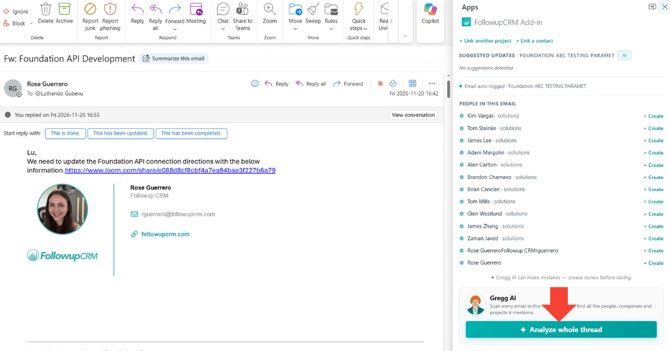
- Review the picker. Projects. Companies. Contacts. Each row is a match or new.
- Tick only what belongs.
- If a new contact has no company, type the company on that row before you apply it.
- Click Apply.
⚠️ If Analyze whole thread is not there, this email has no quoted history. Use a reply in a thread. Do not use a draft or a digest.
🔹 Step 9: Link whole thread
Link whole thread only shows when the project is already linked.
- Click Link whole thread when you want every message in that thread on the project, not one by one.
- In Followup, open External Email and confirm the thread is there.
📝 This is not Analyze whole thread. Analyze reads people and projects. Link files the mail.
🔹 Step 10: Confirm in Followup
- Go to Followup.
- Open the project or contact you used.
- Open External Email. The emails from this work should be on the list as emails, not notes.
- Open the record and confirm the create, the link, and any suggestion you accepted.
🎯 Result
After these steps, the Outlook email is tied to the right Followup project or contact. You can search without AI, create or update records, file one email or a whole thread, Analyze with AI, accept or dismiss suggested updates, and confirm everything on External Email in Followup.
💡 Best Practices
- Connect email in Followup before you open the add in.
- Use a test email for training. Do not read mailbox addresses out loud.
- Search first when you already know the record. Use Analyze with AI when you want the add in to read the email.
- Tick only the rows that belong on Analyze whole thread. Do not Apply a new contact with no company.
- Accept suggested updates only after you have checked Followup. Click X if you are not sure.
- If Retry appears twice, stop and ask Followup. Do not keep clicking.
- Confirm the mail on External Email. It should be an email row, not a note.
Happy Selling!