
Overview
The Foundation integration is a Direct API connection between Followup CRM and Foundation Software. After your team is connected, you can map modules and fields, then push, update, sync, and import records so CRM and ERP stay aligned.
Before connecting, have your Foundation Client CRM ID ready, and know which Foundation company should be linked.
Step-by-Step Instructions
📞 Before You Start
- Confirm with your CSM that Foundation is connected for your team.
- Have admin access to Company Settings → ERP Integration.
- If you don’t see Foundation settings, reach out to your CSM.
🧩 Set Up Module and Field Mapping
After Foundation is connected:
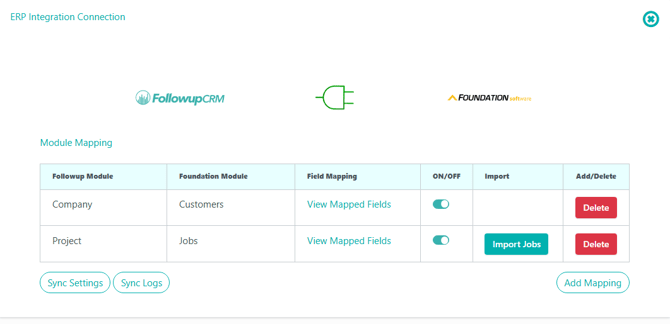
- Open Foundation / ERP Settings.

- Add the modules you need:
| Followup | Foundation |
|---|---|
| Company | Customers |
| Residential Contact | Customers |
| Project | Jobs |
| Project Change Order | Change Order |
- Open View Mapped Fields for each module.
- Map required Followup fields to Foundation fields.
- Turn the module ON once required mappings are complete.
- (Optional) Configure Sync Settings and review Sync Logs.
Tip: Push/Update use Followup → Foundation mappings. Sync/Import use Foundation → Followup mappings.
👥 Sync Companies and Contacts (Customers)
- Open the company or residential contact in Followup.
- Use Foundation actions:
- Push / Connect to Foundation — creates the customer and stores the link
- Update on Foundation — updates an already linked customer
- Sync from Foundation — pulls Foundation data into Followup
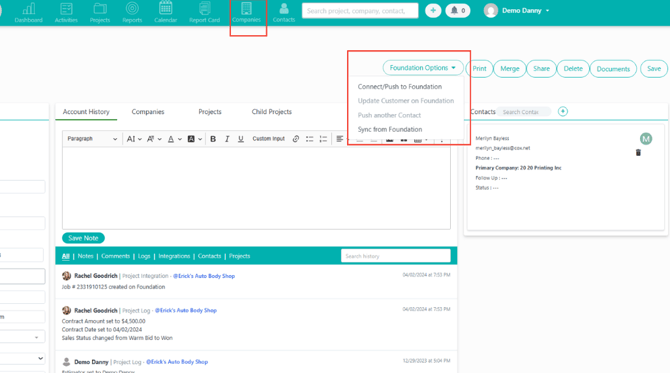
- Confirm the record is linked before using Update.
Note: If mappings include contact fields, select the correct contact before pushing.
📁 Sync Projects (Jobs)
- Open the project in Followup.
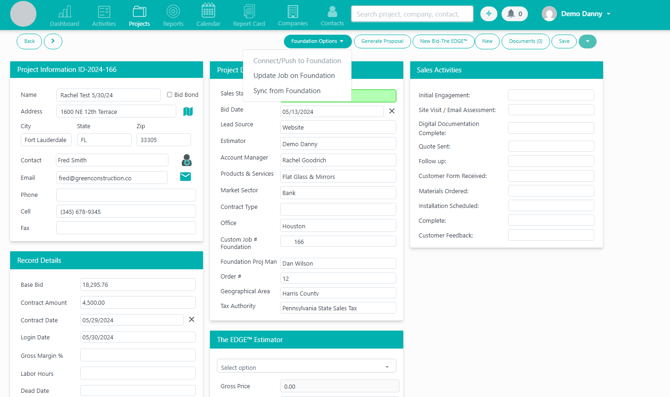
- Use Foundation actions:
- Push / Connect to Foundation — creates the job and stores the link
- Update on Foundation — updates the linked job
- Sync from Foundation — finds/links a Foundation job and applies inbound mappings
- If the related contact is already linked to a Foundation customer, that customer can be associated on the job when pushed.
Best practice: Link the customer before pushing the job when a Foundation customer is required.
📄 Sync Change Orders
- Open a project already linked to a Foundation job.
- Sync change orders for that job from Foundation.
- Select the change order and sync it into Followup.
- Confirm it is linked before relying on later syncs.
📥 Import Jobs from Foundation (Optional)
- In Foundation / ERP Settings, open Project ↔ Jobs.
- Confirm required inbound mappings are complete and the module is ON.
- Click Import Jobs.
- Choose whether existing matched projects should be updated.
- Wait for the completion notification, then review imported projects.
Recommendation: Sync or import customers before a large job import.
🔗 Previously Used Foundation via Agave?
If the team used the legacy Foundation path, use Link Old Data (or ask your admin/CS to run it) so older Foundation IDs are linked for the new Direct API connection. Then Update and Sync can work on existing records.
Result
Your team is connected to Foundation with the correct company and Client CRM ID. Modules and fields are mapped, and you can push, update, sync, and optionally import customers, jobs, and change orders between Followup CRM and Foundation.
Best Practices
- Turn ERP Integration on before connecting Foundation.
- Double-check the Foundation company when more than one company returns for a Client CRM ID.
- After connect, confirm Connected shows the expected Company and Client CRM ID.
- Map required fields before enabling a module or running import.
- Use Push for new/unlinked records; use Update only after a Foundation link exists.
- Prefer customer sync before bulk job import.
- Test with one record after mapping changes before bulk actions.
- Use Change connection to correct company selection; don’t create a second connection process.
- Check Sync Logs / Integrations activity when something fails.
Warning: Confirm Cloud vs On-prem during intake. This Connect UI uses the cloud Direct API path (
Find companiesby Client CRM ID).
Happy Selling!