
📄 Create a Proposal Using Proposal Generator Overview
Proposal Generator allows you to create professional client proposals directly from a project in Followup CRM.
Instead of creating proposals outside the CRM, you can start from an existing project, select the correct contact, choose a proposal template, customize proposal sections, generate a review PDF, and send the proposal for viewing or electronic signature.
Because proposals remain connected to the project, your team can manage the entire process from project creation through contract approval in one place.
Before You Begin
Make sure you have:
- Access to the Proposal Generator feature
- An existing project
- A valid project or company contact
- The appropriate proposal template
If you do not see Generate Proposal, your company may not have Proposal Generator enabled or your user role may not have permission to access it.
🧭 Step 1: Open the Project
- Navigate to Projects.
- Open the project you want to create a proposal for.
- Review the project details before continuing.
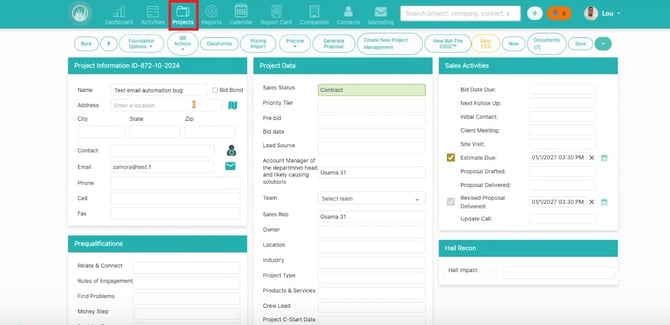
Proposal Generator can pull information from the project, including:
- Project name
- Company information
- Contact details
- Property address
- Custom field data
📝 Step 2: Generate a Proposal
- From the project page, click Generate Proposal.
- Follow the proposal creation workflow.
- If prompted, select the contact for the proposal.
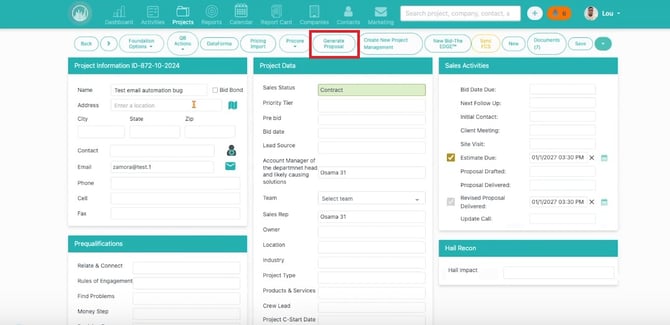
The Proposal Generator will create a new proposal associated with the project.
👤 Step 3: Select the Proposal Contact
Choose the contact who will receive the proposal.
The selected contact may:
- Appear within the proposal
- Receive proposal emails
- Be assigned as the signer
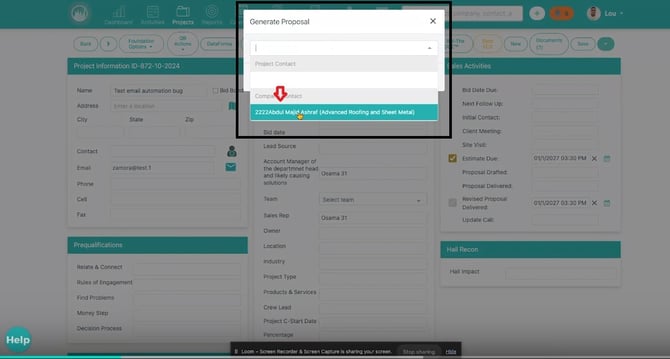
If needed, you may be able to:
- Use Edit Contact to change the contact on an existing proposal
- Use Copy Proposal to create a separate version for a different contact
Use Edit Contact when only the contact changes. Use Copy Proposal when you need a separate proposal version.
📄 Step 4: Select a Proposal Template
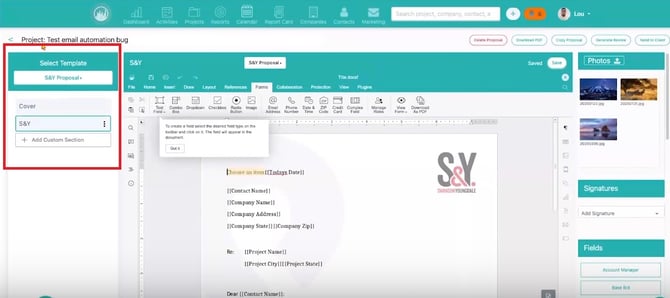
Choose the template that best matches the proposal you are creating.
Templates may include:
- Cover pages
- Introduction sections
- Quote and pricing sections
- Photo pages
- Custom content sections
- Terms and conditions
- Signature or authorization sections
Proposal templates are managed in Proposal Settings. Contact your administrator if the template you need is unavailable.
✏️ Step 5: Build and Edit the Proposal
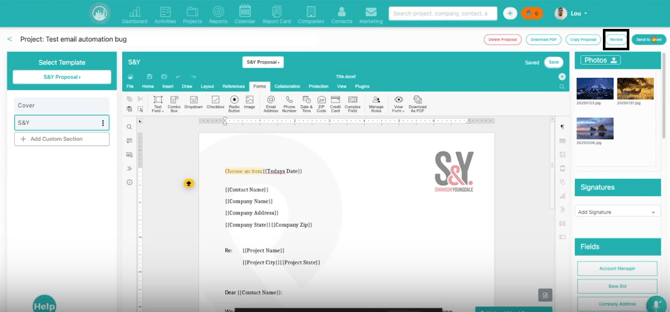
Use the proposal section list to move through and customize each section.
Depending on your configuration, you may be able to:
- Rename the proposal
- Edit text content
- Add quote details
- Upload photos
- Insert custom content
- Review terms and conditions
- Configure authorization or signature sections
The Proposal Name and Project Name are separate. Changing the proposal name does not change the project name.
🧩 Step 6: Use Dynamic Fields
Dynamic fields automatically pull information from records in Followup CRM and place it into proposal content.
Available dynamic fields may include:
- Project information
- Contact information
- Company information
- Project custom fields
- Record Detail custom fields
- Change Order fields
- Proposal-specific fields
Before sending the proposal:
- Review all dynamic field values.
- Confirm information is displaying correctly.
- Update the source record if corrections are needed.
If information is incorrect, verify the related:
- Project record
- Contact record
- Company record
- Custom field value
💵 Step 7: Review Quote and Pricing Information
If your proposal includes a quote section, carefully review all pricing information.
Quote sections may contain:
- Products
- Services
- Bundles
- Quantities
- Unit prices
- Discounts
- Markups
- Taxes
- Totals
Some products and services may automatically calculate pricing using:
- Addition
- Subtraction
- Multiplication
- Division
- Percentage calculations
Discounts reduce the total price.
Markups increase the total price.
Always verify the final proposal total before sending it to the client.
🖼️ Step 8: Add Photos and Custom Sections
If your template includes photo pages, upload images that help explain the proposed work.
Photos may be used to show:
- Site conditions
- Inspection findings
- Existing damage
- Included work areas
- Reference images
Custom sections may contain:
- Company information
- Warranty details
- Scope of work language
- Attachments
- Special instructions
🔍 Step 9: Generate a Review PDF
Before sending the proposal, generate a PDF for review.
Review the PDF to confirm:
- Client information
- Project details
- Proposal sections
- Pricing and totals
- Photos
- Terms and conditions
- Signature areas
- Overall formatting
PDF generation may take longer for proposals containing photos, custom documents, or form fields.
📧 Step 10: Send the Proposal
Once you have reviewed the PDF, send the proposal to the client.
Depending on your configuration, you may be able to:
- Send for viewing only
- Send for electronic signature
- Add view-only recipients
- Add CC recipients
- Copy a signing link
- Resend a proposal for signature
Sending Options
| Option | Use When |
|---|---|
| Send to Client | Recipient only needs to view the proposal |
| Send to Client for Signing | Recipient must electronically approve and sign |
Before sending, verify:
- Recipient list
- Subject line
- Email message
- Signing requirements
🔐 Step 11: Track Proposal Status
After sending the proposal, return to the project to monitor its progress.
Proposal statuses may include:
- Created
- Sent
- Sent for Viewing
- Sent for Signing
- Signed
- Completed
- Locked
A proposal may become locked after it is sent or signed.
Locking helps preserve the exact version viewed or approved by the client.
Result
After completing these steps, you will have:
- Created a proposal from a project
- Customized proposal content
- Reviewed the proposal PDF
- Sent the proposal for viewing or signature
- Tracked proposal status directly within Followup CRM
Best Practices
✅ Review project information before creating the proposal.
✅ Use clear proposal names that are easy to identify later.
✅ Always generate and review the PDF before sending.
✅ Verify products, services, taxes, discounts, markups, and totals.
✅ Use view-only recipients when someone needs visibility but does not need to sign.
✅ Confirm with your team before editing or resending a proposal that has already been sent or signed.
✅ Contact an administrator for assistance with templates, products and services, pricing options, signature fields, user access, or import/export settings.
Related Articles
- Proposal Settings
- Managing Proposal Templates
- Sending Proposals for Electronic Signature
- Dynamic Fields in Proposals
- Products and Services Setup
- Proposal Statuses Explained
Happy Selling!