
Overview
The Proposal Generator helps you create professional client proposals directly from a project in Followup CRM.
You can start from an existing project, choose the correct contact, select a proposal template, edit proposal details, generate a review PDF, and send the proposal to the client for viewing or electronic signature.
The Proposal Generator keeps the proposal connected to the project, helping your team manage the full workflow from proposal creation to signed contract.
🧭 1. Open the Project
To create a proposal, start from the project you want to work from.
- Go to Projects.
- Open the project that needs a proposal.
- Review the project details before creating the proposal.
The proposal can use information already saved in the project, such as the project name, company, contact, address, and other project details.
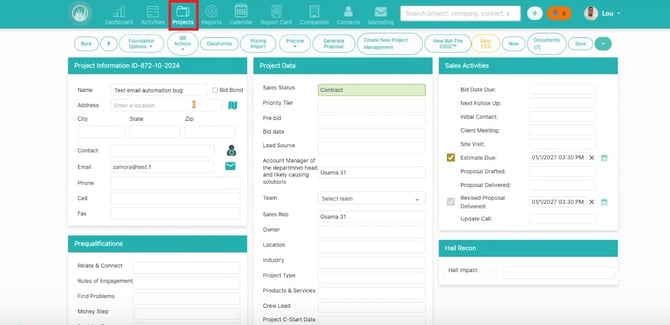
The proposal can use information already saved in the project, such as the project name, company, contact, address, and other project details.
📸 Screenshot Placeholder: Project page with the Generate Proposal button visible
📝 2. Click Generate Proposal
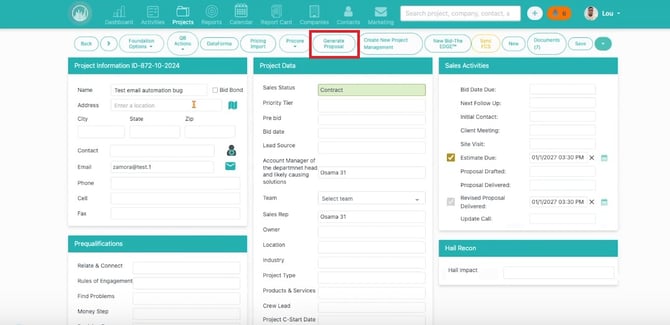
On the project page, click Generate Proposal.
This starts the proposal creation process.
If you do not see the Generate Proposal button, your company may not have Proposal Generator access enabled, or your user role may not have permission to create proposals.
👤 3. Choose the Proposal Contact
After clicking Generate Proposal, choose the contact the proposal is for.
This may be a project contact or a company contact. The selected contact may appear in the proposal and may also be used when sending the proposal to the client.
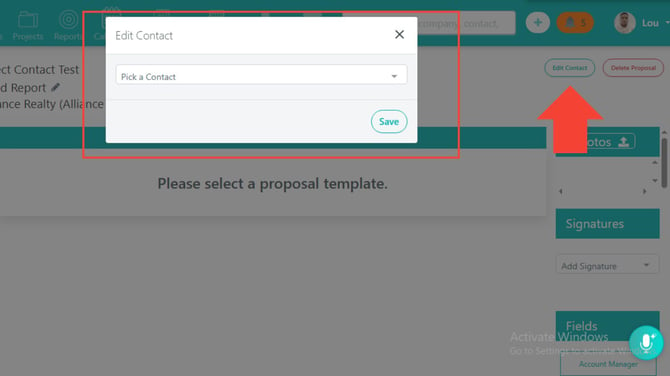
If you need to change the contact later, you can edit the contact directly within the Proposal Generator before sending the proposal.
✏️ 4. Edit Proposal Details Before Sending
Before sending a proposal, review the key proposal details inside the Proposal Generator.
You may be able to edit:
- Proposal Name
- Contact Name
- Project Name
This helps make sure the proposal is labeled correctly, connected to the right contact, and using the correct project information before it is reviewed or sent to the client.
Before generating the review PDF, confirm these details are accurate. If the wrong contact is selected, use the contact edit option before sending the proposal.
.jpg?width=670&height=377&name=Untitled%20design%20(1).jpg)
Before generating the review PDF, confirm these details are accurate. If the wrong contact is selected, use the contact edit option before sending the proposal.
📄 5. Select a Proposal Template
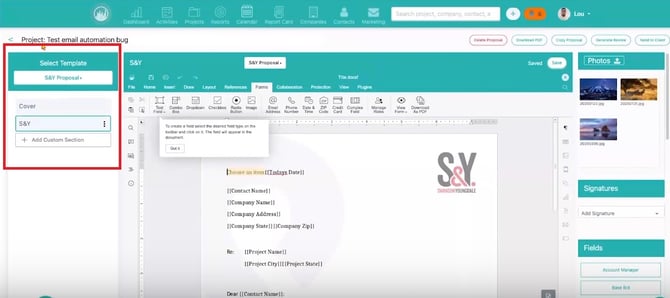
Choose the proposal template that best matches the type of proposal you are creating.
Templates help your team start with a consistent proposal structure. A template may include:
- Cover page
- Introduction
- Quote or pricing section
- Photo pages
- Custom sections
- Terms and conditions
- Authorization or signature section
If the template you need is missing, contact your admin. Proposal templates are usually managed in Proposal Settings.
If the template you need is missing, contact your admin. Proposal templates are usually managed in Proposal Settings.
🧱 6. Build and Edit the Proposal
Use the section list to move through each part of the proposal.
Depending on your template and permissions, you may be able to:
- Edit text sections
- Add quote details
- Add photos
- Add custom content
- Review terms and conditions
- Check authorization or signature details
- Add or update dynamic fields
Review each section before sending. Some fields may already be filled in using project, contact, company, or custom field information from Followup CRM.
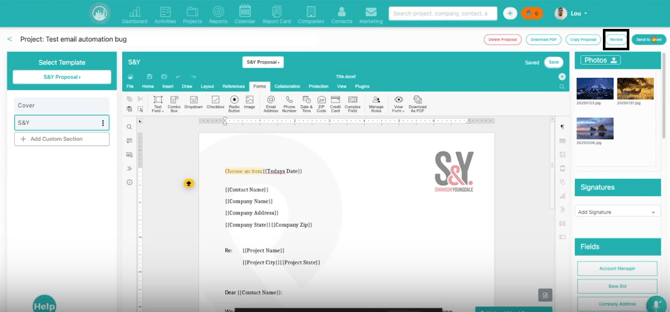
Review each section before sending. Some fields may already be filled in using project, contact, company, or custom field information from Followup CRM.
💵 7. Review Quote and Pricing Details
If your proposal includes a quote section, review the pricing carefully.
Quote sections may include:
- Products
- Services
- Bundles
- Quantities
- Unit prices
- Discounts
- Markups
- Taxes
- Totals
Some product and service options may automatically adjust pricing based on your company’s setup.
Always confirm the final quote total before generating the review PDF.
🔄 8. Import and Export Products and Services
Admins can use Import and Export in the Products & Services area of Proposal Settings to manage proposal pricing items in bulk.
Products and services are the items users can add to quote sections, such as labor, materials, services, fees, or standard pricing items.
📸 Screenshot Placeholder: Products & Services tab showing Import and Export controls
Import Products and Services
Use Import when you need to add or update multiple products and services at once.
This is helpful when:
- Adding a large product or service list
- Updating pricing in bulk
- Moving catalog data into Followup CRM
- Cleaning up or replacing existing product/service records
Before importing, review your file carefully to make sure product names, categories, prices, tax settings, and custom fields are accurate.
Export Products and Services
Use Export when you need to download the current Products & Services list.
This is helpful when:
- Reviewing your current catalog
- Backing up the product/service list before changes
- Making bulk edits in a spreadsheet
- Sharing pricing data with another admin
- Auditing product names, descriptions, prices, or tax settings
When to Use Import vs. Export
Use Export first when you want a copy of the current list before making changes.
Use Import when you are ready to add or update products and services in bulk.
A recommended workflow is:
- Export the current Products & Services list.
- Save a backup copy.
- Make updates in the exported file.
- Import the updated file.
- Review the Products & Services tab after processing.
- Test a proposal quote to confirm pricing appears correctly.
🔍 9. Generate a Review PDF
Before sending the proposal, generate a review PDF.
Use the review PDF to check:
- Client information
- Project details
- Proposal sections
- Pricing and totals
- Photos
- Terms and conditions
- Signature areas
- Formatting
PDF generation may take a few moments, especially for longer proposals or proposals with photos, custom documents, or form fields.
.jpg?width=670&height=377&name=Untitled%20design%20(2).jpg)
PDF generation may take a few moments, especially for longer proposals or proposals with photos, custom documents, or form fields.
📧 10. Send the Proposal
Once the review PDF looks correct, send the proposal to the client.
Depending on your setup, you may be able to:
- Send the proposal for viewing only
- Send the proposal for electronic signature
- Add view-only recipients
- Add CC recipients, if available
- Copy a signing link
- Resend the proposal for signing
Before sending, review the recipient list, subject line, and message.
.jpg?width=670&height=377&name=Untitled%20design%20(3).jpg)
Before sending, review the recipient list, subject line, and message.
📊 11. Track Proposal Status
After sending, return to the project to track the proposal.
A proposal may show whether it has been:
- Created
- Sent
- Sent for viewing
- Sent for signing
- Signed
- Completed
- Locked
A proposal may become locked after it is sent or signed. Locking helps protect the version the client received or approved.
Result
After completing these steps, you will have created a client-ready proposal, reviewed the PDF, sent it for viewing or signature, and tracked the proposal status from the project in Followup CRM.
Best Practices
✅ Review proposal details before sending
Confirm the proposal name, contact name, and project name are correct.
✅ Preview the proposal first
Always generate and review the PDF before sending it to a client.
✅ Check pricing carefully
Review products, services, taxes, discounts, markups, and totals.
✅ Export before making bulk pricing updates
Export Products & Services before importing changes so you have a backup.
✅ Use clear proposal names
Choose names that make proposals easy to identify later.
✅ Confirm the correct recipient
Make sure the proposal is sent to the right signer, view-only recipient, or CC recipient.