
Overview
Some Microsoft 365 tenants require Admin Approval (Admin Consent) before third-party applications—such as Follow Up CRM—can connect to user email accounts.
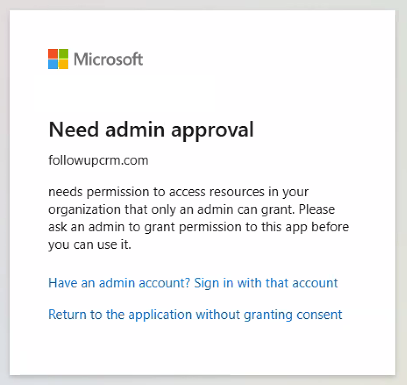
If admin approval is required, users may see a message indicating that access must be approved by their Microsoft administrator when attempting to connect Outlook in Follow Up CRM.
This article outlines the supported, Microsoft-recommended steps to complete the approval process.
Important Notes
• Admin approval is controlled by Microsoft tenant settings, not by Follow Up CRM. • Once admin consent is approved, users should not need to repeat this process unless tenant policies change. • At this time, it is not possible to unsync an Outlook account once connected. An enhancement for this functionality is planned but not yet available.
Step 1: Enable the Admin Consent Workflow (Admin)
The Microsoft 365 / Entra ID admin must first ensure the Admin Consent Workflow is enabled.
-
Sign in to the Microsoft Entra Admin Center.
-
Navigate to Identity > Enterprise applications.
-
Select Admin consent settings.
-
Configure and enable the Admin consent workflow.
📘 Microsoft documentation: • https://learn.microsoft.com/en-us/entra/identity/enterprise-apps/configure-admin-consent-workflow
Step 2: User Requests Access from Follow Up CRM (User)
Once the workflow is enabled, the user can initiate the connection from Follow Up CRM.
-
Log in to Follow Up CRM.
-
Navigate to Email Settings.
-
Attempt to connect the Outlook / Microsoft email account.
-
Instead of connecting immediately, Microsoft will display a message indicating that admin approval is required.
-
The user selects Request Access.
This action sends an approval request to the Microsoft admin.
Step 3: Admin Reviews and Approves the Request (Admin)
After the request is submitted, the admin must approve it in Microsoft Entra.
-
Sign in to the Microsoft Entra Admin Center.
-
Go to Identity > Enterprise applications.
-
Select Admin consent requests.
-
Review the pending request from Follow Up CRM.
-
Approve the request.
📘 Microsoft documentation: • https://learn.microsoft.com/en-us/entra/identity/enterprise-apps/review-admin-consent-requests
Step 4: User Reconnects Outlook in Follow Up CRM
After admin approval:
-
The user returns to Follow Up CRM.
-
Re-attempts the Outlook email connection.
-
The connection should now complete successfully.
Once approved, other users in the same Microsoft tenant should be able to connect without repeating the admin approval process.