
1️⃣ Wait for the Sync to Complete
Once a bid is tagged or triggered in BuildingConnected:
-
It queues based on your sync settings
-
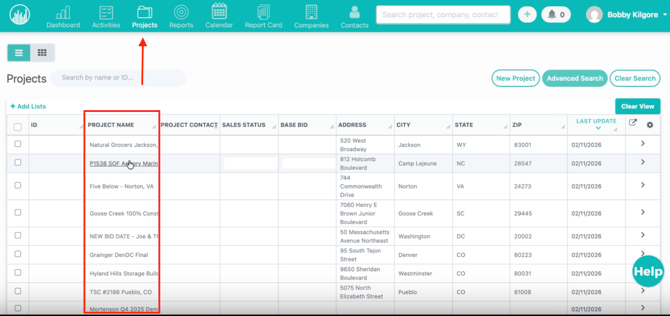
The project automatically appears in Followup
You’ll see it listed on the Projects page.
🔒 NDA-Protected Jobs If a job is NDA-protected, BuildingConnected may not expose the opportunity or its full details until the NDA has been accepted/signed in BuildingConnected. In those cases, the job may not import when the Followup tag is first applied. After the NDA is signed, run a manual sync or wait for the next scheduled sync — the job should import normally if it still has the Followup tag.
2️⃣ Open the New Project
-
Click the synced project
-
Review the imported information
All data is pulled according to your mapped fields configuration.
3️⃣ Review Company & Contact Information
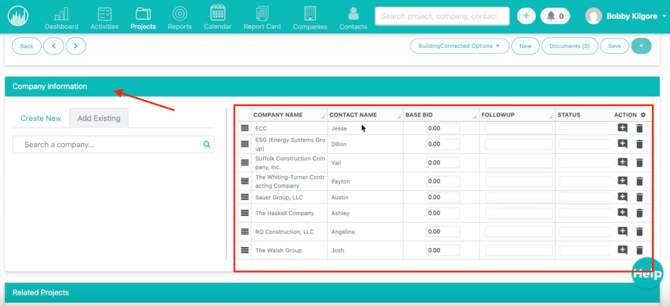
Followup checks the client details from the opportunity:
-
If the company already exists → it links to the existing record
-
If the company does not exist → it creates a new company and contact
This information appears automatically in the Project Information section.
4️⃣ View Multiple Bids Connected to One Project (If Applicable)
If multiple bids exist for the same job:
-
All related bids sync into the same project
-
Each bid remains individually tracked
This prevents duplicate projects while keeping everything organized.
In order for multiple bids to come into Followup within the same project, they must first be linked together within BuildingConnected.
5️⃣ Open the BuildingConnected Bid List
Inside the project:
-
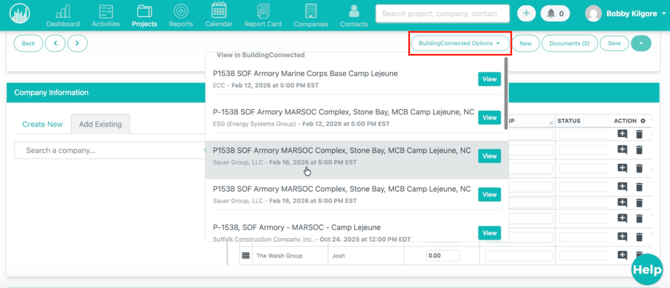
Click the BuildingConnected dropdown
You’ll see:
-
📄 Bid name
-
🏢 Client company
-
📅 Bid due date
This gives a clear snapshot of all connected opportunities.
6️⃣ Open a Bid Directly in BuildingConnected
Need more details?
-
Click the external/open icon
-
It opens the bid directly in BuildingConnected
This makes it easy to review or update the original opportunity.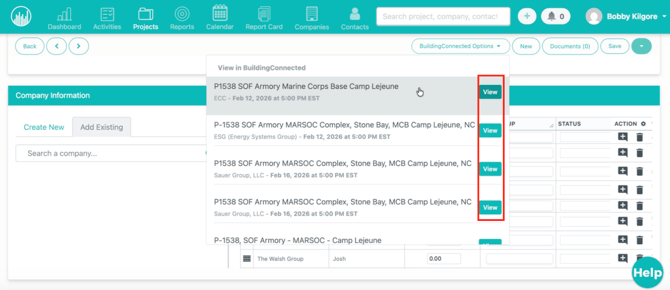
7️⃣ Understand How Bid Dates Work
When multiple bids are connected:
Followup keeps the earliest bid date only.
This means:
-
Earlier dates replace later ones
-
Later dates will NOT override earlier ones
✅ This prevents missing deadlines and keeps the project timeline accurate.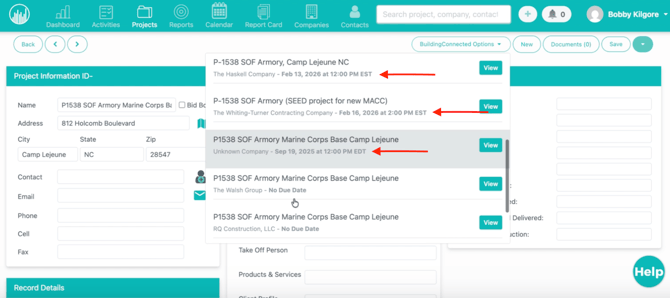
✅ Result
After syncing, you’ll be able to:
-
Automatically create projects from opportunities
-
Auto-create or match companies and contacts
-
Keep multiple bids grouped together
-
Track deadlines using the earliest bid date
-
Navigate directly back to BuildingConnected when needed