
📘 Overview
In this article, you'll learn how to open Custom Reports, create charts with AI, analyze existing charts, and build formulas using plain-language prompts.
Custom Reports in FollowUp CRM include AI tools that help you build and understand dashboards faster. Instead of configuring every setting by hand, you can describe what you want in everyday language.
This article covers:
- 📊 Finding Custom Reports
- ✨ Creating a chart with AI
- 🔍 Using Smart Analyzer on an existing chart
- 🧮 Building formulas with AI
- 💡 Tips for better prompts and results
Note: Custom Reports must be enabled for your account. If you don’t see the Custom Reports tab under Reports, contact your FollowUp administrator or Customer Success Manager.
📊 Step 1: Open Custom Reports
- Log in to FollowUp CRM.
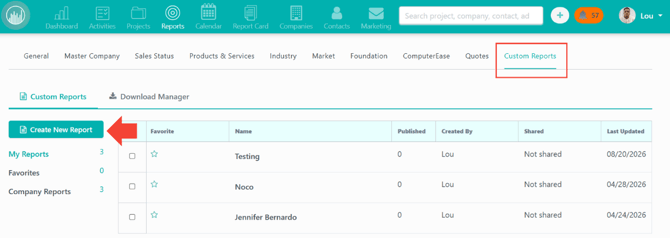
- In the top navigation, click Reports.

- Open the Custom Reports tab.
- Open an existing report, or create a new one.
- Switch to Edit Mode when you want to build or change charts and formulas.
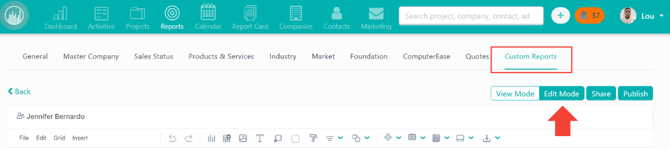
✅ There is no separate menu item named “Qrvey.” Custom Reports is where these AI tools live.
✨ Step 2: Create a chart with AI
Use this when you want a new chart from a plain-language request.
- Go to Reports → Custom Reports.
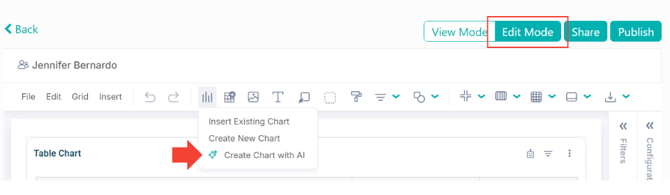
- Open your report and enter Edit Mode.
- Choose Insert Chart.
- Select Create Chart with AI.
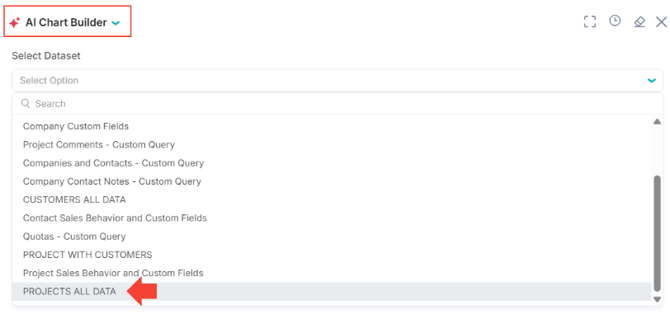
- Choose the dataset — for most project and pipeline questions, use PROJECTS ALL DATA.
- Type what you want to see.

- Review the chart, adjust your prompt if needed, then add it to your report and save.
Example prompts
- “Show total bid amount by sales status for this year”
- “Chart projects won by month for the last 12 months”
- “Top 10 companies by contract value in 2025”
- “Compare open bids vs awarded projects by office”
💡 Include the metric, how to group it, and a time range. Ask one clear question per prompt.
🔍 Step 3: Analyze a chart with Smart Analyzer
Use this when you already have a chart and want a quick explanation of trends, spikes, or drops.
- Open your report in Custom Reports.
- Select the chart you want to review.
- Open Smart Analyzer.
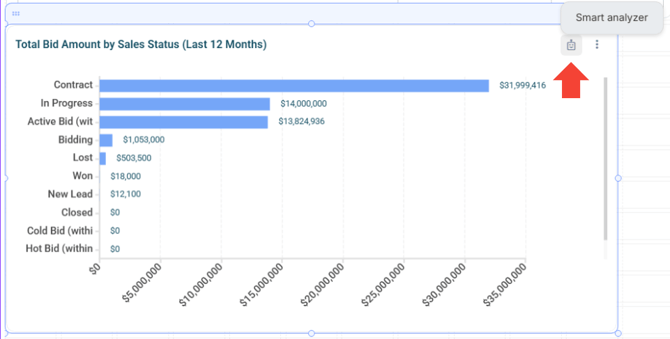
- Ask a specific question about that chart.
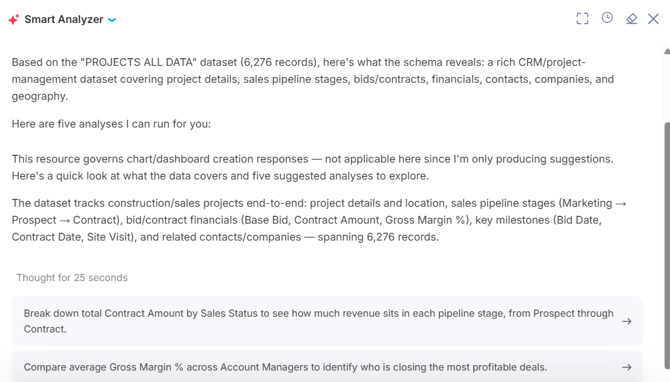
- Review the insight, then follow up with a narrower question if needed.
Example prompts
- “What are the main trends in this chart?”
- “Why did wins drop in Q3?”
- “Which office is driving most of the bid volume?”
- “Summarize this for a weekly pipeline meeting”
💡 Ask about what the chart already shows, and name the time period or segment you care about.
🧮 Step 4: Build a formula with AI
Use this when you need a calculated field — for example a rate, variance, or conditional value — rather than a new chart.
- Open your report in Custom Reports and enter Edit Mode.
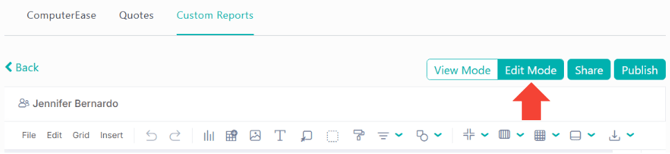
- Open Chart Builder → Formulas.

- Choose New Formula / Formula Builder AI.
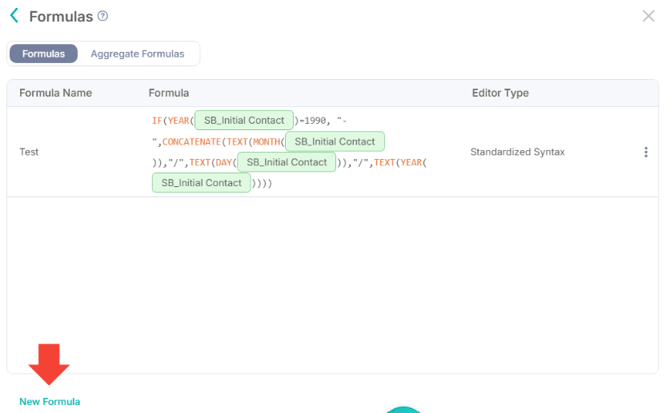
- Confirm you are on the right dataset (usually PROJECTS ALL DATA).
- Describe the calculation you need.
- Review the formula, apply it, then use it in a chart or table.
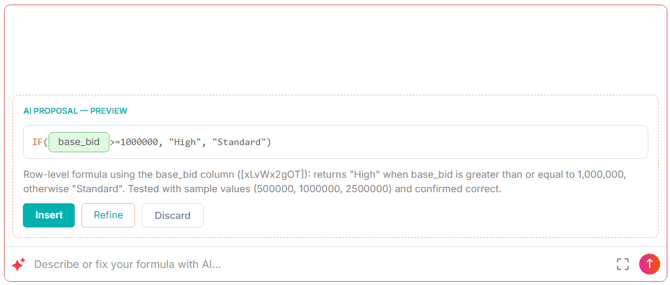
- Spot-check a few known projects, then save.
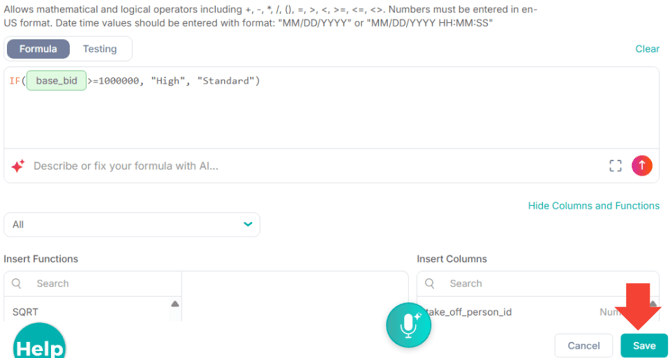
Example prompts
- “Create a win rate as won projects divided by total projects”
- “Calculate variance between bid amount and contract amount”
- “Flag projects where bid amount is greater than 1,000,000”
- “Return contract value only when status is Awarded; otherwise 0”
Note: This is different from formula options in FollowUp Settings for custom fields. Formula Builder AI here applies to Custom Reports only.
🧭 Which tool should I use?
| I want to… | Use |
|---|---|
| Build a new chart from a question | Create Chart with AI |
| Understand what an existing chart is showing | Smart Analyzer |
| Create a calculated metric or field | Formula Builder AI |
⚠️ Troubleshooting
| What you see | What to try |
|---|---|
| No Custom Reports tab | Ask your admin or CSM to confirm Custom Reports is enabled for your team |
| Can’t find AI options | Open the report in Edit Mode |
| Empty or odd chart | Switch to PROJECTS ALL DATA, loosen filters, and make the prompt more specific |
| Smart Analyzer feels vague | Ask a narrower question about a time period, office, or status |
| Formula looks wrong | Confirm the dataset and field names, then spot-check known records |
💡 Best practices
- 📊 Start in Reports → Custom Reports, then use Edit Mode for AI tools.
- 🗂️ Use PROJECTS ALL DATA for most project, bid, and pipeline questions.
- ✍️ Keep prompts specific: metric + group-by + time range or conditions.
- ✨ Use Create Chart with AI for new visuals; Smart Analyzer for explanations; Formula Builder AI for calculated fields.
- ✅ Always review AI output before sharing a report with your team.
- 🧮 Spot-check formula results against a few known projects.
✅ Result
You can open Custom Reports in FollowUp CRM, create charts with AI, analyze existing charts with Smart Analyzer, and build calculated fields with Formula Builder AI — using clear prompts and the right dataset for reliable results.
Happy Selling! 🎯